
Choose a list and review its fields
Use the Preview window to distinguish repeated lists from a single record and keep the columns you need.
Updated ·Clura 1.7.3
Before you start
- Quick Scrape has detected content on the current page.
Choose the right source
- 1
Compare list candidates
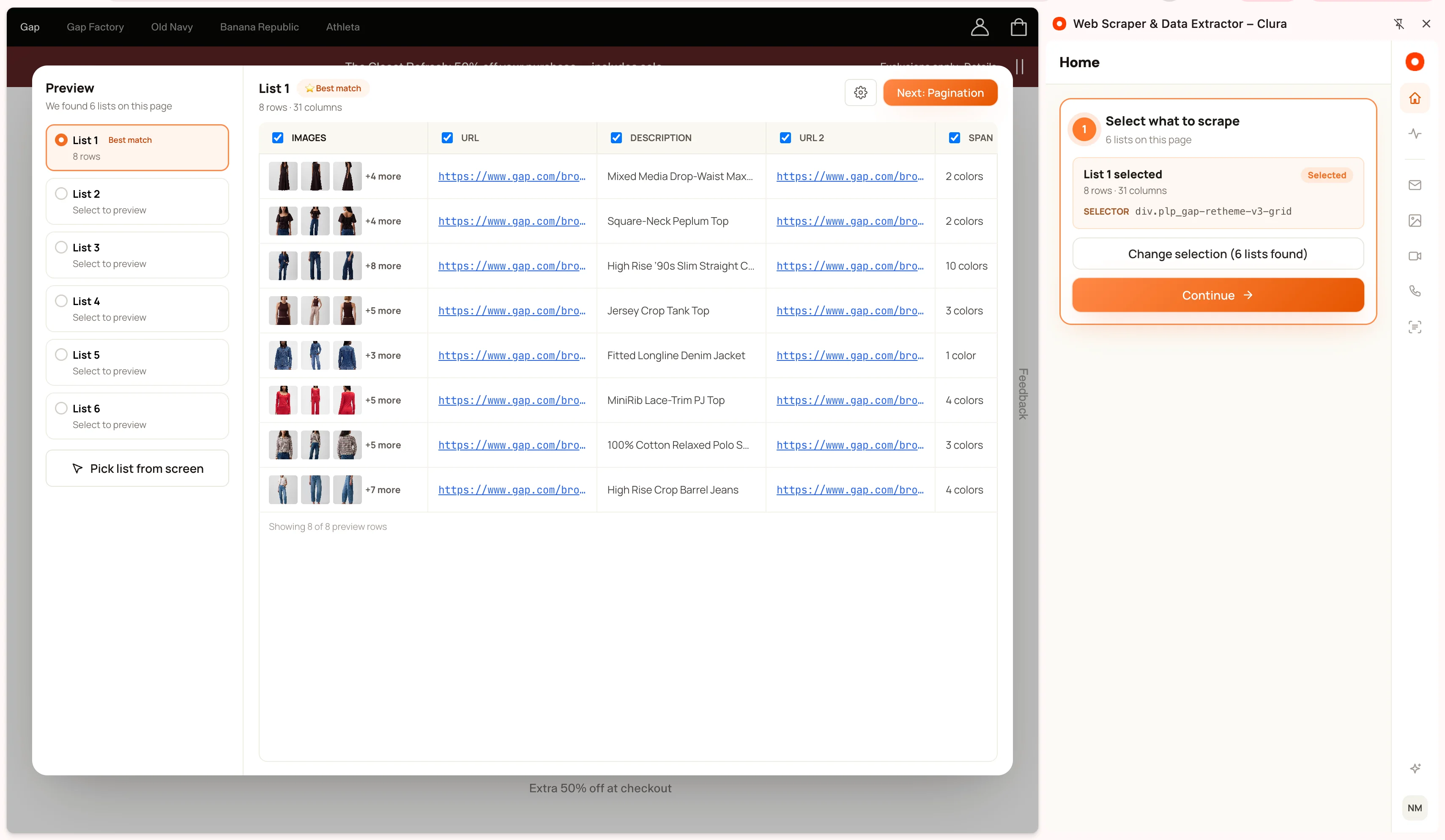
In Preview, select List 1 or another detected list. Best match is a suggestion; compare its sample records with the content you actually want.
- 2
Check This record when appropriate
If Clura identifies a detail page, This record represents the individual record rather than a list. Use it for one page’s data.
- 3
Inspect the sample values
Check that each row describes one record and that names, links, prices, and images belong together. A list with unrelated menus or repeated headers is the wrong source.
- 4
Confirm the preview
Use Next: Pagination in Quick Scrape, or Done when that is the confirmation shown, to return to the next step.
Keep useful fields
The preview includes cleaning controls for blank, duplicate, constant, and sparse columns. Keep meaningful fields even when they are blank in some records; hiding a sparse column can remove information you want later.
Include images controls whether image columns appear in the table and exports. Review that setting before expecting image URLs or an image ZIP.
When rows do not line up
Choose a different candidate or use the page picker to target the intended list. Do this before running through multiple pages: pagination repeats the same selection pattern, so an incorrect initial selection affects later records too.
Keep going
Still need a hand?
Contact support with the page URL, your extension version and what happened. Leave out private data.