
Find webpage images and download a ZIP
Preview detected images, open individual assets, and download the available files.
Updated ·Clura 1.7.3
Before you start
- A regular website page with loaded images.
Inspect the image list
- 1
Load the page images
Open the target page and allow its images to load. Scroll or reveal a gallery when the website loads assets only after an interaction.
- 2
Choose Image Extractor
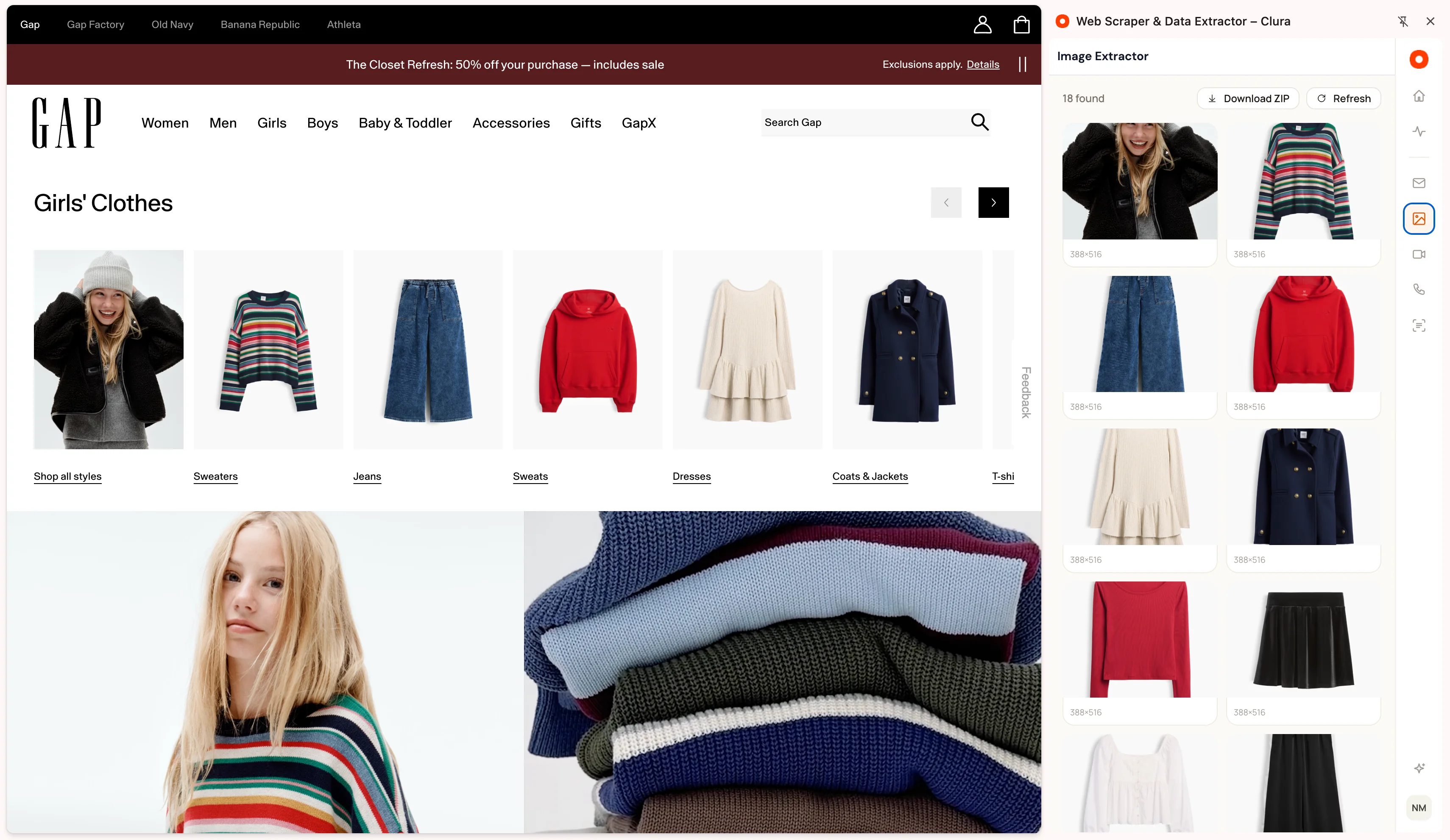
Use Image Extractor in the sidebar. Review the found count and thumbnail grid.
- 3
Open an image
Select a thumbnail to open its source in a new tab. Check the image, dimensions, and any displayed description before downloading.
- 4
Refresh after loading more
Choose Refresh to rescan the current page after new images appear.
Download available images
Download ZIP bundles the discovered image URLs it can fetch and shows progress. The download checks your account and export allowance. Keep the page available while the archive is prepared.
The extractor scans the current page; it does not automatically visit a whole website. To retain images alongside scraped records, enable Include images in the table cleaning settings and use the results image export.
If an image is missing or will not download
Confirm the website loaded the image, then refresh the extractor. A site can display a small thumbnail without exposing its original full-size asset.
A detected URL can fail to download if its host restricts access or the link has expired. Try opening the asset directly to check availability; a found count does not guarantee that all files can be fetched.
Keep going
Still need a hand?
Contact support with the page URL, your extension version and what happened. Leave out private data.