
Review, search, and edit a results table
Open the full results window, check captured values, and prepare a table for export.
Updated ·Clura 1.7.3
Before you start
- A scrape with saved results.
Open and inspect results
- 1
Open the results
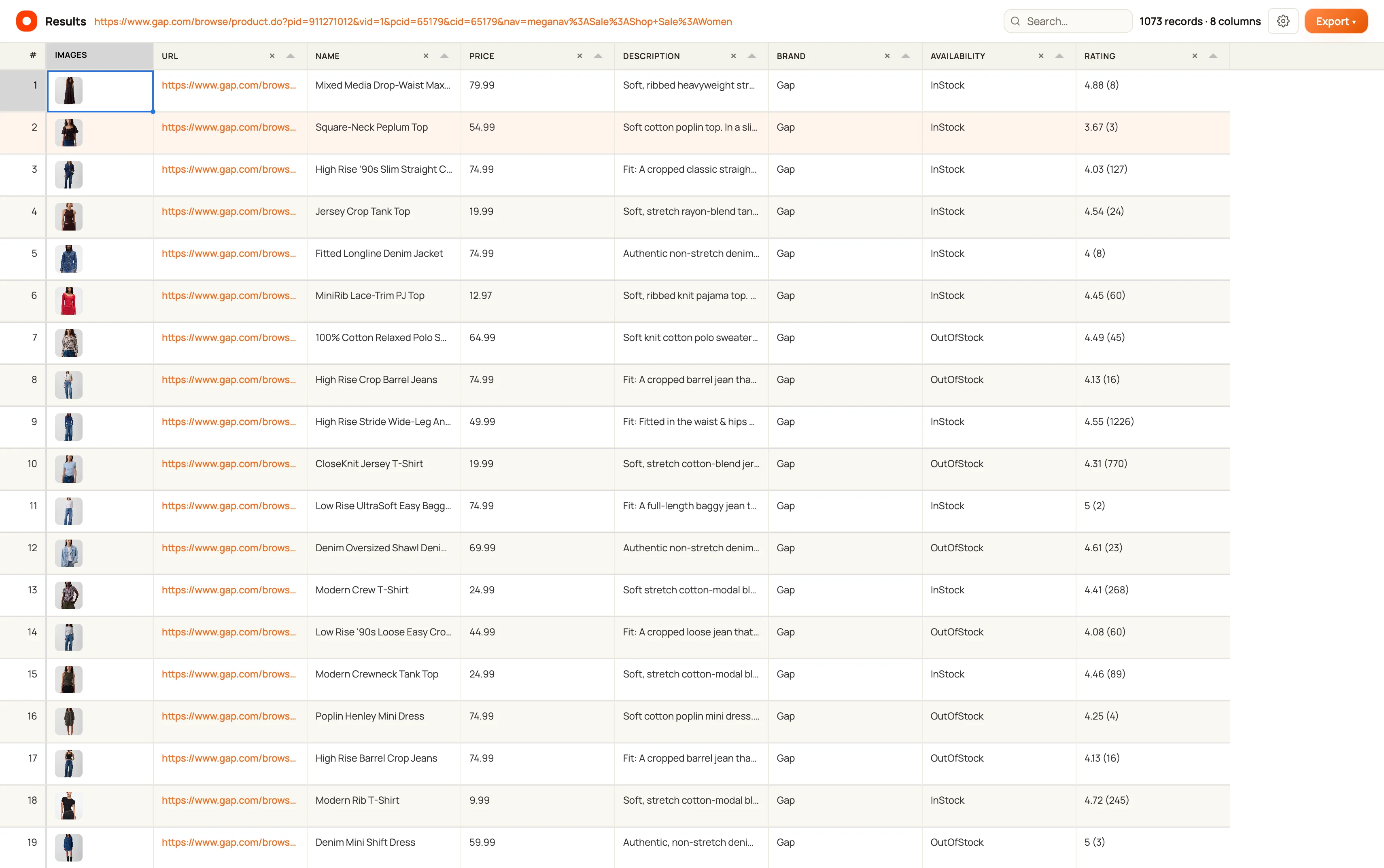
Select the results action from the completed scrape or Activity entry. Clura opens a separate Results window.
- 2
Search the table
Use Search to find a known record or value. Compare the displayed count with the total so you can see when you are looking at a filtered table.
- 3
Review source links and images
Open a source link to compare a row with the original page. Image columns can show previews; missing previews can also mean that the image host is unavailable.
- 4
Make corrections
Where editing is available, edit a cell or double-click a column header to rename it. Check that the change saves before downloading.
Work with columns carefully
The results table supports column changes such as splitting comma-separated values and removing columns. Split requires suitable values and cannot create names that conflict with existing columns.
Check your plan if a control displays an upgrade prompt. A visible control or older tooltip does not guarantee that every action is included in your account.
Verify the file you will use
Search and cleaning can affect the visible table. Check the table’s rows and columns immediately before exporting, then open the downloaded file and verify its header and a few records.
If a saved result cannot be found, return to Activity in the same Chrome profile. Clearing saved results removes their local table; a downloaded file remains on your computer.
Keep going
Still need a hand?
Contact support with the page URL, your extension version and what happened. Leave out private data.