
Scrape a list with Quick Scrape
Capture a product list, directory, search result, or another repeated set of records.
Updated ·Clura 1.7.3
Before you start
- A website page showing the records you want.
Prepare the page
Apply the website’s own search and filters first. Quick Scrape works from the page you have open, so the current list and loaded content determine the starting point. A preview is a sample to review before a full run.
Choose and start your list
- 1
Select Quick Scrape on Home
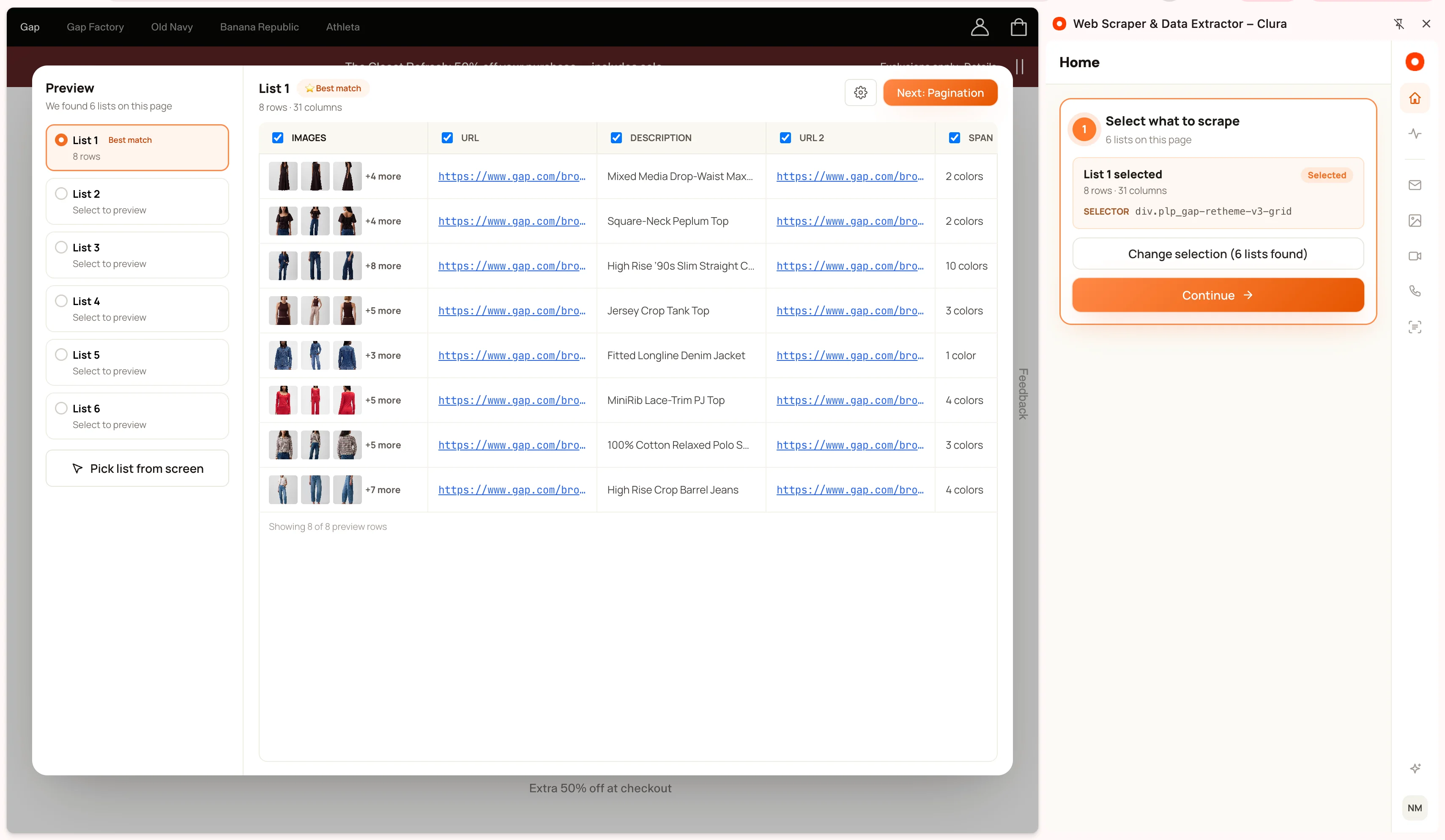
Wait for Finding lists to finish. Review Select what to scrape and the list candidates.
- 2
Review the preview
Choose the candidate with the intended records. Open the preview to compare columns and values. If a list is incorrect, pick the intended list on the page instead.
- 3
Confirm pagination
Choose Single Page, Next Button, Load More, or Infinite Scroll to match the website. Use Pick for the exact navigation button when needed.
- 4
Start scraping
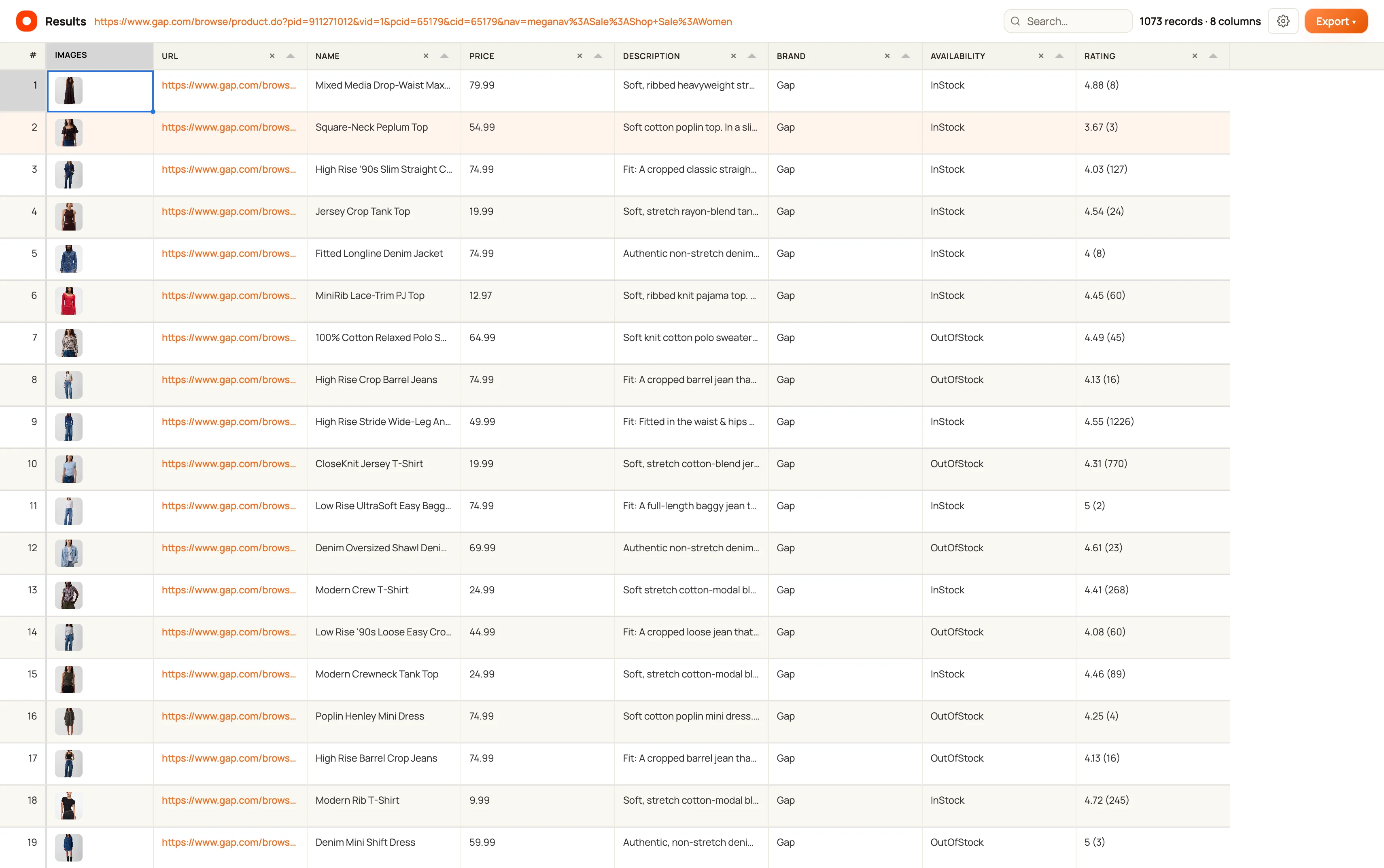
Select Start scraping. Keep the source tab available while Clura collects records, then open the results to review the table.
Check the output
Compare a few source records with the table before exporting. A product title, price, or link in the wrong column usually means the wrong list or container was selected; return to setup and compare the other candidates.
If no list is found, wait for the content to load, refresh the website, and start Quick Scrape again. Use a page with a clearly visible set of repeated records.
Keep going
Still need a hand?
Contact support with the page URL, your extension version and what happened. Leave out private data.