
Extract fields from many Page URLs
Use Bulk extract page data (Beta) to collect consistent fields from a set of detail pages.
Updated ·Clura 1.7.3
Before you start
- An open website tab that Clura can use for page navigation.
- Page URLs from a previous scrape, CSV, or the current site’s sitemap.
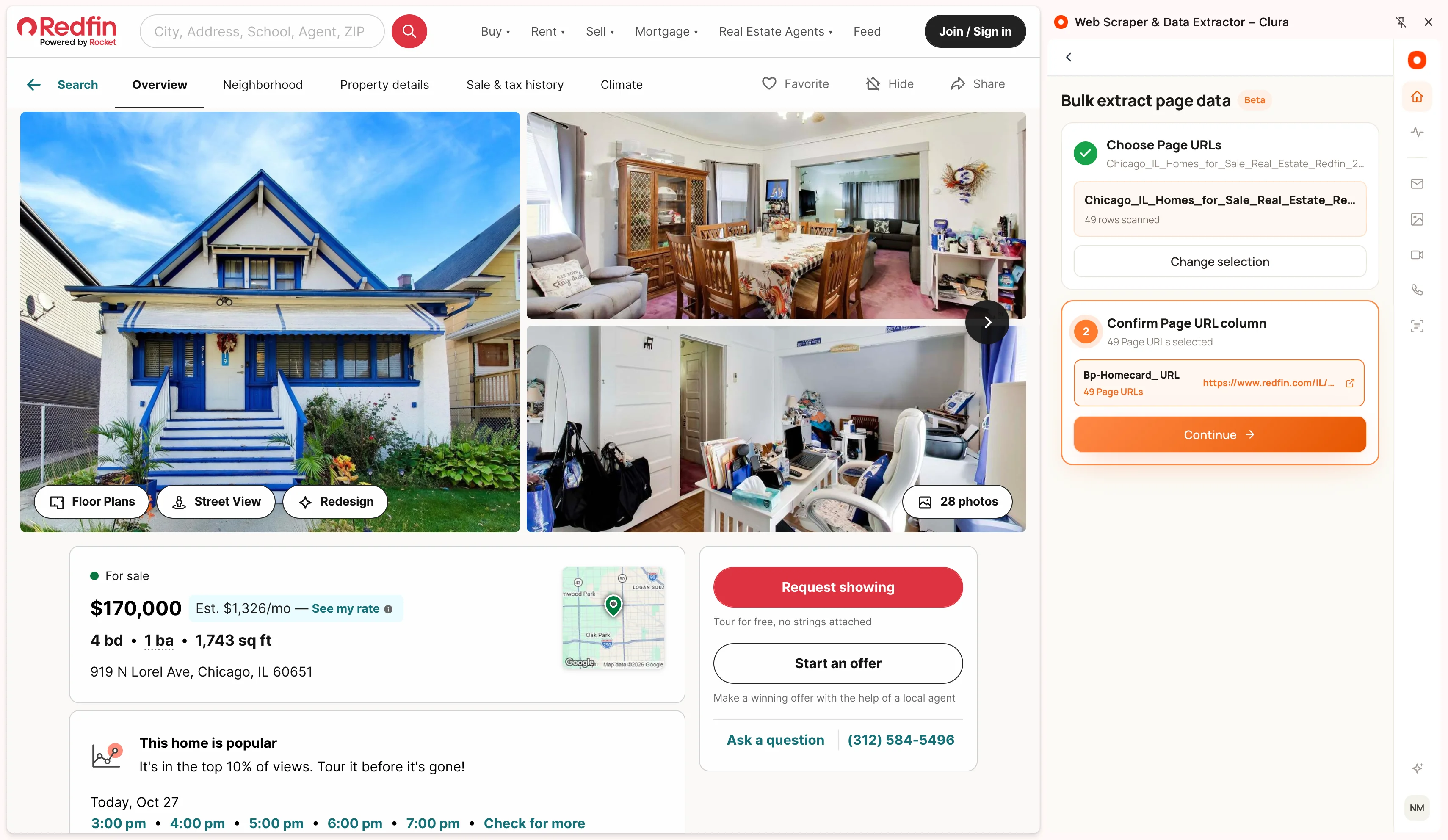
Choose your Page URLs
- 1
Open Bulk extract page data
From Home, start the Beta bulk extraction flow.
- 2
Choose a source
Use Previous scrape, Upload CSV, or Current site sitemap. Select the URL column and compare its sample URL with the pages you intend to visit.
- 3
Review normalized URLs
Confirm the accepted URL count and any removed duplicates or invalid values. The released source normalizer caps a run at 10,000 unique Page URLs.
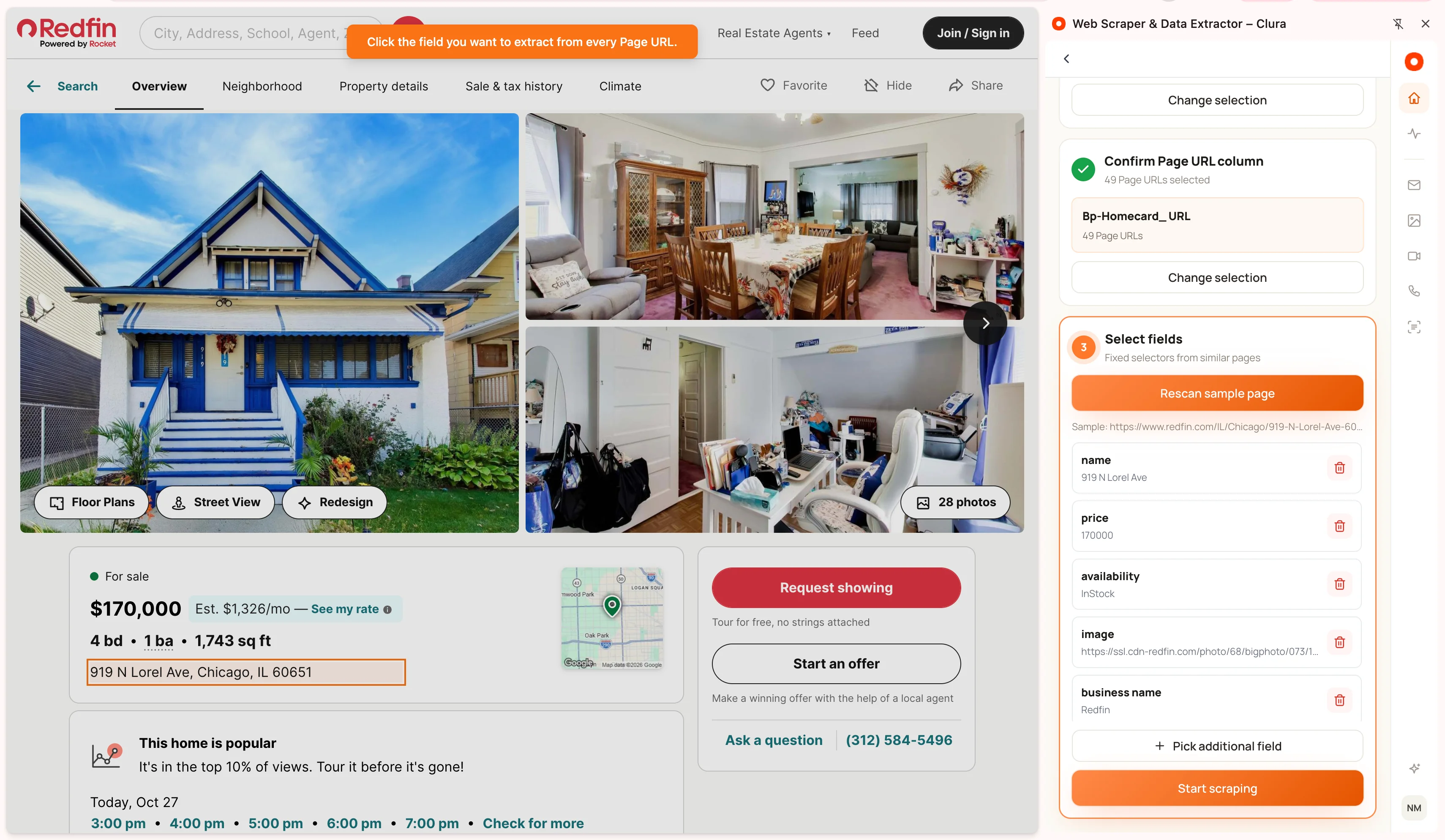
Set up fields on the sample page
- 1
Scan a sample
Clura navigates the active website tab to the first selected Page URL. Let the sample load before reviewing detected fields.
- 2
Review and adjust fields
Check sample values and field labels. Pick an additional field on the page when the automatic selection missed it. The same field pattern will be used on the other URLs.
- 3
Start extraction
Keep that tab available as Clura visits the URLs. Watch progress and use Stop if the field selection or source is wrong.
Review partial and final output
Open the run’s results to check successful values and pages that did not yield the expected data. Pages with different layouts may need separate runs with their own sample fields.
The 10,000-URL cap is an input limit, not a guarantee that every website or page will finish successfully. Start with a small, consistent set and check the output before attempting a larger run.
Keep going
Still need a hand?
Contact support with the page URL, your extension version and what happened. Leave out private data.