
Scrape next pages, load-more lists, and infinite scroll
Choose the pagination mode that matches the page and identify the correct navigation control.
Updated ·Clura 1.7.3
Before you start
- A confirmed list preview.
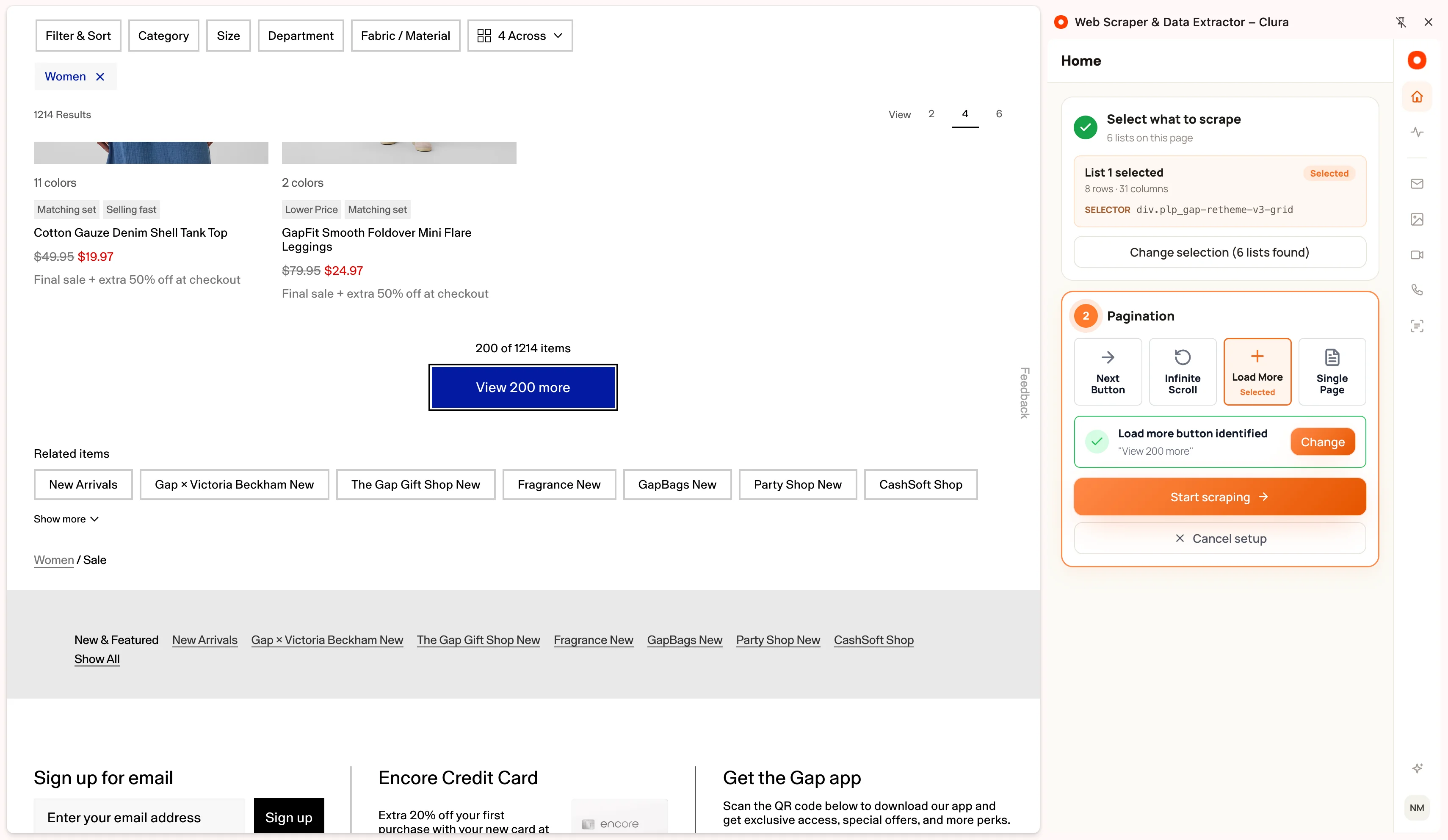
Choose how the website reveals more records
- Single Page collects the selected list without navigating to another page.
- Next Button follows a page-by-page control such as Next or an arrow.
- Load More clicks a button that appends additional records to the current list.
- Infinite Scroll scrolls to load more rows and stops when no more rows load.
Configure pagination
- 1
Inspect the website
Check whether the list changes pages, grows after a button click, or loads when you scroll. Choose that mode under Pagination.
- 2
Pick the exact button
For Next Button or Load More, use Pick and select the website control. Check the identified button text. Use Change if Clura chose a different control.
- 3
Start and watch the first transition
Select Start scraping and check that record counts increase after the page change or load-more action. If the wrong content loads, stop the run and correct the selection.
If collection stops early
Check whether the next control is disabled, a login dialog appeared, or the website is displaying a challenge. Clura cannot collect records the website has not made available.
A list may temporarily stop growing while a website loads. Review the stop message and the rows already captured before retrying. For a reliable comparison, test the same page with Single Page first, then add pagination.
Keep going
Still need a hand?
Contact support with the page URL, your extension version and what happened. Leave out private data.