
Upload a CSV of Page URLs
Prepare a CSV source, select its link column, and avoid importing the wrong URLs.
Updated ·Clura 1.7.3
Before you start
- A CSV file with a header row and HTTP or HTTPS page URLs.
Prepare the file
Put one Page URL in each row of a clearly named column, for example Page URL. Use full website addresses so the file identifies actual detail pages without depending on a base URL.
You can retain other columns for context, but the selected Page URL column supplies the pages for this run. Download a CSV from your spreadsheet application rather than renaming an Excel file’s extension.
Upload and check the source
- 1
Choose Upload CSV
In Bulk extract page data, choose Upload CSV and select the file.
- 2
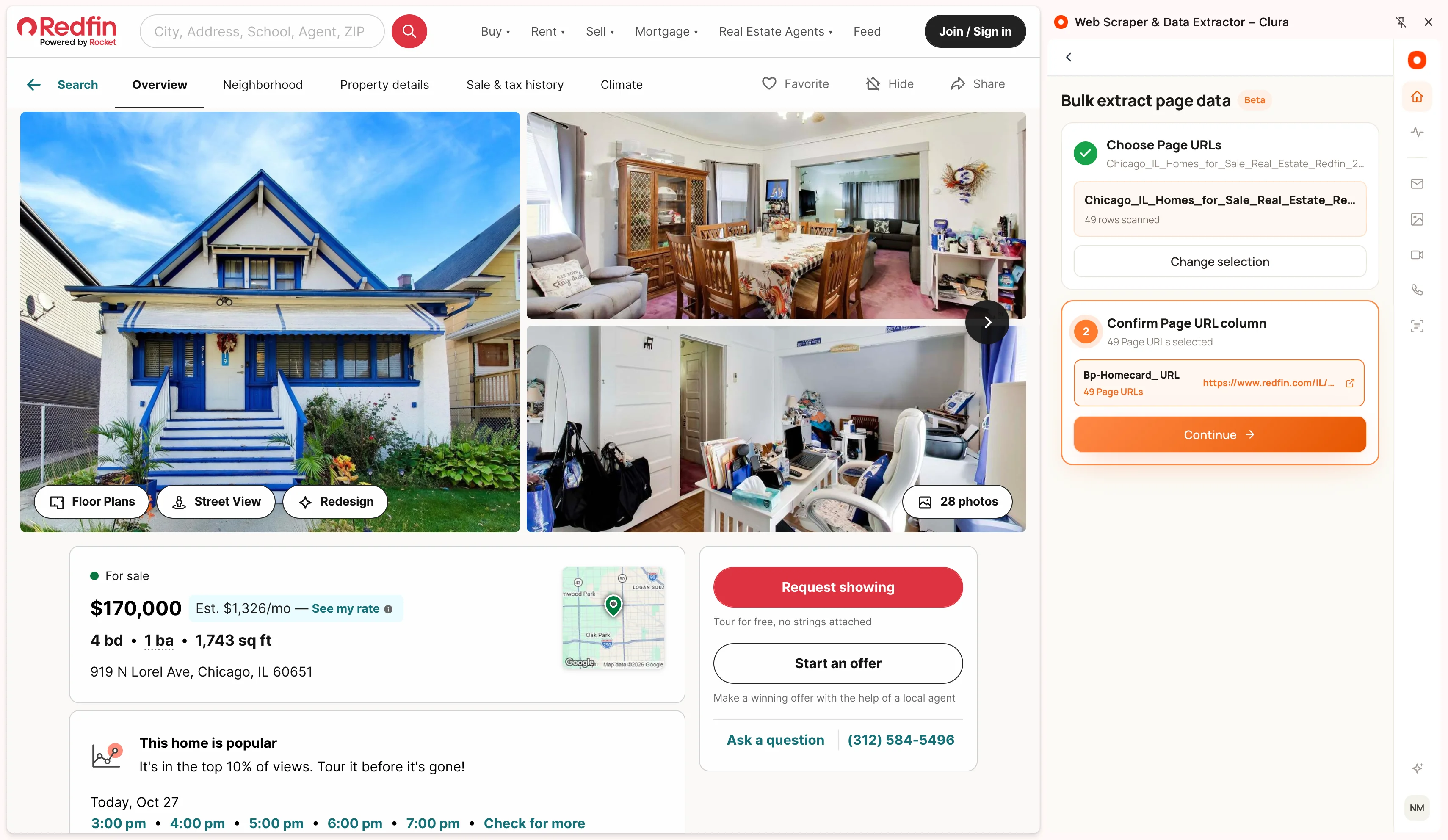
Confirm the URL column
Compare each candidate’s label, URL count, and sample link. Select the column leading to the intended product or detail pages.
- 3
Review the accepted URLs
Invalid values and duplicate URLs reduce the count; up to 10,000 unique Page URLs are accepted.
- 4
Configure a representative sample
Review fields on the first accepted URL. Split pages with different layouts into separate files and runs for more consistent field selection.
If the CSV is rejected
No Page URL column was found in that CSV means Clura could not identify a usable URL column. Check that the file contains data rows, a header, and complete HTTP or HTTPS URLs.
If the count is unexpectedly low, look for blank cells, duplicate addresses, image links, and malformed values. Correct the source file and upload it again before starting extraction.
Keep going
Still need a hand?
Contact support with the page URL, your extension version and what happened. Leave out private data.