
Export data to CSV or Excel and images to ZIP
Download the table you reviewed, or save its available image assets.
Updated ·Clura 1.7.3
Before you start
- A results table open.
- An account and available export allowance when prompted.
Download your results
- 1
Finish reviewing
Check the columns, cleaning settings, and visible records. Wait for the run to finish if you want its final output.
- 2
Choose Export
Select Export data › CSV for a text-based spreadsheet file or Export data › Excel for an Excel workbook.
- 3
Complete the account check
Sign in if prompted. If your free export is on cooldown, use the displayed time to see when another free export becomes available.
- 4
Open the saved file
Check the record count, headers, links, and non-English text in your spreadsheet application before using it downstream.
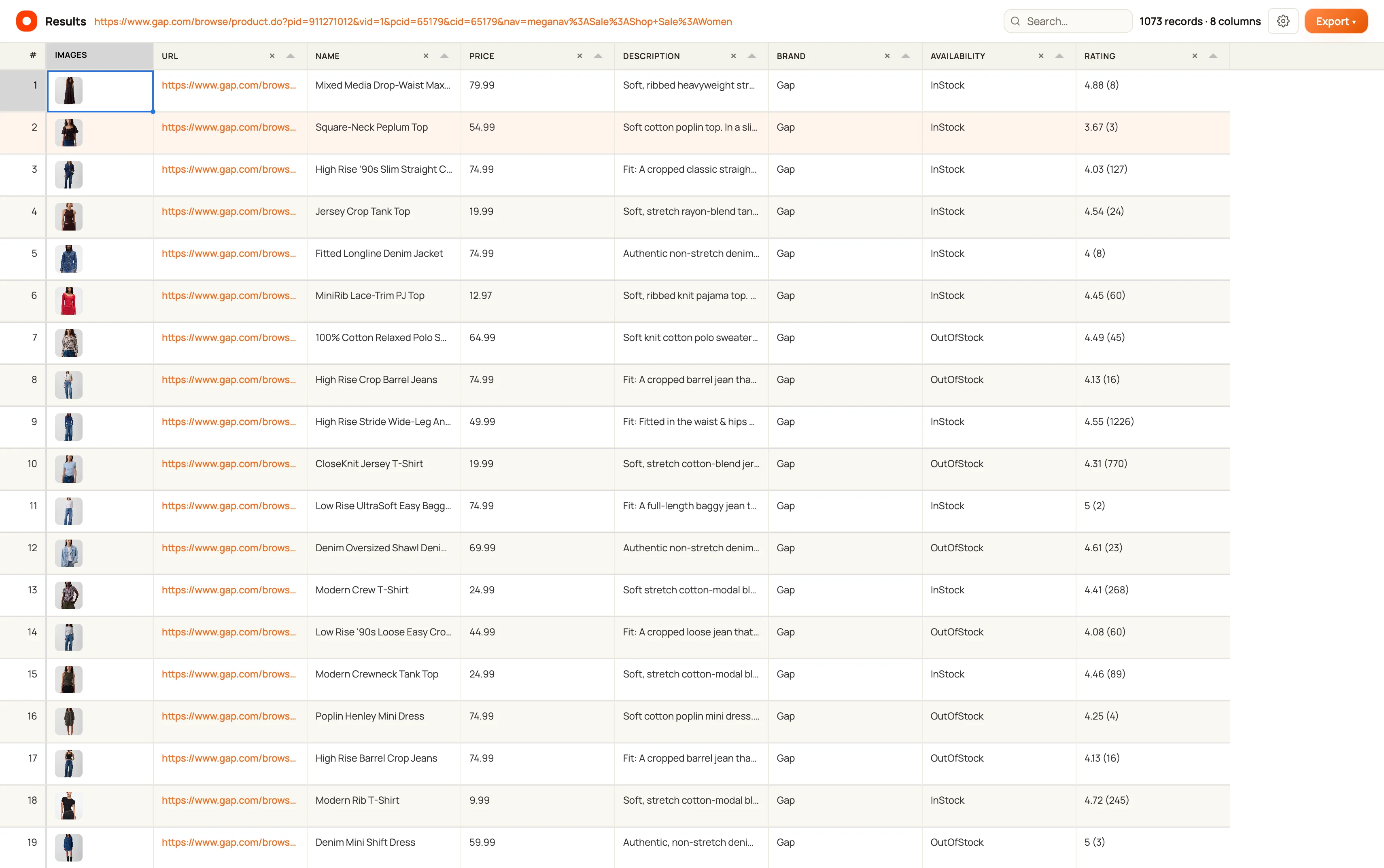
Export table images
Use Export images › ZIP when image columns are available. Keep Include images enabled in cleaning settings so those columns remain in the export source.
Image downloading shows progress and can be cancelled. An image URL can appear in the table while its host refuses the download; inspect incomplete downloads rather than assuming every image was saved.
Send results to another app
Export › Send to connectors opens the connector workflow for eligible accounts. Choose an authorized connector, destination, and field mapping before sending. Google Sheets is marked coming soon in the released connector picker.
Keep going
Still need a hand?
Contact support with the page URL, your extension version and what happened. Leave out private data.