
LinkedIn Sales Navigator Scraper: Export Lead Lists Without Evaboot
LinkedIn Sales Navigator gives you the best B2B filters available — seniority, company size, department, years in role. You run a search, you get exactly the decision-makers you want. Then you try to export those results, and LinkedIn stops you.
The native CSV export is locked behind a separate LinkedIn contract. Most teams end up paying for Evaboot ($29–79/mo) or PhantomBuster ($56+/mo) just to get their own search results out — on top of the Sales Navigator subscription they're already paying for.
There's a simpler path. Clura is a free Chrome extension that reads whatever is on your screen — including Sales Navigator search results and saved lead lists — and exports them to CSV or Excel in minutes. No extra subscription. No API. No setup.
Export Sales Navigator leads — free, no extra subscription
Clura works on LinkedIn Sales Navigator search results and saved lists. Install free, open your search, export leads to CSV in under 5 minutes.
Add to Chrome — Free →Why LinkedIn Won't Let You Export Sales Navigator Leads
LinkedIn Sales Navigator has no built-in CSV export for search results. The native export is limited to saved lists and requires a LinkedIn Enterprise contract. Most users end up paying for a third-party tool just to download the leads they already paid to find.
Sales Navigator is a paid upgrade — $99–$169/month depending on your plan. You would expect it to include a simple way to export your search results to Excel. It doesn't, at least not without a catch.
- Search results: no direct export available. You can save leads to a list, but that still doesn't give you a CSV.
- Saved lead lists: LinkedIn offers a limited export, but it's restricted and often requires a LinkedIn Enterprise agreement.
- Account lists: same story — export is either unavailable or gated behind enterprise pricing.
The result: thousands of B2B teams pay for Sales Navigator to find leads, then pay again for a tool like Evaboot or PhantomBuster to export those leads. Clura eliminates the second cost entirely.
How to Export Leads From LinkedIn Sales Navigator (Step-by-Step)
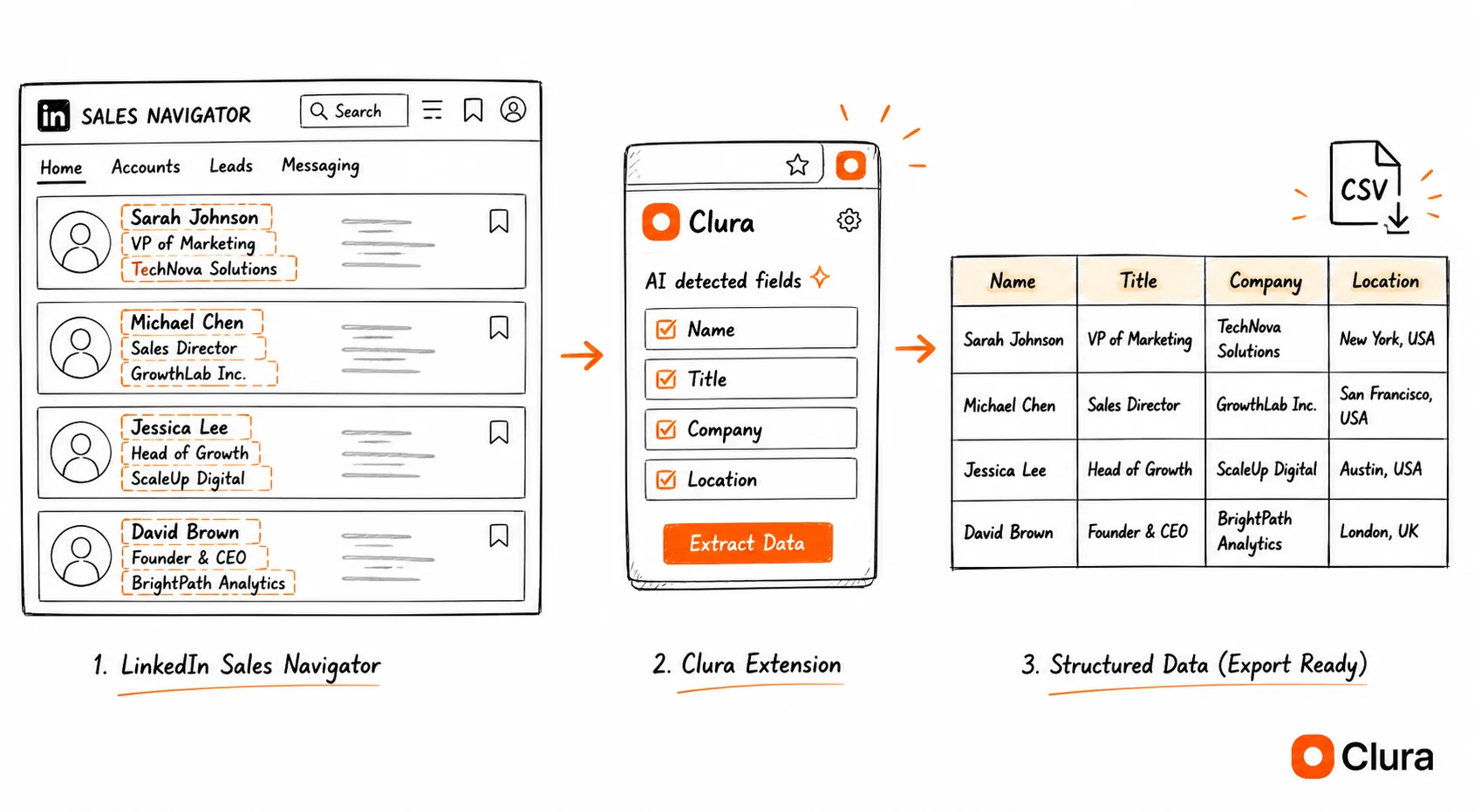
To export leads from Sales Navigator with Clura: run your filtered search, scroll to load results, open the Clura Chrome extension, describe the fields you want, and download the CSV. The whole process takes under 10 minutes.
Clura runs inside your Chrome browser and reads whatever is visible on the page — including Sales Navigator search results. Since you're already logged in with an active Sales Nav subscription, Clura sees everything you see.
- Run your Sales Navigator search. Apply your filters — job title, seniority, company size, geography, industry, years in role. Sales Navigator returns a ranked lead list matching your criteria.
- Scroll to load results. Sales Navigator loads profiles incrementally as you scroll. Scroll down to load as many results as you want to export — 50, 100, 200+.
- Open Clura. Click the Clura icon in your Chrome toolbar. It opens as a side panel alongside your Sales Navigator tab.
- Describe what you need. Type in plain English: "export name, job title, company, and LinkedIn URL from each lead." Clura's AI identifies the correct fields automatically from the page.
- Run the extraction. Clura reads every visible lead card and pulls the data into a clean structured table.
- Download or sync. One click. One row per lead, ready for your CRM, outreach tool, Enrichment, or Connectors workflow.
Exporting 100 Sales Navigator leads with Clura takes about 5 minutes. The same list takes 3–4 hours to compile manually.
Evaboot Alternative: Do You Actually Need a Paid Export Tool?
Evaboot is the most popular Sales Navigator export tool — but it costs $29–79/month on top of your Sales Nav subscription and only works on Sales Navigator. Clura is free, works on Sales Navigator and every other website, and exports the same core lead data.
Evaboot and PhantomBuster dominate the Sales Navigator export space. Both are legitimate tools, but they come with real tradeoffs worth understanding before you sign up.
| Tool | Cost | Works on Sales Nav | Works on Other Sites | Email Finding | Setup |
|---|---|---|---|---|---|
| Clura | Free | Yes | Yes — any website | No (pair with Clay/Apollo) | Install Chrome extension |
| Evaboot | $29–$79/mo | Yes (Sales Nav only) | No | Yes (built-in) | Connect LinkedIn account, configure |
| PhantomBuster | $56+/mo | Yes | Limited | Yes (via integrations) | API setup, phantom configuration |
Evaboot's main advantage over Clura is built-in email finding — it enriches leads with email addresses as it exports. If email enrichment at scale is your primary goal, Evaboot earns its cost.
If your goal is to export structured lead data — names, titles, companies, LinkedIn URLs — and bring it into your existing CRM or outreach tool, Clura does that for free. On paid plans, you can use Enrichment and Connectors to complete missing fields and move the list into downstream tools.
The other difference: Clura works on every lead source, not just Sales Navigator. Google Maps, Yelp, Crunchbase, company websites — the same extension handles your entire lead sourcing workflow.
What Data You Can Export From Sales Navigator
From a Sales Navigator search, you can export full name, current job title, company name, location, and LinkedIn profile URL. Fields not shown in the search result card — like email addresses — require a separate enrichment step.
Sales Navigator search results display a profile card for each lead. Clura exports the fields visible in those cards:
- Full name
- Current job title
- Current company
- Location (city or region)
- LinkedIn profile URL
- Connection degree (1st, 2nd, 3rd)
- Company size (where shown in the card)
Email addresses and direct phone numbers are not shown in Sales Navigator search results — they're not on the page, so they can't be exported from this view. For email enrichment, export the LinkedIn profile URLs first, then run them through an enrichment tool like Clay, Apollo, or Hunter — see the full comparison for match rates and pricing.
For a full overview of lead sources beyond LinkedIn — Google Maps, Yelp, industry directories, company websites — see the lead scraper guide.
How to Export a Sales Navigator List to Excel or CSV
Clura exports Sales Navigator leads directly to CSV or Excel with one click. The output is one row per lead with clean column headers — ready to open in Excel, import into a CRM, or feed into an outreach sequence.
Once Clura has extracted the leads from your Sales Navigator search, the export step is straightforward:
- Click the Export button in the Clura side panel
- Choose CSV or Excel (.xlsx)
- File downloads instantly — one row per lead, one column per field
The exported file works directly with:
- Excel and Google Sheets — open immediately, no reformatting needed
- HubSpot, Salesforce, Pipedrive — CSV import matches standard field names
- Apollo, Outreach, Lemlist — paste the LinkedIn URL column for enrichment or sequencing
- Clay — feed the LinkedIn URL column into a Clay table for email finding and enrichment
If you have a saved lead list in Sales Navigator (rather than a live search), the workflow is the same — navigate to the saved list, scroll to load all results, then run Clura.
Tips for Exporting Sales Navigator Leads Without Triggering Limits
Clura operates inside your browser at human-like speeds — fundamentally different from bot-based scrapers. That said, some best practices keep your Sales Navigator account safe when exporting at scale.
- Work in reasonable batch sizes. Export 100–200 leads per session rather than thousands in one continuous run. Pace it like normal browsing.
- Use specific filters first. Narrow your search before exporting — by geography, seniority, or industry. Specific searches produce better-quality leads and smaller batches.
- Vary your sessions. Run a few searches over the course of a workday rather than one massive export session.
- Don't run exports non-stop. Clura is human-speed but extended non-stop usage on any platform can trigger rate limits. Take breaks between large exports.
The same principles apply to scraping standard LinkedIn profiles — human-speed, session-based extraction is the safest approach across all LinkedIn products.
Frequently Asked Questions
Can I export leads from LinkedIn Sales Navigator for free?
Yes. Clura is a free Chrome extension that exports Sales Navigator search results to CSV or Excel. You only need your existing Sales Navigator subscription — no additional monthly fee.
What is the best free Evaboot alternative for Sales Navigator?
Clura is the closest free alternative for exporting Sales Navigator leads. It exports name, title, company, location, and LinkedIn URL from any Sales Navigator search. The main difference: Clura doesn't include built-in email finding (Evaboot does). If you only need structured lead export without enrichment, Clura does it for free.
How do I export a Sales Navigator list to Excel?
Open your Sales Navigator search or saved list, scroll to load the results you want, then open Clura. Describe the fields you need, run the extraction, and click Export → Excel. You get a .xlsx file with one row per lead, ready to open immediately.
Does a LinkedIn Sales Navigator scraper work on saved lists?
Yes. Clura works on any page you can see in Chrome — including saved lead lists and saved account lists in Sales Navigator. Navigate to the saved list, scroll to load the leads, and run Clura the same way you would on a search results page.
Is there a LinkedIn Sales Navigator Chrome extension for exporting leads?
Yes — Clura is a Chrome extension that works directly on Sales Navigator pages. It reads the page inside your browser session, so it captures exactly what you see without requiring any LinkedIn API access or separate account connection.
Can I export Sales Navigator leads to Salesforce or HubSpot?
Yes. Export from Clura as CSV, then import into Salesforce, HubSpot, Pipedrive, or any CRM that accepts CSV uploads. Paid users can also use Connectors to send scraped lead data into downstream tools without manual file handling.
Conclusion
Exporting leads from LinkedIn Sales Navigator shouldn't cost you an extra $29–79/month on top of what you're already paying for Sales Navigator. Clura is a free Chrome extension that reads your Sales Navigator search results and exports them to CSV or Excel in under 10 minutes.
The workflow is straightforward: run your search, scroll to load results, open Clura, describe the fields, export. No API setup. No phantom configuration. No additional LinkedIn account connection.
If you need enrichment or direct delivery on top of the exported leads, Clura's paid plan includes Enrichment and Connectors so the same workflow can move from scrape to usable outreach data.
Explore related guides:
- Best LinkedIn Scraping Tools — all LinkedIn scraping approaches ranked — Chrome extensions, Playwright, Phantombuster, Wiza — with block rates and costs
- Get Contact Info From LinkedIn Without Connection — 4 methods to get emails and contact data from LinkedIn without being connected — including free options
- LinkedIn Scraper — scrape standard LinkedIn search results and build lead lists with a Chrome extension
- Lead Scraper Guide — export leads from Google Maps, directories, Yelp, and other sources beyond LinkedIn
- Web Scraping for Lead Generation — the complete guide to building prospect lists with web scraping
- Apollo Scraper Guide — extract visible Apollo lead and company data when you need live prospect lists beyond LinkedIn
- Apollo.io Leads Scraper Template — prebuilt Apollo workflow for exporting lead lists from pages you can access in Chrome
Export your Sales Navigator leads to Excel — free
Clura works on LinkedIn Sales Navigator search results and saved lists. No extra subscription, no API setup. Install free and export your first lead list in under 5 minutes.
Add to Chrome — Free →