
AliExpress Scraper: Compare Products in Excel
Ecommerce operators comparing products on AliExpress need a shortlist they can sort, annotate, and share. Copying each title, price, image, and link by hand makes that work repetitive. An AliExpress scraper turns the product listings you are reviewing into rows: choose a category or search, run Quick Scrape, review the fields and pagination, and export to Excel or CSV.
Use AliExpress product data to compare listing prices, group similar items, and keep promising products connected to their source pages. Clura brings the product preview and extraction table into your browser so you can organize sourcing research before deciding which listings deserve a closer look. The ecommerce data extraction guide covers the broader product research workflow.
Build an AliExpress sourcing shortlist
Preview the products in your search, keep useful fields, and export a spreadsheet for product and price comparisons.
Add to Chrome — Compare AliExpress Products →What Can You Do With an AliExpress Scraper?
An AliExpress scraper collects repeated product listings into a table for product research and sourcing comparisons. Keep product titles, displayed prices, images, and listing URLs together, then group similar products in your spreadsheet. Add your own review notes and priorities so the export becomes a shortlist you can use to compare options and revisit the original product pages.
| Research task | Fields to keep | How to use the sheet |
|---|---|---|
| Product shortlist | Title, product URL, image | Add a priority and next action for each listing. |
| Price comparison | Displayed price, currency, promotion text | Group comparable products under the same price conditions. |
| Category research | Query, category, product title | Compare the types of products returned by each search. |
| Team review | Source link, notes, capture date | Share a traceable list of products to inspect. |
Start with a specific research question. Comparing compact heaters is different from reviewing an entire appliances category. Narrow the search or filters before collecting records so the resulting rows are useful together. Keep accessories and complete products in separate groups when they appear in the same results.
For marketplace listing research on another source, the Etsy scraper guide shows a separate product-card workflow. For a manufacturer or wholesale supplier directory, use the Alibaba supplier listings template; AliExpress product listings and Alibaba supplier records are different datasets.
How Do You Scrape AliExpress Products Without Code?
Open an AliExpress category or search results page in Chrome and let the product cards load. Launch Clura and select Quick Scrape, review the detected product list and fields, then check pagination before starting. Clura extracts the selected records into a live table. Export the reviewed results to CSV or Excel to filter listings and build your sourcing shortlist.
- Choose the products to compare. Open a category or search, choose the destination and currency you want to research, and apply relevant filters.
- Open Quick Scrape. Launch the Clura Chrome extension on the loaded results page.
- Review the detected list. Select the repeated product cards and check that the title, image, price, and URL belong to the same item.
- Keep useful fields. Select the columns you need and remove repeated or unrelated fields from the preview.
- Review pagination. Continue, check the automatically detected result-loading behavior, and start scraping.
- Watch and export. Review incoming rows in the live table, then export the product list.
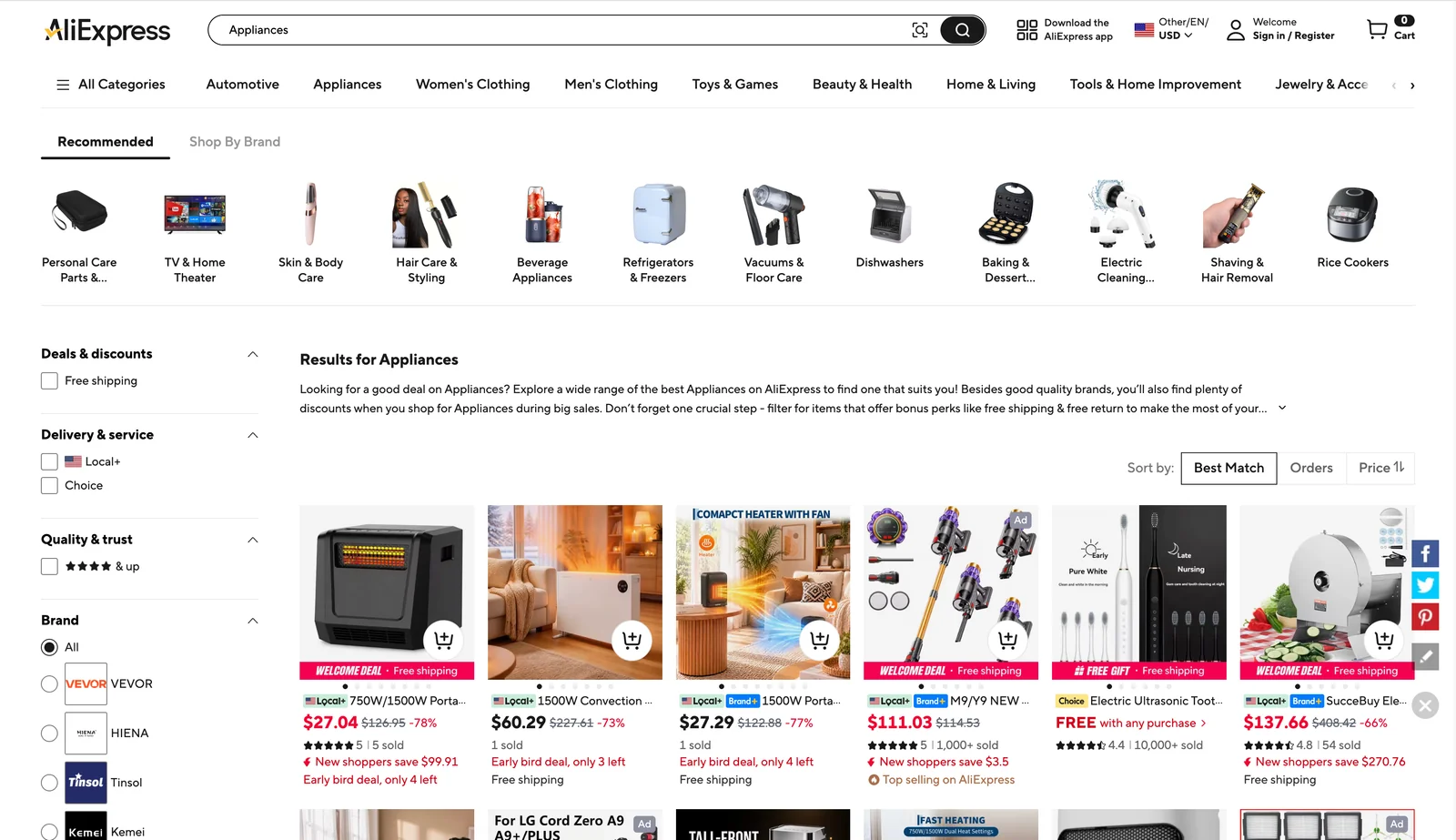
The example uses Appliances, but the workflow starts from the product list you choose. Select the actual product cards rather than the category icons or navigation links above them. Compare a few preview rows with the visible cards before running the collection. See Quick Scrape for the list-selection workflow.
Turn AliExpress product cards into a comparison sheet
Select the listing fields you need, review the preview, and collect product rows with source links.
Add to Chrome — Preview AliExpress Data →What Product Data Can You Extract From AliExpress?
AliExpress product cards can display names, prices, images, product links, ratings, sales labels, and promotional text. Review the fields on your selected page and keep each useful value in its own column. The demo results show product titles, source URLs, and multiple images; use the preview to confirm the price and other fields you want before exporting your research.
| Field | What to check | Research use |
|---|---|---|
| Product title | A heater, vacuum, or other product name | Group equivalent items and separate accessories. |
| Product URL | The link to the same product as the title | Revisit details and review duplicate rows. |
| Product images | Product thumbnails rather than category artwork | Build a visual shortlist. |
| Displayed price | Amount and currency on the selected card | Compare listings under matching conditions. |
| Rating or sales text | The displayed value and its label | Keep marketplace context beside the product. |
| Promotion or shipping label | Welcome deal, free shipping, or other text | Explain the conditions attached to a displayed offer. |
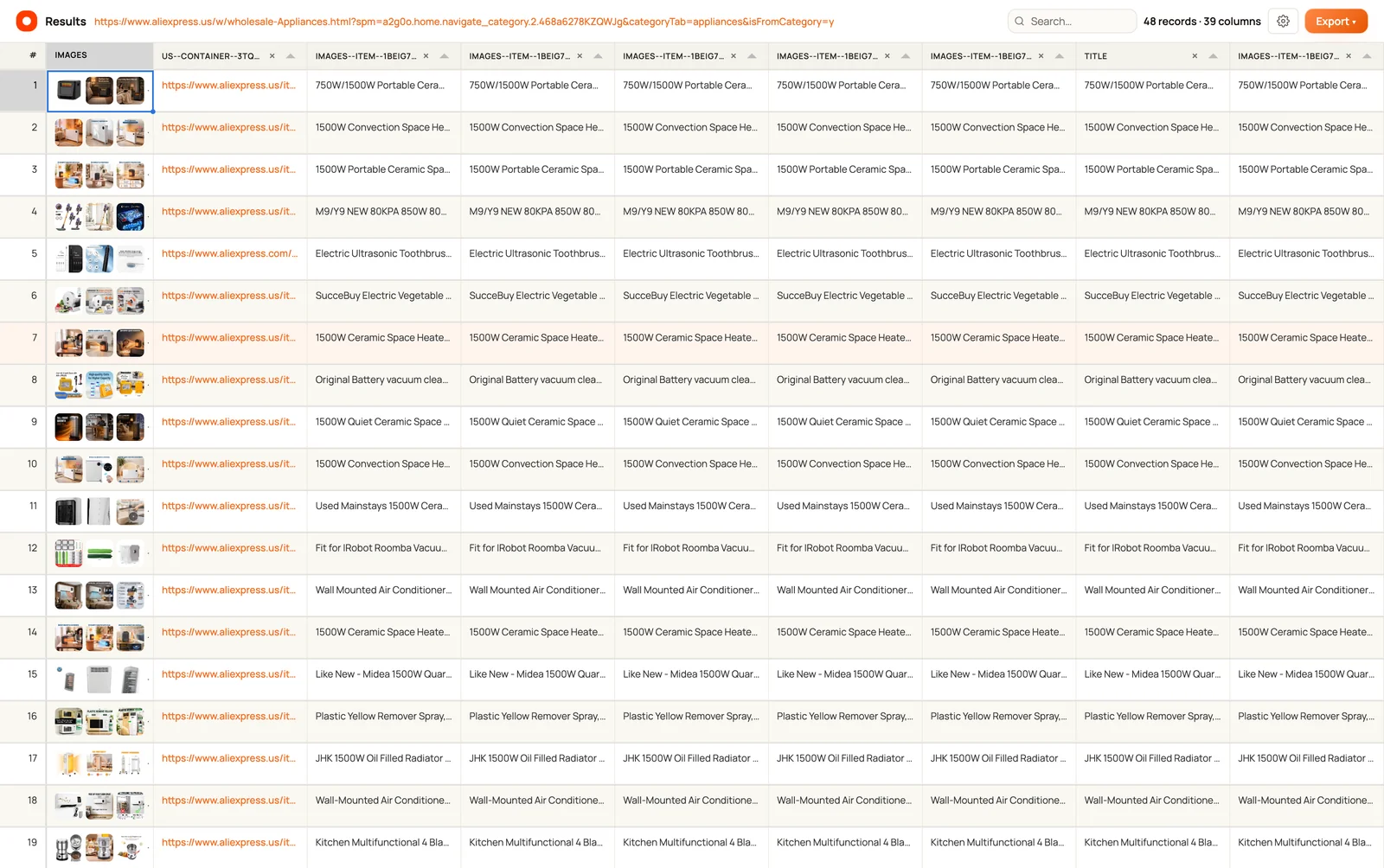
The results screenshot shows 48 records and 39 detected columns. Several visible columns repeat a product title across nested card elements. Keep one useful title column, one product URL, the image fields you need, and the pricing fields you reviewed. Removing duplicate columns makes the export easier to read without losing the source information.
Use Bulk extract page data when your shortlist needs information from individual product pages. Choose URLs from Previous scrape, Upload CSV, or Current site sitemap. Clura auto-detects fields; select the ones you need, add more if needed, and start collection. Clura visits each URL and puts the selected page information into a table.
For a first pass, collect only the fields that support your shortlist. Add detail-page information after deciding which products deserve a deeper comparison. This keeps broad category discovery separate from the work of reviewing individual products.
How Do You Export AliExpress Products to Excel or CSV?
Use Export in the Clura results table to save AliExpress product records as CSV or Excel. CSV is useful for sharing rows and importing them into other tools; Excel is useful for filters, formulas, and shortlist notes. Keep source URLs and price context with your records. You can also export collected images as a ZIP or send records through a configured connector.
| Output | Use it for | Prepare the records |
|---|---|---|
| CSV | Sharing or importing product rows | Use clear column names and retain source links. |
| Excel | Filtering products and adding comparison formulas | Keep numeric amounts separate from price labels. |
| Image ZIP | A visual product review | Retain product links alongside the research sheet. |
| Notion, Airtable, or HubSpot | A shared review workflow | Configure the connector and map the selected fields. |
Clura Free includes unlimited local scraping and one full export every 24 hours. Pro Monthly is $9.99 per month and Lifetime is $29.99 one-time for unlimited exports. See current pricing to choose the export allowance that fits your research.
Create a small working set of columns such as Product, Product URL, Displayed Price, Currency, Offer Text, Search, and Review Notes. Preserve the original text before adding numeric calculations. Use Connectors when the reviewed shortlist belongs in a shared workspace rather than a downloaded file.
How Do You Compare AliExpress Product Prices in a Spreadsheet?
Compare AliExpress prices by grouping equivalent products and keeping the displayed amount, currency, offer text, and source URL together. Separate introductory promotions from other listing prices before calculating differences. Add your own columns for product specifications and review status. This lets you compare like-for-like options while keeping the original listing context beside every number in the spreadsheet.
The category screenshot shows a $27.04 product with Welcome Deal text and another price of $126.95 crossed out. It also shows a different item labeled FREE with any purchase. Store those conditions as text beside the displayed amount. A conditional free offer should not become an unconditional zero-price product in your comparison.
- Group equivalent items. Keep complete products, replacement parts, accessories, and different quantities in separate groups.
- Use a consistent currency. Record the selected storefront currency and delivery destination with the search context.
- Keep the price label. Separate the displayed amount, crossed-out amount, and welcome or promotional text.
- Add sourcing notes. Record the specification, quantity, shipping details, or other questions you want to check on the product page.
- Review duplicates. Compare product links before merging exports from overlapping searches.
A useful sheet has a separate status column with values such as Review, Compare, and Shortlist. When two options look similar, open their source pages and add the deciding details to the same row. This makes the spreadsheet a practical research queue instead of a folder of disconnected product links.
For repeat comparisons, keep each export with its capture date and match the same product links across files. The price monitoring guide covers organizing price observations. These are research captures you choose to run; the export itself does not set up an unattended schedule.
Which AliExpress Product Research Method Fits Your Task?
Use Clura when you want to preview repeated listings in Chrome and export selected fields into a research table. Manual copying can work for a few products, while a custom browser script requires you to maintain extraction and navigation logic. Choose the method based on the records you need, how often you collect them, and who will review the resulting sheet.
| Method | Preparation | Output | Cost or allowance | Good fit |
|---|---|---|---|---|
| Clura Quick Scrape | Choose product list, fields, and pagination | CSV, Excel, images, configured connectors | Free: 1 full export per 24 hours; $9.99 monthly or $29.99 lifetime | A product research sheet reviewed in the browser. |
| Manual collection | Open each listing and copy the chosen fields | A custom spreadsheet | No additional extraction tool | A small shortlist with extensive notes. |
| Custom browser script | Write and maintain page and navigation logic | A dataset in the format you implement | Development and hosting depend on the implementation | A team with an engineering workflow for collection. |
The browser preview is useful when you want to inspect how a category maps into columns before choosing an export. A custom script can fit an existing engineering pipeline, but its output still needs product matching and price-context checks. There is no need to add a complex pipeline simply to organize one product comparison.
For storefront research alongside marketplace listings, see the WooCommerce scraper guide. Keep the source platform and product link in your combined sheet so different listings remain traceable.
Why Are AliExpress Fields Missing or Repeated in the Results?
Missing or repeated AliExpress fields usually need a review of the detected product list, loaded cards, selected columns, and pagination. Check that the preview matches actual product listings, then confirm that another loading transition adds new product URLs. Remove duplicate title columns and retain price labels separately. For details absent from the listing card, review the individual product page.
| What you see | Inspect | Next step |
|---|---|---|
| Category images instead of products | Selected repeated list | Choose the product-card list below navigation. |
| Several copies of a product title | Nested card fields | Keep one descriptive title column. |
| Only the first set of products | Loading and pagination | Confirm one transition adds new product links. |
| Price is missing or promotional | Card price and offer text | Select the relevant field and retain its condition. |
| Duplicate rows across searches | Product URLs and search overlap | Review matching links before merging exports. |
A dynamic page can show different content before and after its product cards load. Let the selected list settle before reviewing it. The pagination guide explains checking next-page and scrolling workflows.
After export, inspect a few rows from different parts of the list. A title, URL, price, and image should all describe the same item. Once those fields line up, use the sheet to prioritize the products you want to research further.
Frequently Asked Questions
Can I use an AliExpress scraper without coding?
Yes. Open a product results page in Chrome, choose Quick Scrape in Clura, review the detected list and fields, check pagination, and start collection. Export the resulting table without writing an extraction script.
Can I export AliExpress listings to Excel or CSV?
Yes. Use Export in the results table after reviewing the product fields. Keep product names, source links, and price context in your file so the sheet is useful for comparisons and follow-up research.
What product fields can I collect?
Review the selected cards for product names, displayed prices, images, links, rating or sales text, and promotional labels. Keep useful fields in separate columns and remove duplicate nested-card fields.
Is the AliExpress scraper free with Clura?
Clura Free includes unlimited local scraping and one full export every 24 hours. Pro Monthly costs $9.99 per month and Lifetime costs $29.99 one-time for unlimited exports.
Can I download product images?
Clura provides an image ZIP export for images collected with your product records. Retain product titles and URLs in your spreadsheet so the imagery has listing context during review.
How should I compare welcome-deal prices?
Keep the displayed amount and the welcome-deal or other offer text in separate columns. Group products under matching price conditions and review their source pages before making a sourcing decision.
Why does my export contain repeated title columns?
A product card can repeat its title in several nested elements. Review the detected columns, keep one useful title field, and remove redundant columns before preparing your research sheet.
Can I collect extra details from product pages?
Use Bulk extract page data with URLs from a previous scrape, an uploaded CSV, or the current site sitemap. Review auto-detected fields, select the ones you need, add more if needed, and collect the selected page data into a table.
Conclusion
Choose a clear product group, preview the fields that matter, and export a shortlist with source links. Keep promotional text alongside the price so your comparisons reflect the offers you actually reviewed.
Use Quick Scrape for product discovery and Bulk extract page data when selected products need more detail. Add your sourcing questions and review status to turn the export into a working product research sheet.
Explore related guides:
- SHEIN Scraper — Compare fashion products and organize assortment research.
- Ecommerce Data Extraction — Plan a structured product research workflow.
- Price Monitoring Guide — Keep price observations and source context together.
- Alibaba Supplier Listings — Research a separate supplier-directory dataset.
- Bulk Extract Page Data — Collect selected fields from product detail URLs.
- Etsy Scraper — Explore another marketplace product-listing workflow.
Build your next product shortlist from AliExpress
Open your category, preview the product fields, and export a research sheet you can compare and share.
Add to Chrome — Export AliExpress Products →