
WooCommerce Scraper: Export Products to Excel & CSV
If you are comparing a competitor’s assortment or preparing an ecommerce catalog review, copying product cards into a spreadsheet makes every price check repetitive. A WooCommerce scraper turns the product listings you can see in Chrome into rows: open the category, run Quick Scrape, review the fields and pagination, then export the results to Excel or CSV.
Use WooCommerce product scraping to compare competitor prices, review product assortments, and collect product images alongside their source URLs. Clura lets you preview the detected products, follow pagination, and export the results to CSV or Excel. For a broader research workflow, see ecommerce data extraction.
Turn a WooCommerce category into a product spreadsheet
Open a product listing in Chrome, preview the fields Clura detects, check pagination, and export the reviewed records to CSV or Excel.
Add to Chrome — Scrape Product Listings →What Is a WooCommerce Scraper?
A WooCommerce scraper extracts product information from a WooCommerce storefront into a structured table. For catalog research, start with product names, displayed prices, currencies, images, and product URLs. The available fields depend on the store’s theme and the page you open: a category card may show a price range while the product page contains individual options.
For marketplace product comparisons, use the AliExpress scraper guide to organize sourcing shortlists, or the SHEIN scraper guide for fashion assortment research. Keep each source’s product links and price conditions with the records you export.
Merchandising teams can use that table to compare an assortment, find missing product information, or prepare a price review. Keep the source category and capture date alongside the records so another person can reproduce the selection. The storefront export keeps the displayed product information together for your catalog review.
- Use category and shop pages for repeated product cards.
- Use product detail pages when you need a visible description, SKU, or option that the listing omits.
- Keep product URLs as record identifiers; the same name can appear on more than one product.
- Separate the displayed price from its currency and any sale or option context.
If you are learning the collection process, the web scraping guide covers source selection and output checks. For a Shopify storefront, use the separate Shopify scraper guide; its collection paths and store-specific checks differ.
How Do You Scrape WooCommerce Products Without Code?
To scrape WooCommerce products without code, open the product category in Chrome and launch Clura’s Quick Scrape. Review the detected product list and columns, continue to the pagination check, and start scraping. Watch the live results table before exporting. Keep the selected filters, source URL, and collection date with your output so the spreadsheet remains useful after prices change.
- Open the WooCommerce page. Choose the shop, product category, or search results containing the records you need. Set filters, currency, location, and sort order first.
- Launch Clura and click Quick Scrape. Let the visible product cards finish loading before detecting lists.
- Review the detected product preview. Check images, names, currency, prices, and product links. Remove button text and repeated columns that do not help your analysis.
- Select the product list and continue. Confirm that each row represents the product you intended to collect, rather than a menu or recommended-products carousel.
- Review pagination. Clura detects pagination automatically where the page exposes it. Confirm the detected next-page or loading behavior before starting; review the settings if the theme uses a different control.
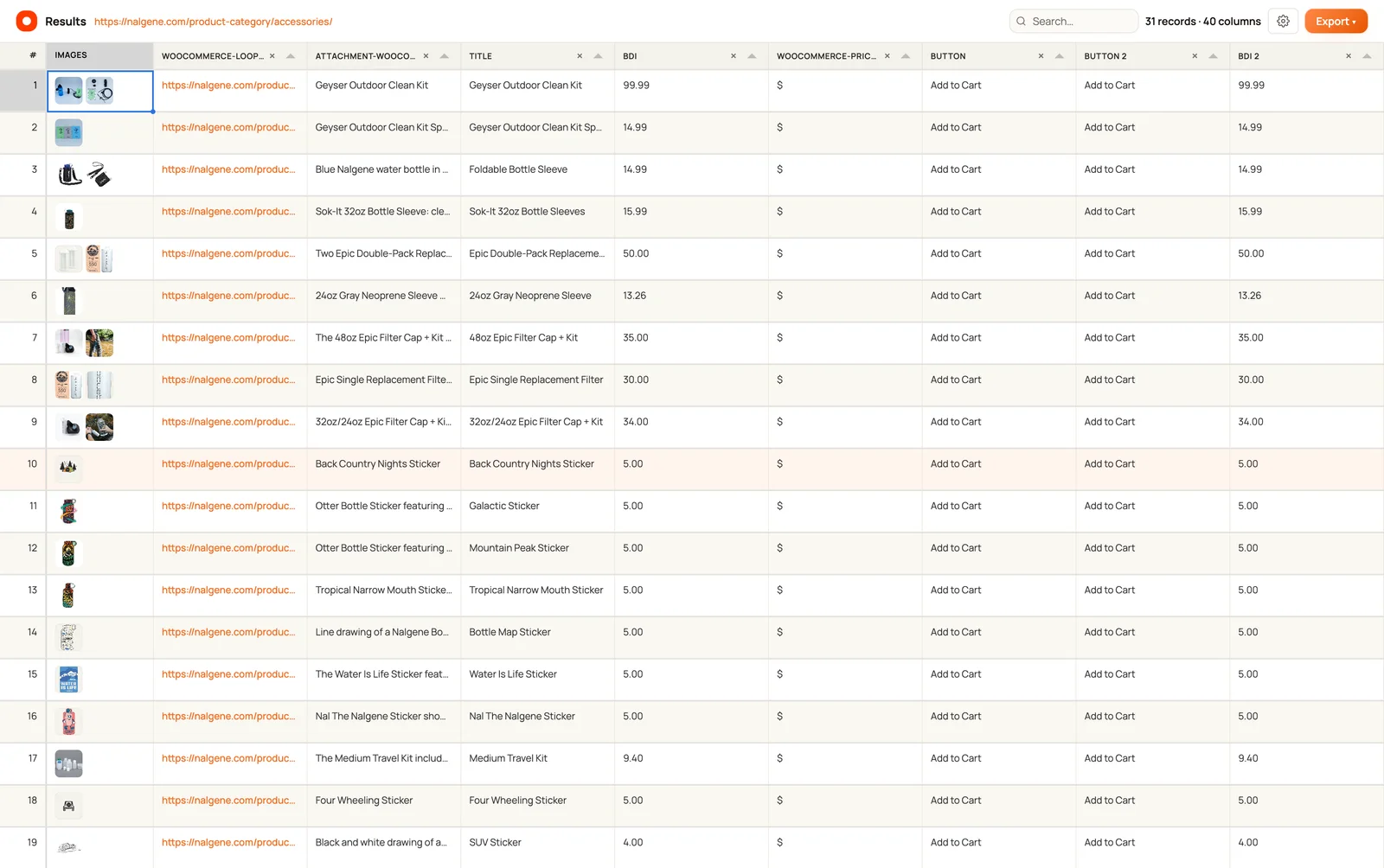
- Start scraping and inspect the live table. Check the first five records against the visible cards. If you collect more pages, verify the next page contributes new products rather than the same rows again.
- Export the reviewed results. Choose CSV or Excel, export images as a ZIP, or send records to a configured HubSpot, Notion, or Airtable connector.
The video uses a WooCommerce accessories category to show the complete workflow: select the product list, review its fields, check pagination, and export the results. Apply the same steps to the shop or category you want to research.
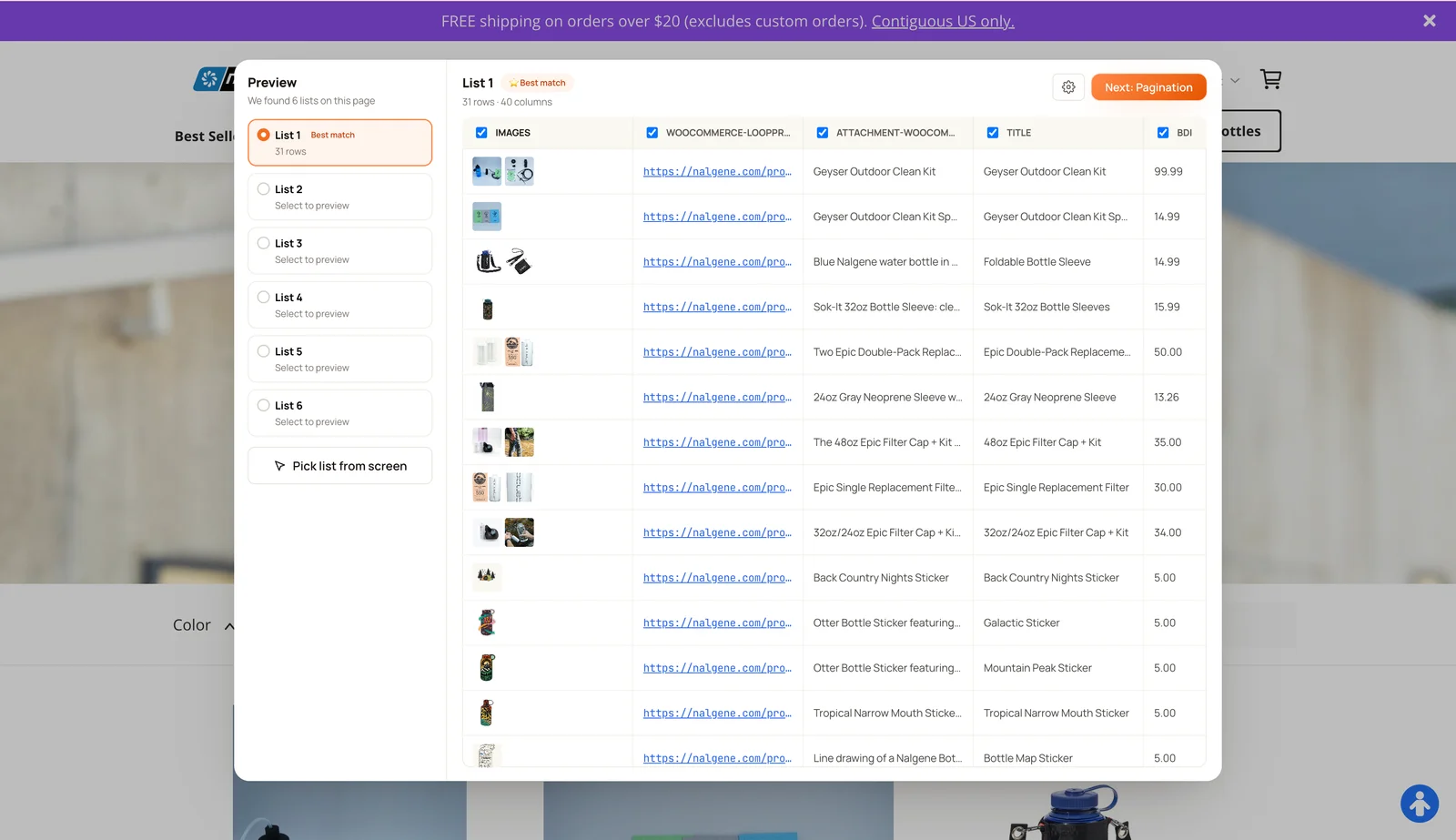
Preview your WooCommerce products before exporting
Use Quick Scrape to find the product list, check the useful fields, and watch the records arrive in a live table. Start with one category you can verify.
Add to Chrome — Preview Product Data →What Product Data Can a WooCommerce Scraper Extract?
A WooCommerce scraper can collect fields that the selected page exposes, including product names, prices, currency, image URLs, and product links. Sale prices, ratings, availability text, SKUs, descriptions, and variants depend on the storefront. Check where each field appears before promising it in a catalog export; a product-card price range is not a complete list of variant prices.
| Field | Where to check | How to validate it |
|---|---|---|
| Product name and URL | Category card or product page | Match the link and title to the same product. |
| Price and currency | Visible price or price range | Keep currency separate; distinguish regular, sale, and option prices. |
| Image URL | Rendered thumbnail or gallery | Open a sample link and check the image belongs to that row. |
| Availability | Visible stock or fulfillment message | A missing badge is unknown availability, not proof of stock. |
| SKU and description | Product details, when exposed | Do not fill missing fields with inferred values. |
| Size, color, or other variant | Visible option controls or variant detail | Validate the selected option and its price separately. |
For a compact research file, keep six core columns: product name, product URL, displayed price, currency, image URL, and capture date. Add regular price, sale price, category, or availability only when you can identify them reliably. The price scraper guide explains how those fields support comparisons across stores.
For image-only checks, the website image extractor is a separate starting point. A product table is more useful when you need to retain the relationship between each image, its product name, price, and URL.
How Do You Export WooCommerce Results to Excel, CSV, or Images?
After reviewing the extracted table, export WooCommerce results to CSV or Excel for spreadsheet analysis. Use the image export option for a ZIP of collected product images, or configure a connector for HubSpot, Notion, or Airtable. Clura Free includes unlimited local scraping and one full export every 24 hours; paid access removes that export-frequency limit.
| Output | Use it for | Check before export |
|---|---|---|
| CSV | Sharing rows or importing a research file | Keep URLs and currency; remove unneeded button columns. |
| Excel | Filtering, formulas, and catalog comparisons | Check numeric price formats and preserve product identifiers. |
| Image ZIP | Reviewing collected product imagery | Match each image to its product name and source URL. |
| HubSpot, Notion, or Airtable | Sending reviewed records to a configured destination | Authorize the connector and map only the fields you need. |
See current pricing for export options and paid features. Sending a CSV to WooCommerce’s importer is a different task: a research export needs field mapping and the required product schema before it can become an import-ready store catalog.
Should You Use a WooCommerce Scraper, Native Export, or API?
Use WooCommerce’s native CSV export when you manage the store and want its product records. Use Clura when you need a reviewed table from an accessible storefront page. A developer can use WooCommerce’s Store API for public product data where the endpoint is available. Choose the method that fits your access and output: storefront research, your own catalog export, or a developer integration.
| Method | Access needed | Output / scope | Known allowance or cost | Best fit |
|---|---|---|---|---|
| Clura Quick Scrape | Chrome and the visible storefront | Reviewed page records; CSV, Excel, images, connectors | Free: 1 full export per 24 hours; paid export access available | No-code category and catalog research |
| WooCommerce native export | Store dashboard access to Products | Product CSV using WooCommerce’s export schema | Built into WooCommerce; store operating costs remain | Your own catalog export or migration preparation |
| WooCommerce Store API | An accessible public products endpoint | Published public product data as JSON | Developer implementation and hosting costs | Structured public-data integrations |
| Python HTML or browser script | Developer-maintained page parser or automation | Fields exposed by that store’s HTML/rendered page | Development, hosting, and maintenance costs | Custom transformations with ongoing maintenance |
WooCommerce documents the owner workflow under Product CSV Importer and Exporter: the export controls are in Products → All Products. Its Store API Products documentation describes public product data and excludes unpublished products. A public Store API endpoint is not the same as access to the merchant’s administrative product records.
For a merchandising or competitor review, Clura keeps product selection, field preview, pagination, and exports in one browser workflow. You can inspect the table as products arrive and keep the names, prices, currencies, images, and URLs needed for your comparison.
Why Does a WooCommerce Scraper Miss Products or Prices?
A WooCommerce scraper can miss records when the wrong repeated list is selected, products load after the initial HTML, or pagination does not match the store’s theme. Prices can also appear in separate regular-price, sale-price, and variant elements. Check the rendered category, selected list, and price columns before treating an empty cell or repeated value as valid product data.
| Symptom | Likely thing to inspect | Practical check |
|---|---|---|
| Menu items instead of products | The selected repeated list | Switch lists and compare the first five rows to the product grid. |
| Two price columns or repeated button text | Theme markup and field selection | Keep the correct price fields and remove Add to Cart text columns. |
| Only the first page | Next button, load-more control, or scroll behavior | Review pagination and inspect one transition for new URLs. |
| A price range instead of one price | A variable product | Preserve the range; check a specific option on the detail page. |
| Empty images or product cards | Lazy loading or JavaScript-rendered content | Let the page load and verify visible rows before extracting. |
A Python requests parser only sees the HTML it receives; a theme or plugin may insert additional product details after JavaScript runs. Other WooCommerce shops render product cards directly in HTML, so JavaScript is not always the cause. The dynamic website scraping guide explains that distinction, and the pagination guide covers page transitions.
Before starting a larger category, inspect the first few products and confirm that the images, prices, and links line up. Keep the fields you need for your catalog comparison and remove repeated button text so the exported spreadsheet is easier to review.
How Do You Check a WooCommerce Product Export Before Using It?
Validate a WooCommerce product export by comparing at least five available records with their source cards, checking one pagination transition if used, and removing duplicates by product URL. Confirm price, currency, and selected options separately. Keep the capture date because a later storefront change can make a correct snapshot look outdated; missing fields should remain unknown rather than being guessed.
- Check five rows when available. Match the product name, link, image, and displayed price to the source page.
- Review sale and variant prices. Do not compare a regular price on one store with a selected sale option on another.
- Check page coverage. Confirm that another category page adds new product URLs; a row count alone does not prove the whole store was collected.
- Deduplicate deliberately. Use product URLs for product-level research; if you intentionally collect variants, retain an additional variant identifier.
- Retain the context. Save source category, filters, currency, capture date, and unresolved missing values with the spreadsheet.
For recurring research, rerun the saved collection when you need another snapshot, then compare like-for-like products in your spreadsheet. The price monitoring guide and competitor price monitoring workflow provide context for interpreting those snapshots.
Frequently Asked Questions
Can I use a WooCommerce scraper without coding?
Yes. Open an accessible product category in Chrome, launch Clura, and choose Quick Scrape. Review the detected product list, fields, and pagination before starting. You can then inspect the live table and export the collected records without writing a parser.
Is there a WooCommerce scraper Chrome extension?
Clura can extract visible product records from WooCommerce storefronts in Chrome. The recording shows Quick Scrape on a Nalgene accessories category and a results view labeled 31 records. Field availability and pagination still depend on the store theme.
Is WooCommerce product scraping free with Clura?
Clura Free includes unlimited local scraping and one full export every 24 hours. Paid access unlocks unlimited CSV, Excel, image, and connector exports. Check current pricing to choose the plan that fits your workflow.
Can I export WooCommerce products to Excel or CSV?
Yes. After reviewing the extracted table in Clura, choose the CSV or Excel export option. If you own the store and need the native product export schema, WooCommerce also has its own CSV export under Products → All Products.
Can I download WooCommerce product images as a ZIP?
Yes. Use Clura’s image ZIP export to download the product images collected with your results. Keep product names and source URLs in your CSV or Excel file so you can match the images to the products during a catalog review.
Why does my WooCommerce scraper return duplicate or empty columns?
Themes can repeat button text, split prices across several elements, or load images and fields after the page initially appears. Compare the selected product list with the visible page, remove unnecessary columns, and distinguish regular, sale, and variant prices before exporting.
Why does scraping stop after the first WooCommerce page?
The store may use numbered pages, a Next button, load more, or infinite scroll. Review Clura’s detected pagination before starting, then check that a page transition adds different product URLs. A working first-page preview does not establish full catalog coverage.
Can a WooCommerce scraper collect SKUs and every variant?
Only when those details are exposed by the pages and options you actually collect. Category cards often omit SKUs or show a price range. Inspect the relevant product detail pages and selected variants; do not treat hidden inventory or unvisited options as extracted data.
Conclusion
Start with one category and a field set you can verify. The useful output is a product table with accurate names, prices, images, and source URLs—not a large row count containing repeated button text or mismatched variants.
Use Quick Scrape for the storefront research workflow shown in the video. Use the merchant’s native export when you administer the store and need its product schema. In either case, keep source context and validate the spreadsheet before comparing catalogs or prices.
Explore related guides:
- Shopify Scraper — Use a store-specific workflow for Shopify collections and product grids.
- Ecommerce Data Extraction — Plan useful product fields and compare collection methods across ecommerce sources.
- Price Scraper Guide — Keep price, currency, and product context together across competitor stores.
- Price Monitoring Guide — Turn dated product snapshots into a consistent comparison workflow.
- Pagination Guide — Check numbered pages, load-more controls, and infinite-scroll collection.
- Bulk extract page data — Collect visible detail-page fields that a category listing leaves out.
Export the WooCommerce product list you are reviewing
Install Clura, open your product category, run Quick Scrape, verify the fields and pagination, then export a reviewed table to CSV or Excel.
Add to Chrome — Export Product Records →