
Redfin Scraper: Compare Property Listings in Excel
If you are researching a neighborhood or building a property shortlist, copying addresses, prices, and home details one listing at a time slows down every comparison. A Redfin scraper turns the listing cards you are reviewing into a spreadsheet: choose your area and filters, run Quick Scrape, review the detected fields, and export the results to Excel or CSV.
Use Redfin property data to compare asking prices, group homes by bedrooms and bathrooms, and organize listings by location or size. Clura keeps the listing details and source URLs together so you can filter the spreadsheet, add notes, and revisit properties during your research. For a wider collection workflow, see real estate data extraction.
Build a property comparison sheet from Redfin listings
Open your target area, preview the property fields Clura detects, and export a listing table you can filter in Excel or CSV.
Add to Chrome — Export Property Listings →What Can You Do With a Redfin Scraper?
A Redfin scraper collects property listing information into a structured table for market research and comparisons. Start with asking price, address, bedrooms, bathrooms, square footage, images, and the listing URL. Use the spreadsheet to group similar properties, narrow a shortlist, and compare the listings advertised in your chosen area without repeatedly copying the same fields by hand.
| Research task | Fields to keep | What to do in the spreadsheet |
|---|---|---|
| Neighborhood comparison | Address, asking price, beds, baths, square footage | Group similar homes by location and size. |
| Property shortlist | Address, images, listing URL, price | Add review notes and links for properties worth another look. |
| Listing-price research | Asking price, area, property type, capture date | Compare equivalent listings and calculate asking price per square foot. |
| Research handoff | Listing URL, search area, selected filters, notes | Give another reviewer the context behind each row. |
Choose the comparison before choosing the fields. A shortlist needs addresses, prices, and links; a size-based comparison also needs usable square footage. Keep the search area, property type, and filters consistent so the properties you group together answer the same research question.
The real estate research workflow covers organizing source-backed property records. If you are new to collecting website data, the web scraping guide explains how to select repeated records and prepare an export.
How Do You Scrape Redfin Listings Without Code?
Open a Redfin results page in Chrome, set your area and filters, and choose Quick Scrape in the Clura extension. Review the detected property list, select useful fields, and check pagination before starting. Clura collects the listing information into a live table, which you can export to CSV or Excel for filtering, comparison, and research notes.
- Choose your market. Open Redfin in Chrome, search your target area, and apply the price, property type, bedroom, and other filters you need.
- Launch Quick Scrape. Open the Clura Chrome extension and select Quick Scrape once the property listing cards have loaded.
- Review the property list. Select the detected listing list and check price, address, bedrooms, bathrooms, square footage, images, and source URLs. Keep the fields you need.
- Check pagination. Continue to pagination and review the detected next-page or loading behavior for the selected results.
- Start scraping. Start extraction and watch property records arrive in the live results table. Compare a sample of rows with their listing cards.
- Export the listings. Export to CSV or Excel, then filter listings, add research notes, and compare asking prices in your spreadsheet.
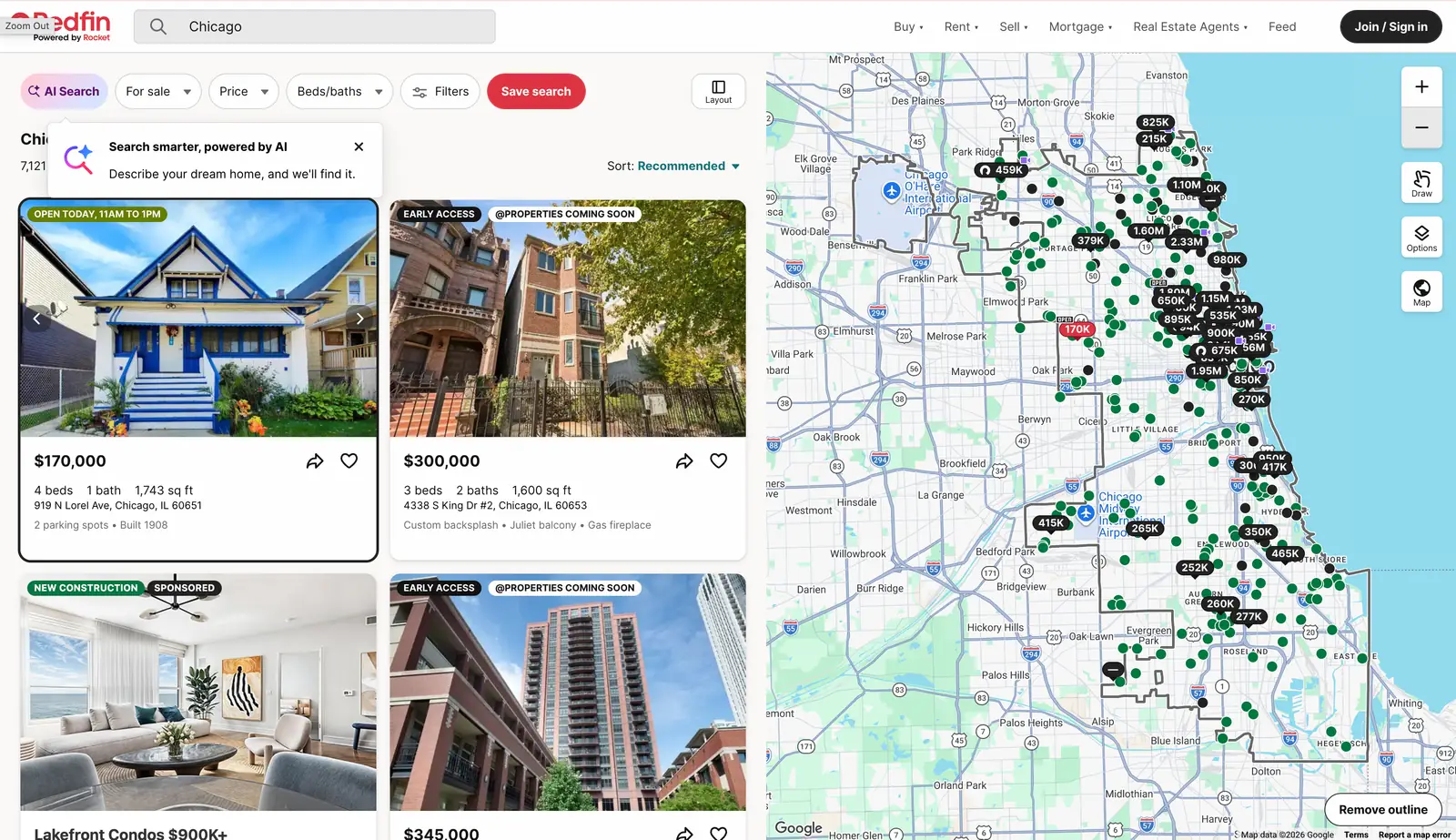
Select the repeated property cards rather than the map controls, navigation links, or a separate recommendation group. Compare the first few preview rows with the visible homes: the address, price, and listing link should refer to the same property. The Quick Scrape feature explains list detection and preview review.
A map move or filter change can change the results you are viewing. Finish choosing the search area first, let the property cards load, and keep the same selection while you review the preview and start collection. Save the search URL with your spreadsheet when you want to revisit that selection.
Turn the Redfin search you are reviewing into rows
Use Quick Scrape to preview property listings, keep useful fields, and watch the results arrive before choosing your export.
Add to Chrome — Preview Property Data →What Property Data Can You Extract From Redfin?
Redfin listing cards can expose asking prices, addresses, bedroom and bathroom counts, square footage, images, listing links, and status or promotional labels. Keep each field in its own column so it can be filtered or compared. Review the selected page for additional details such as property descriptions or amenities, then collect those detail-page fields separately when your research needs them.
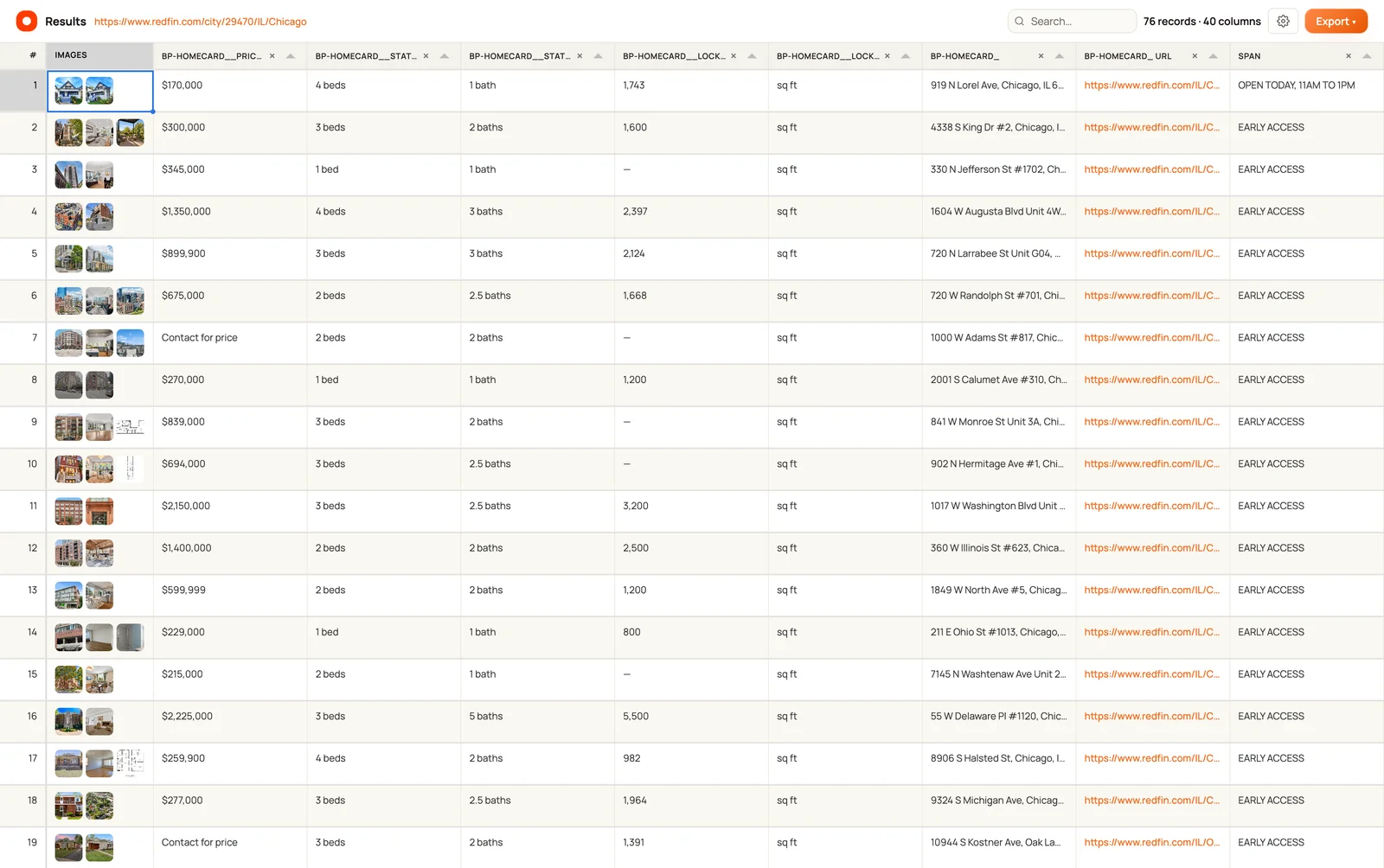
| Field | Example from the supplied results | Spreadsheet use |
|---|---|---|
| Asking price | $170,000 or Contact for price | Compare numeric prices while preserving text-only values. |
| Address | 919 N Lorel Ave, Chicago | Identify the property and group the area you are reviewing. |
| Bedrooms and bathrooms | 4 beds, 1 bath; other rows include 2.5 baths | Filter by layout and keep fractional bathrooms. |
| Square footage | 1,743 sq ft | Compare sizes and calculate asking price per square foot. |
| Listing images | One or more property thumbnails | Support a visual shortlist alongside the source link. |
| Listing URL | The Redfin property detail link | Revisit the home and identify repeated listing records. |
| Listing labels | Early Access or Open Today | Keep the displayed context in a separate column. |
Rename detected columns to practical headers such as Address, Asking Price, Beds, Baths, Area, Area Unit, and Listing URL. The supplied table separates the square-footage value from the sq ft unit. Keeping those separate makes numeric filtering and spreadsheet formulas easier.
For information on individual property pages, use Bulk extract page data. Choose URLs from Previous scrape, Upload CSV, or Current site sitemap; review Clura’s auto-detected fields, select the fields you need, add more if needed, and start collection. This is useful for building a detail-page dataset from a property shortlist.
How Do You Export Redfin Listings to Excel or CSV?
Export the Clura results table to CSV or Excel after reviewing the property fields. Use CSV for sharing rows or importing them into another tool, and Excel for filters, formulas, and comparison notes. Retain the listing URL and search context so you can return to a property while reviewing the spreadsheet. Image exports and configured connectors provide additional ways to use the collected records.
| Output | Use it for | Prepare the file |
|---|---|---|
| CSV | Sharing listings or importing rows into a research tool | Use clear headers and keep the listing URLs. |
| Excel | Filtering properties, calculating ratios, and adding notes | Convert numeric prices and areas to usable number columns. |
| Image ZIP | Reviewing collected property imagery | Keep the source listing links with your research table. |
| Configured connector | Sending reviewed records to Notion, Airtable, or HubSpot | Connect your destination and map the property fields. |
Clura Free includes unlimited local scraping and one full export every 24 hours. Pro Monthly is $9.99 per month and Lifetime is $29.99 one-time for unlimited exports. See current pricing for the plan options and Connectors for sending records into your tools.
Before passing the file to another reviewer, remove duplicate columns and add a short note with the search area, filters, and capture date. Keep the raw price text beside a numeric price column when the source contains both numbers and labels such as Contact for price.
How Do You Compare Redfin Property Listings in a Spreadsheet?
Compare Redfin listings by grouping similar properties, filtering by location and layout, and adding asking price per square foot where both price and area are numeric. Keep the original address and listing URL beside your calculations. Separate property types and listing statuses before summarizing the data so your spreadsheet compares the kind of homes you intended to research.
- Group comparable homes. Start with the same area, property type, bedroom range, and listing status. Use separate sheets or filters when the search includes different categories.
- Keep raw and numeric values. Preserve the displayed asking price and create a separate numeric value for calculations. Keep Contact for price as text rather than converting it to zero.
- Calculate asking price per square foot. Divide numeric asking price by numeric square footage for rows with both values available.
- Add shortlist notes. Include your own columns for research priority, questions to review, and the date you last checked the source listing.
- Deduplicate by source URL. Review repeated property links when combining searches so overlapping areas do not inflate your count.
For a sheet with Address in column A, numeric Asking Price in B, and numeric Square Feet in E, use =IFERROR(B2/E2, "") for asking price per square foot. The first supplied row shows $170,000 and 1,743 sq ft, which gives approximately $97.53 per sq ft. Keep the original price and area beside the calculated value so you can check it.
Distinguish current asking prices from sold prices and keep condo units, detached homes, and other property types in appropriate comparison groups. A studio, a multi-bedroom house, and a property with missing area need different treatment in the spreadsheet. These checks help you build a clearer listing comparison.
For other property sources, see the Zillow scraper workflow and Rightmove scraper guide. Use each source’s visible property fields and retain its source URL when combining research files.
Should You Use a Redfin Scraper or Redfin’s Built-In Download?
Use Redfin’s built-in download when its export option is available and its listing fields fit your task. Use Clura when you want a browser preview, selected property fields, a live results table, and CSV, Excel, image, or connector outputs. Manual copying can work for a small shortlist, while the browser workflow keeps repeated listing collection and export in one place.
| Method | Workflow | Output | Allowance / cost | Good fit |
|---|---|---|---|---|
| Clura Quick Scrape | Review detected property records and pagination in Chrome | CSV, Excel, images, configured connectors | Free: 1 full export per 24 hours; $9.99 monthly or $29.99 lifetime | Reviewed listing research across supported page layouts |
| Redfin Download All | Use the native download control where it appears | Redfin’s listing-data spreadsheet | Redfin documents a 350-home cap and a 20-result minimum | A native export whose fields fit your task |
| Manual spreadsheet | Open listings and copy chosen fields | A custom sheet you maintain | No additional collection tool; manual review work | A small shortlist with custom notes |
Redfin’s Downloading Data help page explains its native export: look below the results table for Download All when the option is available. The browser workflow in this guide offers a different review process, with detected fields, live extraction results, and a choice of export destinations.
Why Are Listings or Fields Missing From a Redfin Scrape?
Missing records or fields usually need a check of the selected list, loaded property cards, pagination, and available source text. Confirm that the preview contains property listings rather than map controls or related links. Then review one loading transition and compare a few rows with their cards. Keep missing prices and areas separate from valid numeric values when preparing the spreadsheet.
| What you see | What to inspect | Useful next step |
|---|---|---|
| Map labels or navigation instead of properties | The detected repeated list | Select the actual property-card list and compare the preview. |
| Only the initial set of properties | Pagination or loading behavior | Review the detected control and confirm another set adds new listing URLs. |
| Blank square footage | Whether the card displays an area | Leave the value blank and exclude it from size-based formulas. |
| Contact for price | The displayed price text | Keep the label in the raw-price column and leave numeric price empty. |
| Repeated columns or rows | Detected fields and overlapping searches | Remove redundant columns and deduplicate by listing URL. |
| Different results after adjusting the map | Search scope and map selection | Set the intended area and filters before starting a new run. |
For loading behavior, the dynamic website guide explains why rendered cards can differ from the initial HTML. The pagination guide covers checking next-page controls, scrolling, and other result-loading patterns.
Start with a sample you can inspect, then expand the collection with the same search settings. Review addresses, listing links, prices, and area values together. Once the fields line up, the export becomes a practical starting point for sorting properties and sharing research with your team.
Frequently Asked Questions
Can I use a Redfin scraper without coding?
Yes. Open the property search in Chrome, launch Clura, and choose Quick Scrape. Review the detected listing list and fields, check pagination, and start collection. You can then export the results to CSV or Excel without writing a parser.
Can I export Redfin listings to Excel or CSV?
Yes. Use Clura’s Export option after reviewing the results table. CSV works for sharing or importing rows, while Excel supports filters, calculations, and shortlist notes. Keep listing URLs so you can return to the source properties.
What fields can a Redfin scraper collect?
The supplied example shows asking prices, addresses, beds, baths, square footage, property images, listing URLs, and listing labels. Review your selected page for the fields it displays and rename the useful columns before exporting.
Is the Redfin scraper workflow free with Clura?
Clura Free includes unlimited local scraping and one full export every 24 hours. Pro Monthly costs $9.99 per month and Lifetime costs $29.99 one-time for unlimited exports. Choose the plan that fits how often you need to export your property research.
Can I download Redfin property images?
Clura provides an image ZIP export for images collected with your listing records. Keep the address and listing URL in your CSV or Excel file so the images can be matched to the properties during research.
Can I collect more fields from property detail pages?
Use Bulk extract page data to work with URLs from a previous scrape, an uploaded CSV, or the current site sitemap. Clura auto-detects fields; select the fields you need, add more if needed, and collect the page information in a table.
Why does a Redfin scrape only return the first set of listings?
Review the selected property list and the detected pagination or loading behavior. Let the cards load, check one transition, and verify that it adds new listing URLs. Also confirm that your map area and search filters are still set to the intended selection.
How do I calculate asking price per square foot?
Divide the numeric asking price by the numeric square footage for the same property. For example, $170,000 divided by 1,743 sq ft is approximately $97.53 per sq ft. Keep blank areas and text-only prices out of the calculation.
Conclusion
Start with a clear market and a comparison you want to make. Collect the asking prices, addresses, layouts, sizes, images, and listing URLs that support that question, then use your spreadsheet to filter homes and add research notes.
Clura brings the property-card preview, pagination review, live table, and exports into one browser workflow. Use Quick Scrape for listing cards and Bulk extract page data when your shortlist needs more fields from individual property pages.
Explore related guides:
- Real Estate Data Extraction — Plan a source-backed property dataset across listing websites.
- Real Estate Research Workflow — Organize listing records for market comparisons and property reviews.
- Zillow Scraper Guide — Explore a separate browser workflow for Zillow-style property listings.
- Rightmove Scraper — Collect UK property listings for a structured research sheet.
- Bulk Extract Page Data — Choose property URLs, select fields, and collect detail-page information in bulk.
- Pagination Guide — Check how additional results are loaded and collected.
Turn your Redfin search into a property research sheet
Install Clura, preview the property listings in your target area, review the fields and pagination, and export the results to CSV or Excel.
Add to Chrome — Build a Property Spreadsheet →