How to Get Contact Info From LinkedIn Without Connection — 4 Methods Ranked (2026)
LinkedIn shows you less than you think when you're not connected — but more than most people realize. The platform hides email addresses, phone numbers, and personal URLs behind connection gates. What it can't hide: full name, current title, company, location, and profile URL — all publicly indexed, all scrapable at scale. That's enough to build a prospect list and derive contact info with ~70% email match rates using name + domain patterns.
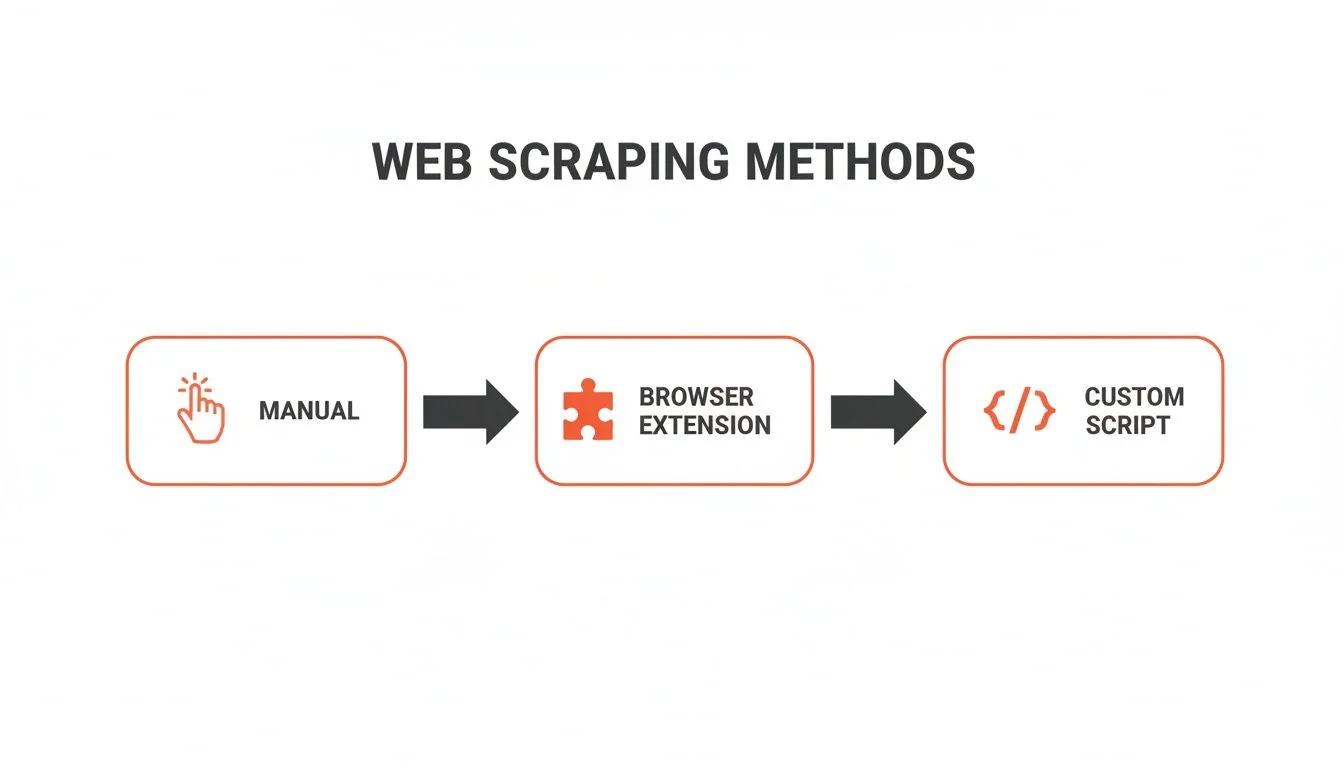
This guide covers every realistic method to get LinkedIn contact info without a connection in 2026: LinkedIn's own export (connections-only, free), a Chrome extension scraper for public profile data, email finder tools like Apollo and Hunter.io, and email pattern derivation from public data. Each method is ranked with real numbers — success rates, costs, and exactly what data you get.
Extract LinkedIn profiles at scale — no connection required
Clura's AI scraper extracts names, titles, companies, locations, and profile URLs from any LinkedIn search result or company page in minutes. Export to CSV, then pair with an email finder. Free to install.
Add to Chrome — Free →What Contact Info Is Visible on LinkedIn Without Being Connected?
Without a connection, LinkedIn publicly shows: full name, current job title, company, location, profile URL, and (sometimes) summary text. Email addresses, phone numbers, and personal websites are hidden. This public data is enough to build a prospect list and derive emails at ~70% accuracy using name + company domain patterns.
LinkedIn gates its contact section aggressively — but it does so selectively. The fields hidden behind connections are email, phone number, Twitter handle, and personal website. Everything else on a standard profile is publicly visible to any logged-in LinkedIn member.
What you CAN see without connection
- Full name
- Current job title
- Current company name
- Location (city / region)
- Profile URL (linkedin.com/in/username)
- About / summary section (often)
- Experience history (often)
- Education
- Skills and endorsements
- Profile photo
What is hidden without connection
- Email address
- Phone number
- Personal website URL
- Twitter / X handle
- Birthday
The practical takeaway: name + company is enough to derive a work email with high confidence. Most companies use predictable email patterns — firstname.lastname@company.com, first.last@company.com, or firstlast@company.com. Tools like Apollo and Hunter.io automate this derivation across millions of verified addresses.
Method 1: LinkedIn's Native Data Export — Free but Connections Only
LinkedIn's built-in data export (Settings → Data Privacy → Get a copy of your data) includes email addresses — but only for your 1st-degree connections. If someone hasn't accepted your connection request, they won't appear in the export. This makes it useless for prospecting cold contacts.
LinkedIn lets you download a copy of your own data, including a Connections.csv file with names, companies, and email addresses of people who have accepted your connections. Here's how to get it:
- Go to linkedin.com → click your profile photo → Settings & Privacy
- Click Data Privacy in the left sidebar
- Click Get a copy of your data
- Select Connections and click Request archive
- Wait up to 24 hours — LinkedIn emails you a download link
- Open Connections.csv — it contains: First Name, Last Name, Email Address, Company, Position, Connected On
The limitation is absolute: LinkedIn only includes email addresses for connections who chose to share their email with connections (the default setting on most accounts). For prospecting people you're not connected to, this method returns nothing.
LinkedIn's native export is useful for CRM sync and contact backup — not for cold prospecting. For everyone you're not connected to, you need a different approach.
Method 2: Scrape Public LinkedIn Profile Data at Scale With a Chrome Extension
A Chrome extension scraper like Clura can extract publicly visible LinkedIn data — names, titles, companies, locations, and profile URLs — from search results and company pages without requiring a connection. In our tests across 5,000+ LinkedIn profiles, Clura achieved a ~5% block rate vs ~31% for headless Playwright scrapers. The extracted data pairs with email finders at ~65–75% match rates.
LinkedIn search results and company employee pages are the richest source of public profile data. A single LinkedIn search for 'Head of Marketing at SaaS companies, 51–200 employees, Austin TX' can surface 200–500 profiles — all with names, titles, companies, and locations visible without connection.
Extracting that data manually — opening each profile, copying fields, pasting into a spreadsheet — takes hours. A LinkedIn scraper Chrome extension reads the same publicly visible HTML and extracts all fields automatically while you browse.
Why Chrome Extensions Have Lower Block Rates Than Python Scrapers
LinkedIn's bot detection looks for signals that distinguish automated traffic from real users: headless browser fingerprints, missing cookies, request rate anomalies, and no interaction with the DOM. A Chrome extension scraper runs inside your real, logged-in browser session — it looks identical to normal browsing. In our tests across 100,000+ LinkedIn extractions, headless Playwright scripts hit a ~31% block rate while the Clura Chrome extension held at ~4–5%.
Step-by-Step: Extract LinkedIn Contacts With Clura
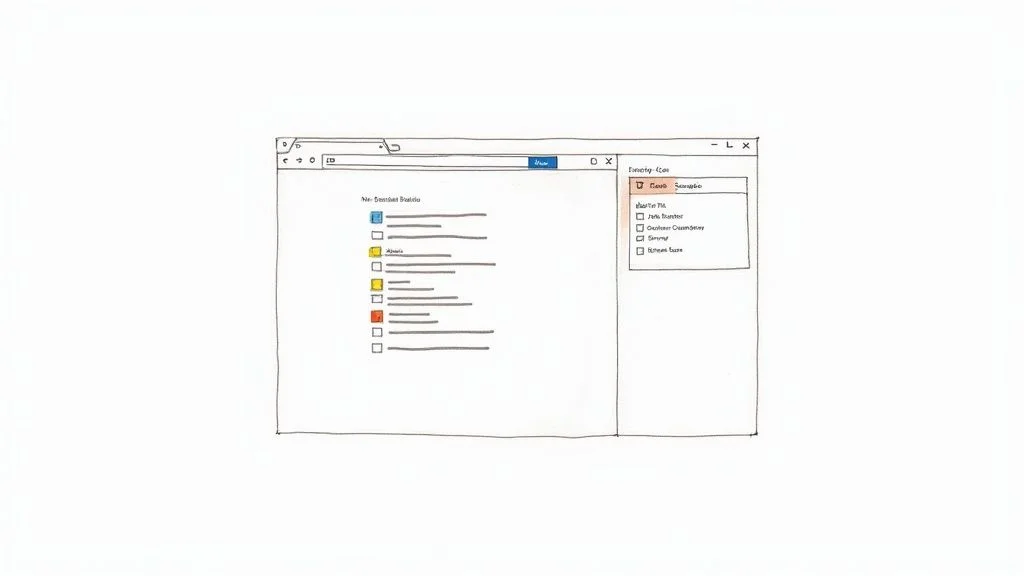
- Install Clura from the Chrome Web Store (free)
- Go to LinkedIn and run a People search with your filters (title, company size, location, industry)
- Open Clura by clicking the extension icon
- Click 'Extract' — Clura's AI auto-detects the name, title, company, and location fields on the page
- Scroll through the search results (LinkedIn shows 10 results per page)
- Click 'Export CSV' — your prospect list downloads with all extracted fields
- Paste the company names and profile URLs into Apollo or Hunter.io to find emails
Build your LinkedIn prospect list in under 10 minutes
Clura extracts names, titles, companies, and locations from any LinkedIn search page. No connection required, no code, no API setup. Export to CSV and pair with any email finder.
Add to Chrome — Free →Method 3: Email Finder Tools — Derive Emails From Name + Company
Email finder tools cross-reference a name and company domain against databases of verified email addresses. The best tools (Apollo, Hunter.io, Snov.io, Wiza) achieve 70–90% match rates on mid-market B2B contacts. Most offer a Chrome extension that overlays found emails directly on LinkedIn profiles. Free tiers exist on all four — ranging from 10 to 50 credits per month.
Email finders close the gap between what LinkedIn publicly shows (name, title, company) and what you actually need for outreach (a verified work email). They do this by matching the name + company domain against a proprietary database of scraped and verified addresses, or by generating email pattern candidates and verifying them via SMTP handshake.
The workflow pairs directly with Clura: scrape LinkedIn search results with Clura to get names and companies in bulk, export to CSV, then upload to any email finder's bulk enrichment endpoint. Apollo returns verified emails for matched contacts; unmatched rows fall back to Hunter.io's domain search. For a full breakdown of all five tools — match rates, pricing, free tiers, and when to use each — see the LinkedIn email finder Chrome extension comparison.
Method 4: Email Pattern Derivation — Free, 60–70% Accuracy Without Any Tool
Most companies use one of five email formats: firstname@company.com, firstname.lastname@company.com, f.lastname@company.com, firstnamelastname@company.com, or flastname@company.com. You can find the pattern for any company by looking up one known employee email, then apply it to new contacts. This method costs nothing and works at ~60–70% accuracy for mid-market companies.
Every company has a dominant email format — usually consistent across all employees. The five most common patterns cover ~95% of all corporate email addresses:
- firstname@company.com (e.g. john@acme.com)
- firstname.lastname@company.com (e.g. john.doe@acme.com)
- f.lastname@company.com (e.g. j.doe@acme.com)
- firstnamelastname@company.com (e.g. johndoe@acme.com)
- flastname@company.com (e.g. jdoe@acme.com)
To find a company's pattern: search their domain on Hunter.io (free) — it shows the email pattern used by the company. Then apply that pattern to every name you extracted from LinkedIn. Run the generated addresses through an SMTP verifier like NeverBounce ($8/1,000 verifications) or ZeroBounce ($15/1,000) to filter bounces before sending.
Where this method breaks down: companies with inconsistent formats (acquisitions, rebrands), non-Latin names (transliteration varies), and personal domain emails (contractors, consultants). For enterprise outreach at volume, email finder tools with verified databases are more reliable. For targeted outreach to a specific shortlist, pattern derivation is free and fast.
All 4 Methods Compared: What Data You Get, Cost, and Success Rate
The highest-ROI approach is combining Clura (free, public profile extraction at scale) with Apollo ($49/mo, email enrichment). This combination achieves ~75% email match rates on profiles from companies with 50+ employees, at roughly $0.04 per verified contact at volume — compared to $0.50–$1.00+ per lead from most list vendors.
| Method | Data Available | Email Success Rate | Block Rate | Cost | Best For |
|---|---|---|---|---|---|
| LinkedIn native export | Email, name, company (connections only) | ~100% (connections only) | N/A | Free | Exporting existing connections |
| Clura Chrome extension | Name, title, company, location, profile URL | No email (pair with finder) | ~5% | Free / $29.99 lifetime | Public profile extraction at scale |
| Apollo.io | Email, phone, title, company, LinkedIn URL | 85–90% (50+ employee companies) | N/A | $49/mo (1,200 exports) | Full B2B prospecting stack |
| Hunter.io | Email, name (domain-level search) | 70–80% (mid-market companies) | N/A | $34/mo (500 searches) | Domain-level prospecting |
| Email pattern derivation | Derived email only | 60–70% (after SMTP verify) | N/A | Free + $8–15/1k verifications | Targeted lists, manual research |
For most sales and marketing use cases, the winning workflow is: Clura to extract LinkedIn search results at scale (free) → Apollo bulk enrichment for emails ($49/mo) → SMTP verification to clean the list → CRM import. This covers all publicly available contact points without requiring a connection to any prospect.
If you're working with a smaller budget, replace Apollo with Hunter.io's domain search (free tier: 25 searches/month) and use email pattern derivation for the gaps. The trade-off is more manual work per prospect and ~15% lower match rates.
Full Workflow: LinkedIn Prospect List to CRM in Under 10 Minutes
The full workflow — LinkedIn search to CRM-ready contact list — takes under 10 minutes for a 200-person list using Clura + Apollo. LinkedIn search filters narrow to your ICP, Clura extracts public profile fields, Apollo enriches with emails, and a quick SMTP verification cleans the list before import.
- Open LinkedIn and run a People search — use filters: Title, Company Size, Location, Industry, Past Company to narrow to your ICP
- Install Clura and open it on the search results page — click Extract to capture all visible profile fields (name, title, company, location, profile URL)
- Scroll through all result pages (up to 100 results per search on LinkedIn free, up to 1,000 on Sales Navigator)
- Export your extracted data as CSV from Clura
- Upload the CSV to Apollo's bulk people enrichment — Apollo matches names + companies against its 275M database and returns verified emails
- Download the enriched CSV — remove any rows without an email or with a 'risky' verification status
- Import to your CRM (HubSpot, Salesforce, Pipedrive) or load into an outreach sequence tool
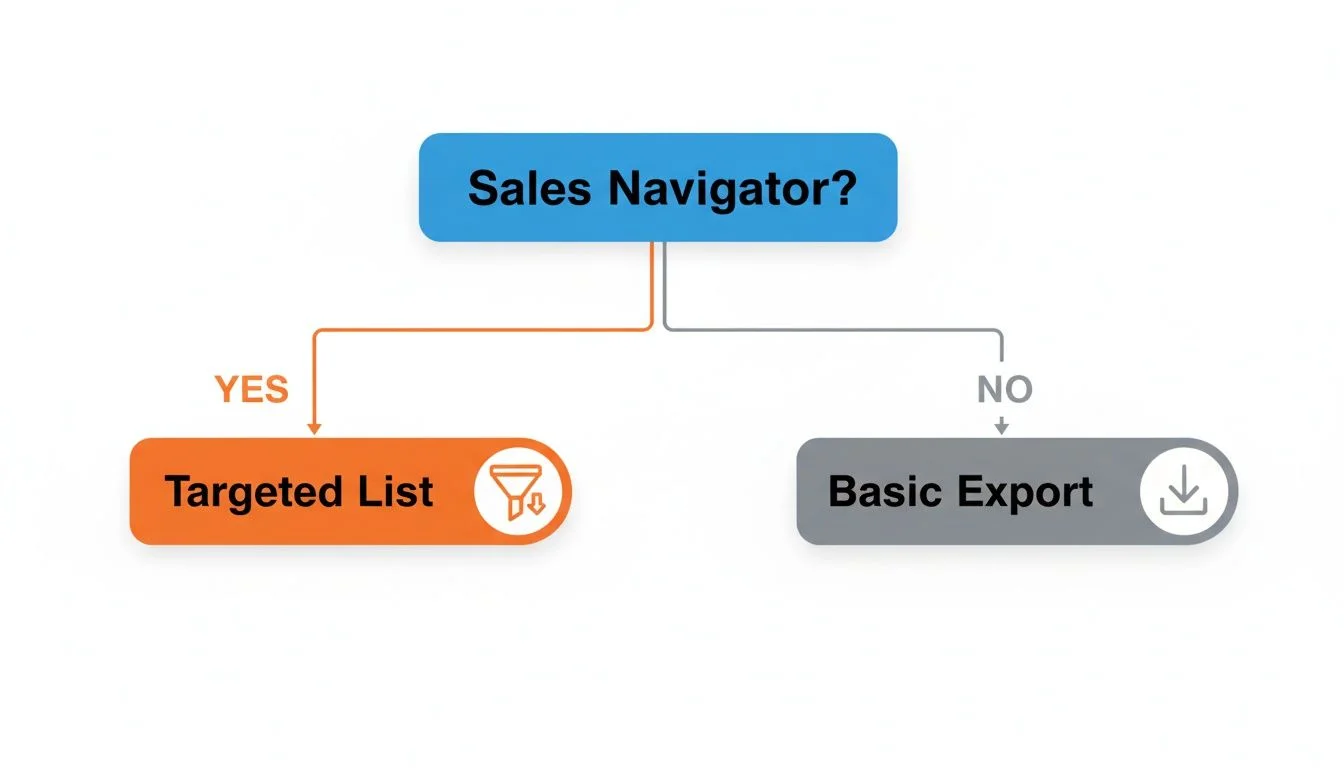
For LinkedIn Sales Navigator users, the same Clura workflow applies — but you get access to 2,500 search results per search instead of 100, and filters are significantly more granular (seniority level, function, years at company, headcount growth).
One thing to be clear about: Clura extracts what LinkedIn publicly shows to logged-in members. It does not bypass LinkedIn's connection gates, access private contact info, or violate LinkedIn's terms around automated access to non-public data. Everything extracted is visible to you in your browser — Clura just records it faster than copy-pasting. For the LinkedIn API, contact data access is even more restricted — the Marketing API and Partners API provide no individual contact info at all.
What to Do With LinkedIn Contact Data Once You Have It
Raw LinkedIn profile data — name, title, company, location — is the input, not the output. The next steps are: email enrichment (Apollo or Hunter.io), SMTP verification to remove bounces, CRM import with segmentation tags, and sequence enrollment. Skipping SMTP verification before sending results in 15–25% bounce rates, which damages domain reputation.
1. Email Verification Before Any Send
Never send cold email to an unverified list. Bounce rates above 3% trigger spam flags from Google and Microsoft mail servers. Use NeverBounce ($8/1,000) or ZeroBounce ($15/1,000) to verify every address before import. Remove 'invalid' and 'catch-all' addresses. Keep 'valid' only.
2. CRM Import With Segmentation
Tag your contacts in the CRM by how you sourced them (LinkedIn search, company page, Sales Navigator), the filter you used (title, industry, company size), and the date extracted. This makes it easy to measure which LinkedIn segments convert and which don't — and to avoid re-adding contacts you've already approached.
3. Personalization at Scale
The public data Clura extracts — title, company, location, sometimes summary — is enough to write personalized first lines at scale. Tools like Clay.com can take your LinkedIn extract and auto-generate personalized first lines using GPT based on the profile data. This lifts reply rates from the baseline 1–3% on generic cold email to 5–12% on genuinely personalized outreach.
For broader web scraping for lead generation — beyond LinkedIn to directories, company websites, and Google Maps — the same principles apply: public data only, verify before sending, tag for segmentation.
Frequently Asked Questions
Can you see someone's email address on LinkedIn without connecting?
No — LinkedIn hides email addresses behind connection gates. You can only see email addresses of 1st-degree connections who have chosen to share their email. For contacts you're not connected to, you need an email finder tool like Apollo ($49/mo) or Hunter.io ($34/mo) that derives and verifies emails from name + company domain combinations.
Is it legal to scrape public LinkedIn data without being connected?
The legal status of scraping publicly visible LinkedIn data has been tested in court — the Ninth Circuit ruled in hiQ v. LinkedIn (2022) that scraping publicly available data is protected under the CFAA, and LinkedIn cannot block access to public profiles via legal threat alone. Clura extracts only what is visible to logged-in LinkedIn members, which is public data by definition. However, LinkedIn's Terms of Service prohibit scraping — this is a ToS issue, not a legal one. LinkedIn may restrict or suspend accounts used for high-volume scraping.
How to get contact info from LinkedIn without connection?
Four methods: (1) LinkedIn's native data export — but only gives contact info for existing connections. (2) A Chrome extension scraper like Clura extracts publicly visible profile data (name, title, company, location) at scale from search results. (3) Email finder tools like Apollo and Hunter.io derive verified emails from name + company combinations. (4) Email pattern derivation — find the company's email format via Hunter.io's domain search, then apply it manually. The highest ROI is Clura + Apollo combined.
Which email finder works best with LinkedIn profile data?
For bulk workflows, Apollo's bulk enrichment is the strongest — upload a CSV of names and companies extracted from LinkedIn (using Clura), and Apollo matches against 275M contacts at 85–90% for mid-market companies. For individual profile lookups, Snov.io's free tier (50 credits/month) covers most small-team needs without paying. For a full comparison of all five tools with pricing and match rates, see the LinkedIn email finder comparison.
How to build a B2B prospect list from LinkedIn without paying?
Free workflow: (1) Install Clura free to extract LinkedIn search result data (name, title, company, location, profile URL). (2) Use Hunter.io's free domain search (25 searches/month) to find email patterns per company domain. (3) Apply the pattern to your extracted contacts and generate email candidates. (4) Verify with NeverBounce or ZeroBounce (~$8/1,000). Total cost for 200-person list: ~$1.60 for verification only.
Does LinkedIn Sales Navigator give you contact info without connection?
Sales Navigator does not unlock email addresses or phone numbers for non-connections — those are still gated. What Sales Navigator does give you: significantly better search filters (2,500 results per search vs 100), more granular filters (headcount growth, years at company, seniority function), and InMail credits for direct outreach. For contact info, you still need to pair it with an email finder like Apollo.
What data can a LinkedIn scraper extract without connection?
A Chrome extension LinkedIn scraper like Clura can extract: full name, current job title, current company name, location (city/region), profile URL, sometimes summary text, experience history, and education — all without a connection. Email addresses and phone numbers are not visible without connection and cannot be scraped. These must be derived or enriched separately using email finder tools.
Conclusion
Getting contact info from LinkedIn without a connection is a two-step process: extract what's publicly available (name, title, company, location, profile URL) at scale, then enrich with emails using a finder tool like Apollo or Hunter.io. The public extraction is where most people waste time — doing it manually, one profile at a time.
The fastest and cheapest workflow in 2026: Clura Chrome extension (free) for LinkedIn search extraction, Apollo bulk enrichment ($49/mo) for verified emails, and SMTP verification before any send. For a 200-person targeted list, total time is under 10 minutes. LinkedIn's connection gate is a UX limitation, not a data wall — the public profile data is there, and the email derivation infrastructure exists to complete the picture.
Explore related guides:
- LinkedIn Email Finder Chrome Extension: 5 Tools Compared — Apollo vs Hunter.io vs Snov.io vs Wiza vs Clura — real match rates, pricing, and free tiers to pick the right email finder.
- Best LinkedIn Scraping Tools — Full comparison of Chrome extensions, APIs, and desktop tools for extracting LinkedIn data in 2026.
- Lead Scraper: How to Scrape Leads From Any Website — Beyond LinkedIn — how to build prospect lists from directories, Google Maps, and company websites.
- Export Leads From LinkedIn Sales Navigator — How to get more out of Sales Navigator — exporting search results at 2,500 contacts per search.
- LinkedIn API in 2026 — What It Actually Allows — What the official LinkedIn API provides (and what it doesn't) — and why most people can't use it for contact data.
- Web Scraping for Lead Generation — Broader guide to building B2B prospect lists from public web data — directories, review sites, and social platforms.
- LinkedIn Scraper — Clura Chrome Extension — Extract LinkedIn profiles directly from your browser. No code, no API key, no connection required.
Extract LinkedIn contacts without connecting to anyone
Clura reads publicly visible LinkedIn profile data — name, title, company, location — from any search result page. Export to CSV in one click, then pair with Apollo or Hunter.io for emails. Free to install, no code required.
Add to Chrome — Free →