
Scrape Website to Excel: Extract Data in Minutes
To scrape website to Excel, you need a workflow that extracts visible webpage records, previews them as rows, and exports a clean .xlsx file without copy-pasting. Websites contain product listings, business directories, job postings, pricing data, reviews, and profiles — but copying that information row by row is slow, error-prone, and impossible to scale.
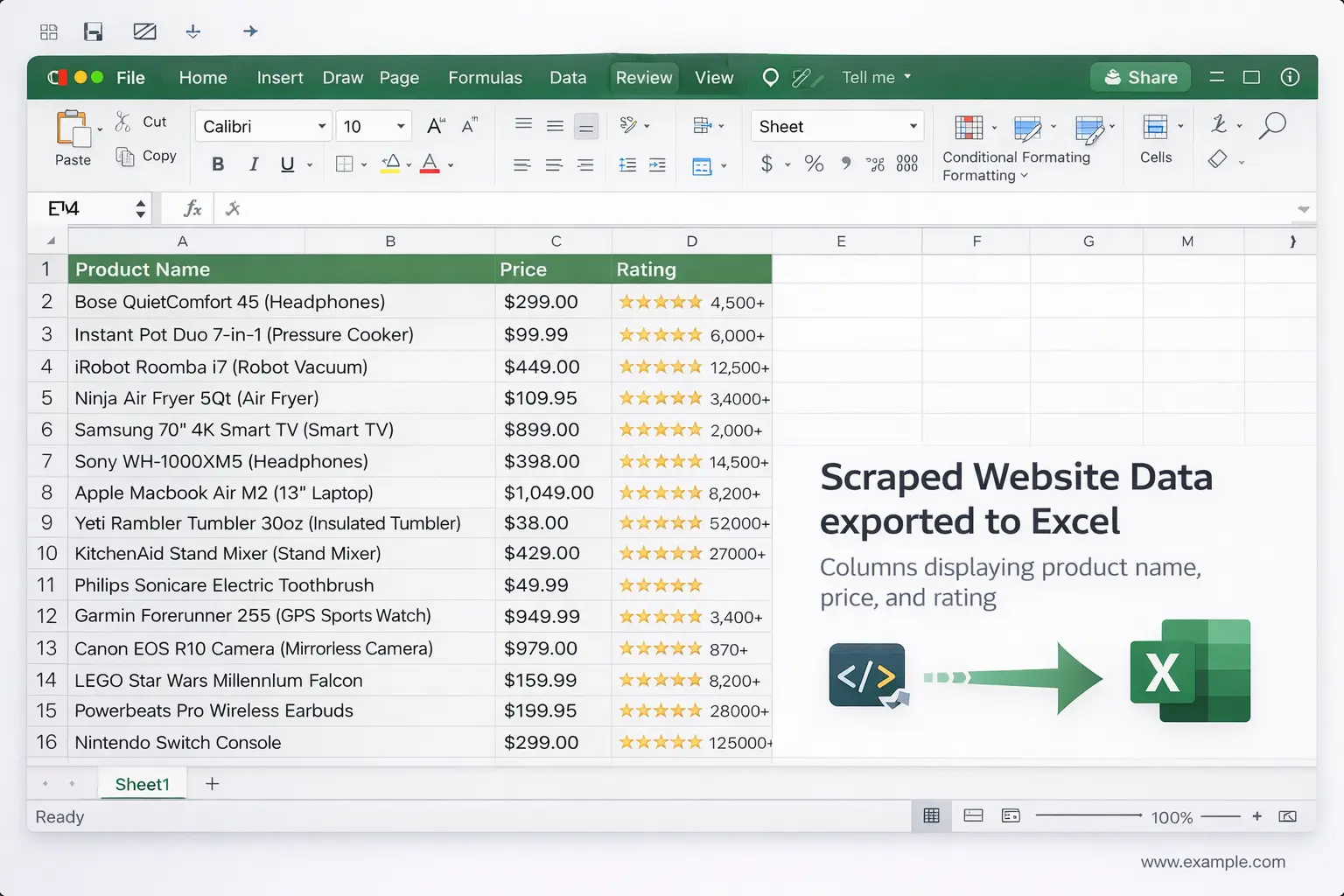
Web scraping to Excel allows you to automatically extract data from any webpage and export it directly into a spreadsheet. Instead of copy-pasting rows one by one, an excel web scraper collects hundreds or even thousands of records in minutes — structured, clean, and ready to analyze.
This guide explains how to scrape website data to Excel, why businesses do it, and the easiest way to automate the entire process with a web scraper extension or Chrome web scraper instead of writing code.
Try Clura Free
Scrape any website and export a clean Excel spreadsheet in minutes — no coding required.
Add to Chrome — Free →What "Scrape Website to Excel" Means
Scraping a website to Excel means extracting structured data from a webpage and exporting it into a spreadsheet format — most commonly Microsoft Excel (.xlsx), CSV, or Google Sheets.
For example, imagine a page listing products. A web scraper can automatically detect the repeating data structure and export every item as a row in Excel:
| Product | Price | Rating |
|---|---|---|
| Product A | $25 | 4.5 |
| Product B | $40 | 4.2 |
Common data types scraped into Excel include product information, business directories, job listings, contact details, pricing data, and reviews. Excel is ideal because it allows teams to filter rows, run calculations, create pivot tables, and build reports immediately on the collected data.
Why Businesses Scrape Website Data to Excel
Many teams rely on Excel to organize external data. Here are the most common reasons companies scrape website data into spreadsheets.
Lead Generation
Sales teams often scrape business directories or LinkedIn profiles to build prospect lists. Typical fields include company name, contact email, website, and location. These records are exported into Excel and imported into CRM systems for outreach campaigns.
Market Research
Market researchers collect competitor data such as product prices, feature lists, and customer reviews. Scraping this information into Excel allows analysts to compare data side by side and spot trends that would be invisible from manual review.
Ecommerce Monitoring
Online stores track competitor pricing and product listings to adjust their own pricing strategy. A structured Excel dataset with product name, competitor price, and stock status makes it easy to spot opportunities and react quickly.
Job Market Analysis
Recruiters scrape job boards to analyze hiring trends. Excel makes it easy to organize job listings by company, location, salary, and required skills — giving HR teams a complete view of the talent market.
Traditional Ways to Extract Website Data
Before dedicated web scraping tools existed, teams collected data manually — and many still do today.
Manual Copy-Paste
The most common method is copying content directly from webpages into Excel. This approach has serious limitations: it is extremely slow, prone to human error, and impossible to scale. Copying hundreds of rows manually can take hours, and the resulting data is often inconsistent.
Writing Custom Web Scrapers
Developers often use programming languages like Python with libraries such as BeautifulSoup, Scrapy, or Selenium to scrape websites. While powerful, this approach requires programming knowledge, ongoing maintenance when websites change their layout, and the ability to handle pagination and dynamically loaded content.
For non-technical users — marketers, analysts, sales teams — writing and maintaining custom scrapers is usually impractical. The technical barrier is simply too high for the data to be collected when it's actually needed.
The Easiest Way to Scrape Websites to Excel
Modern AI web scraper browser extensions allow users to extract data directly while browsing — no code required. Instead of writing selectors or configuring scripts, the process looks like this:
- Open the webpage containing the data
- Describe the fields you want to extract in plain language
- The AI automatically detects repeating elements on the page
- Preview the structured dataset before exporting
- Export all records to Excel, CSV, or Google Sheets
Because the scraper runs inside the browser, it can also handle pagination, infinite scroll pages, and dynamically loaded content that simple server-side scrapers cannot see. For JavaScript-heavy pages, see the JavaScript website scraper workflow.
Extract Data From Any Website
Clura's AI web scraper Chrome extension collects hundreds of records in minutes and exports a clean Excel file — no coding needed.
Add to Chrome — Free →Step-by-Step: Scrape Website Data to Excel
To scrape a website to Excel: install a browser-based AI scraper, open the target page, describe the data fields you want, let the AI extract all matching records, then export to Excel or CSV in one click — no code required at any step.
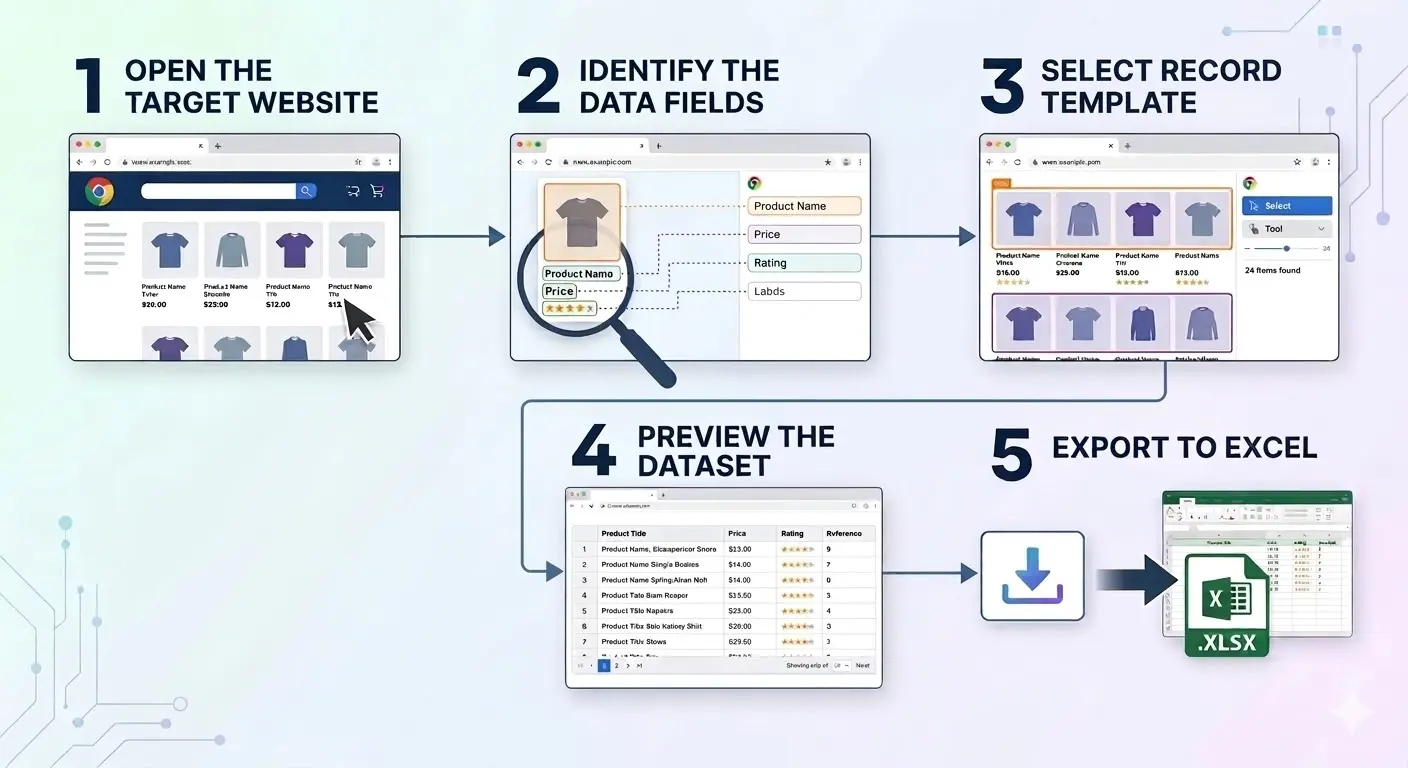
Step 1 — Open the Target Website
Navigate to the webpage that contains the data you want. Common examples include product category pages, business directories, job listing sites, and real estate portals. The page should contain repeating data — the same type of information repeated for each listing, product, or record.
Step 2 — Identify the Data Fields
Decide which fields you want to capture. These will become the columns in your Excel spreadsheet. For a product page, you might want: Name, Price, Rating, and Review Count. For a directory, you might want: Company Name, Phone Number, Address, and Website.
Step 3 — Extract Repeated Records
An AI web scraper detects the repeating data patterns on the page and collects all matching records automatically — whether there are 50 or 5,000 of them. Product cards, directory listings, job entries, and review blocks are all recognized and extracted into a structured dataset.
Step 4 — Preview the Dataset
Before exporting, review the extracted data in a table preview. This lets you confirm that the right fields were captured and catch any issues early. If something looks off, adjust your description and re-run the extraction.
Step 5 — Export to Excel
Once the dataset looks correct, export it as Excel (.xlsx), CSV, or Google Sheets with a single click. The exported spreadsheet is immediately ready to filter, sort, and analyze — no additional cleaning required.
Best Excel Web Scraper Tools Compared
The right excel web scraper depends on what you're scraping. Here's how the main options compare on the metrics that actually matter — dynamic content support, setup time, and whether the export is actually usable:
| Tool | Dynamic / JS Content | Setup Time | Excel Export | Price | Best For |
|---|---|---|---|---|---|
| Clura | ✅ Yes — reads fully rendered page | 2 min | ✅ .xlsx + CSV | Free: 1 export/24h / $29.99 lifetime | LinkedIn, Google Maps, Amazon, any JS-heavy site |
| Instant Data Scraper | ❌ No — misses JS-rendered content | 1 min | ✅ .xlsx + CSV | Free | Static HTML tables only |
| WebScraper.io | ✅ Yes | 30–60 min | ✅ CSV (manual xlsx conversion) | Free + $49/mo cloud | Scheduled scrapes, complex sitemaps |
| Python + openpyxl | ✅ With Playwright (~12% block rate) | 4–8 hours | ✅ Via openpyxl / pandas | Free + dev time + proxy costs | Developers with automation requirements |
For most non-technical users, a Chrome extension is the fastest path from webpage to Excel. The critical difference is JavaScript support: tools like Instant Data Scraper read raw HTML before JavaScript runs — so on LinkedIn, Google Maps, Amazon, or any modern SaaS directory, they return empty rows. Clura runs inside your live browser session after all scripts have executed, which is why it works on the sites that actually matter for sales and research. For broader comparisons, see the web scraper extension page, Chrome web scraper page, AI web scraper Chrome extension guide, and Instant Data Scraper alternatives.
What Types of Websites Can Be Scraped to Excel?
Most websites that display repeating structured data can be scraped to Excel. Here are the most common categories.
Ecommerce Websites
Extract product name, price, rating, review count, and product URL from any ecommerce listing page. This data feeds directly into pricing strategy, market research, and competitive intelligence workflows.
Business Directories
Directories often list hundreds of businesses with company name, phone number, address, and website. Sales teams use this data to build targeted prospect lists and import them into CRM systems for outreach.
Job Boards
Recruiters scrape job listings to track job title, company, location, and salary data across job boards. This helps HR teams understand hiring demand, salary benchmarks, and skill requirements in their market.
Real Estate Listings
Property websites contain structured information including listing price, property type, location, square footage, and agent contact details. Real estate professionals use this data for market analysis and investment research.
Best Practices When Scraping Data to Excel
To keep your dataset clean, accurate, and immediately useful, follow these practices.
Organize Columns Properly
Each data field should become its own column. Avoid combining multiple fields into one cell — for example, keep "City" and "State" as separate columns rather than merging them into a single "Location" field. Clean column structure makes filtering and analysis far easier.
Check Data Quality After Export
After exporting, scan the spreadsheet for missing values, duplicate records, and formatting inconsistencies. Cleaning data early prevents problems later when the data is used in reports or imported into other tools.
Handle Pagination Completely
Many websites display results across multiple pages. Ensure your scraper collects records from all pages — not just the first one — to build a complete dataset. A scraper that only captures page one of a 20-page directory will give you 5% of the available data.
Use a Browser Extension for JavaScript-Rendered Sites
If your excel web scraper is returning empty rows or capturing the wrong data, the most common cause is JavaScript rendering. Most modern sites — LinkedIn, Google Maps, Amazon, job boards, and most SaaS directories — load their actual content via JavaScript after the initial page load. A server-side scraper reads the page before that render completes and captures empty containers instead of real data.
A Chrome extension like Clura runs inside your live browser session, where the page is already fully rendered. The empty rows disappear. This is the fastest fix for the most common Excel scraping failure. See how to scrape dynamic websites for a deeper explanation of why JavaScript breaks most scrapers.
Frequently Asked Questions
Is scraping website data legal?
In many cases, scraping publicly available data is legal, but regulations vary by jurisdiction. Always review a website's terms of service and applicable laws before scraping data. Comply with GDPR and similar regulations when handling personal data.
Can I scrape dynamic websites to Excel?
Yes. Browser-based scraping tools run inside Chrome and can see fully rendered pages — including content loaded by JavaScript, infinite scroll, and pagination. This makes them well-suited for dynamic websites that simpler scrapers cannot handle.
Can I scrape websites without coding?
Yes. No-code web scraping tools like Clura allow users to extract data by describing what they want in plain language directly in the browser. No programming knowledge is required.
What file formats can scraped data be exported to?
Most scraping tools export data in Excel (.xlsx), CSV, and Google Sheets formats. Excel and CSV are the most common and can be opened immediately for analysis, filtering, and reporting.
What is the best free Excel web scraper Chrome extension?
Clura is the strongest free option for most scraping tasks. It works on JavaScript-rendered pages — LinkedIn, Google Maps, Amazon, job boards — where most free tools return empty rows. It exports clean .xlsx and CSV with one click and requires no setup beyond installing the Chrome extension. Instant Data Scraper is a free alternative that works well on static HTML tables but fails on dynamic content.
Why is my web scraper returning empty rows when I export to Excel?
Empty rows almost always mean JavaScript-rendered content. Your scraper is reading the page before JavaScript runs — capturing empty containers instead of actual data. The fix is a browser-based scraper that reads the fully rendered page. A Chrome extension like Clura operates inside your live browser session after all scripts have executed, which eliminates the empty row problem on modern sites. See how to scrape dynamic websites for the full explanation.
How do I scrape multiple pages of a website into one Excel file?
You need a scraper that handles pagination — clicking through "Next" buttons or loading more results automatically. Browser extensions like Clura detect pagination controls and can collect records across multiple pages into a single export. For infinite scroll pages that load more data as you scroll, see how to scrape infinite scroll pages. The final export merges all pages into one .xlsx file regardless of how many pages were scraped.
How do I import website data into Excel automatically?
Excel has a built-in "Get Data From Web" feature (under Data → From Web / Power Query) that can import simple HTML tables from a URL directly into a worksheet. It works for static tables on public pages — government datasets, Wikipedia tables, basic product grids. The limitation: it reads the URL's raw HTML and fails silently on any page that loads data via JavaScript, requires a login session, or paginates dynamically. For those cases — LinkedIn, Google Maps, Amazon, most modern directories — a Chrome extension like Clura gets data from the website into Excel more reliably: it reads the fully rendered page inside your active browser session and exports a clean .xlsx in one click.
Conclusion
Scraping website data to Excel is one of the most efficient ways to collect structured data from the web. Instead of manually copying information record by record, modern scraping tools can automatically extract hundreds or thousands of records in minutes and deliver a clean, ready-to-use spreadsheet.
Once exported to Excel, the data can be filtered, analyzed, and used immediately for lead generation, market research, price monitoring, and any other workflow that depends on external web data.
Whether you're trying to import website data into Excel from a directory, get data from a website into a spreadsheet for a report, or automate a recurring data pull — modern browser-based scrapers handle all of it without a single line of code.
Explore related guides to go further with your data collection:
- AI Web Scraper Chrome Extension — how Clura's AI scraper works and what you can extract
- Scrape Dynamic Websites — handle JavaScript-rendered pages
- Scrape Infinite Scroll Pages — collect data from endlessly loading pages
- Extract Data From Website Tables — pull table data directly into Excel
Ready to Scrape Your First Website to Excel?
Turn any webpage into a clean Excel spreadsheet in minutes. No coding. No configuration. Just results.
Add to Chrome — Free →