
12 Best Web Scrapers in 2026: Tested Comparison
The best web scrapers in 2026 fall into four categories: browser extensions for fast business workflows, visual no-code platforms, developer APIs, and enterprise unblocking infrastructure. If you are searching for a chrome extension web scraper, the right answer is usually a browser-native tool that can see the same rendered page you see in Chrome and export it to CSV without setup.
We tested and compared 12 leading web scraping tools across setup time, ease of use, dynamic-site handling, anti-blocking support, export quality, pricing, and best-fit user. This is the broad paid/free buyer guide, with extra detail for web scraper Chrome extension and data scraper extension searches. If your only requirement is a genuinely free plan, use our focused free web scraping tools comparison instead. If you want the fastest no-code path, start with Clura Quick Scrape and compare plans on Clura pricing.
Best No-Code Web Scraper for Everyday Workflows
Clura runs inside Chrome and turns visible website data into clean structured exports. Start free with 20 scrapes/day and 500 rows/scrape, no code or setup required.
Add to Chrome — Free →How Did We Rank the Best Web Scrapers?
We ranked web scrapers by the factors that decide whether a team can actually use them: setup time, no-code usability, dynamic-site support, anti-blocking reliability, export quality, pricing clarity, and fit for the target user. A tool only ranks highly when its strengths match a real workflow.
This list is not ordered by feature count. A tool can have 100 settings and still be the wrong choice for a market researcher who needs a CSV in 2 minutes. We evaluated each scraper by the job it is best built to do: quick browser extraction, repeatable no-code workflows, developer pipelines, search-result APIs, or enterprise-grade data acquisition.
| Ranking Factor | What We Looked For | Why It Matters |
|---|---|---|
| Setup time | 30 seconds to 4+ hours | The fastest tool is the one your team will actually use |
| Skill level | No-code, visual builder, developer API, or enterprise service | Sales teams, researchers, and engineers need different workflows |
| Dynamic-site support | JavaScript rendering, login sessions, infinite scroll, pagination | Modern sites rarely expose clean static HTML |
| Anti-blocking support | Browser session, proxy handling, CAPTCHA support, retries | Blocks turn a scraper into a maintenance project |
| Export quality | CSV, Excel, JSON, Sheets, API, cloud storage | Data must land where the team can act on it |
| Pricing model | Free tier, one-time plan, monthly plan, credits, usage-based pricing | Scraping costs become painful when volume grows |
We also separated this page from the free web scraping tools guide. This roundup includes paid and enterprise products because the search intent is broader: buyers want the best scraper for the job, not only the cheapest free tier. When bot detection or JavaScript rendering is the main problem, read our guide on avoiding blocks while web scraping and our breakdown of scraping dynamic websites.
If your search is specifically for a web scraping extension, narrow the shortlist to Clura, WebScraper.io, and Instant Data Scraper. Browser extensions are best when the page already renders in Chrome and the output needs to become a CSV quickly. Cloud platforms are better when a developer needs scheduled jobs, APIs, and infrastructure controls.
What Are the Best Web Scrapers by Use Case?
Clura is the best web scraper for no-code browser workflows, Apify is best for developer flexibility, Bright Data is best for enterprise unblocking, WebScraper.io is best for sitemap-based Chrome scraping, and SerpApi is best for search engine result data.
| Use Case | Best Pick | Setup Time | Starting Cost | Best Limitation |
|---|---|---|---|---|
| No-code browser scraping | Clura | 30 seconds | Free / $29.99 lifetime | Requires Chrome |
| Developer scraping platform | Apify | 30-60 minutes | Free / $29 per month | Custom work needs JS or TypeScript |
| Enterprise unblocking | Bright Data | 1-3 hours | Usage-based / custom | Built for larger budgets |
| Visual no-code desktop workflows | Octoparse | 30-60 minutes | Free / $69 per month annually | Complex sites can need manual tuning |
| Free sitemap-based Chrome extension | WebScraper.io | 15-45 minutes | Free / $50 per month cloud | Requires selector and sitemap setup |
| Search engine results API | SerpApi | 15-30 minutes | Free / $50 per month | Only for SERP-style data |
| Scrapy ecosystem scaling | Zyte | 1-4 hours | Consumption-based | Best for engineering teams |
| Sales automation | PhantomBuster | 20-45 minutes | Free trial / $69 per month | Execution-time limits add up |
For lead generation teams, market researchers, recruiters, and operators, Clura is the practical starting point because it runs in the browser where the data is already visible. The workflow pairs naturally with data enrichment, AI agents, and connectors when the scrape becomes part of a larger research process.
What Is the Best Chrome Extension Web Scraper?
The best Chrome extension web scraper is the one that can extract rendered page data without selector setup. Clura is best for no-code AI field detection, WebScraper.io is best for sitemap-based control, and Instant Data Scraper is best for simple static tables.
A chrome extension web scraper is different from a cloud scraper or API because it runs inside the browser session you already use. That matters on modern websites: JavaScript-rendered tables, login sessions, infinite scroll, and filtered search results often appear only after Chrome finishes loading the page. A browser extension can scrape the visible, rendered result instead of asking you to rebuild that session in code.
| Extension | Best For | Setup Time | Starting Cost | When It Struggles |
|---|---|---|---|---|
| Clura | AI field detection, CSV exports, ecommerce, jobs, directories, lead lists | 30 seconds | Free / $29.99 lifetime | Not built for unattended million-page crawls |
| WebScraper.io | Sitemap-based multi-page crawls with selector control | 15-45 minutes | Free / $50 per month cloud | Requires CSS selectors and sitemap setup |
| Instant Data Scraper | Simple static HTML tables and quick one-off exports | 10-30 seconds | Free | Dynamic pages, enrichment, subpages, and repeatable workflows |
| Data Miner | Recipe-based extraction on popular websites | 5-30 minutes | Free / paid page plans | Recipe maintenance and page limits |
| Bardeen | Browser automation plus scraping workflows | 10-30 minutes | Free / team plans | Can be too broad for simple data extraction |
For a web scraper Chrome extension tutorial workflow, install the extension, open the target page, apply the filters you want, preview the extracted columns, run pagination or scroll, and export to CSV. Clura compresses that into a guided browser workflow: Quick Scrape detects repeated rows, enrichment can visit subpages for missing fields, and connectors move the data into the next tool.
If your query is data scraper extension, choose based on the output you need. For a clean spreadsheet from one page or a few pages, a Chrome extension is the fastest path. For scheduled scraping that runs while your computer is closed, use a cloud platform. For production apps that need data through code, use a scraping API.
Which Apify, Octoparse, ScrapingBee, and Instant Data Scraper Alternative Should You Choose?
The right alternative depends on what failed in your current scraper: choose Clura when you need browser-native no-code extraction, Apify when you need scheduled developer automation, Octoparse when you want visual desktop workflows, ScrapingBee when you want an API for rendered HTML, and Instant Data Scraper only for quick static-table exports.
Most people searching for an Apify alternative, Octoparse alternative, ScrapingBee alternative, or Instant Data Scraper alternative are not comparing feature lists from scratch. They already hit a workflow limit: monthly credits got expensive, a Chrome extension returned empty rows, a visual builder needed too much tuning, or an API required more engineering time than expected.
| Current Tool | Common Friction | Best Alternative | Why | Starting Cost |
|---|---|---|---|---|
| Apify | Cloud Actors need setup, credits, and retry logic | Clura for browser exports; Zyte for engineering API scale | Clura validates the workflow in Chrome before committing to cloud automation | Free / $29.99 lifetime |
| Octoparse | Visual flows can take 30-60 minutes to tune per site | Clura for quick Chrome workflows; Apify for scheduled cloud jobs | Clura is faster when the data is visible on the page now | Free / $29.99 lifetime |
| ScrapingBee | API still requires custom parsing and developer ownership | Clura for no-code exports; ScraperAPI or Zyte for API pipelines | Use Clura when business users need CSV output, not HTML responses | Free / $29.99 lifetime |
| Instant Data Scraper | Breaks on dynamic pages and lacks repeatable workflows | Clura | Clura adds AI field detection, enrichment, agents, connectors, and sub-page workflows | Free / $29.99 lifetime |
When Clura is the better fit
Choose Clura when the data is visible in Chrome and the team needs an immediate spreadsheet: lead lists, Google Maps results, LinkedIn-style pages, Amazon products, job listings, social profiles, directories, and competitor pages. This is the browser-native lane: real session, no proxy setup, no CSS selector maintenance, and a clean CSV in minutes.
When Apify, Octoparse, or ScrapingBee is still the better fit
Use Apify when you need scheduled unattended jobs and have someone comfortable maintaining Actors. Use Octoparse when you want a visual desktop workflow with cloud scheduling and can spend time tuning steps. Use ScrapingBee when your app needs rendered HTML through an API and your engineers will own parsing, storage, and retries. Use the free web scraping tools guide if budget is the only filter.
For focused Clura comparisons, read Clura vs Instant Data Scraper, Clura vs Outscraper, Clura vs Browse AI, and Clura vs Thunderbit. We are folding Apify, Octoparse, and ScrapingBee alternative intent into this hub first because those standalone keywords are higher difficulty than Clura should chase as thin comparison pages right now.
Test the browser workflow before buying a scraper platform
Open the page, run Clura in Chrome, and export the rows. If that solves the job, you can avoid API setup, cloud credits, and selector maintenance.
Add to Chrome — Free →Clura: Best for One-Click AI Data Extraction
Clura is an AI-powered Chrome extension that turns data collection into a one-click action directly in your browser — ideal for sales, recruiting, and e-commerce professionals who need clean structured data without writing code.
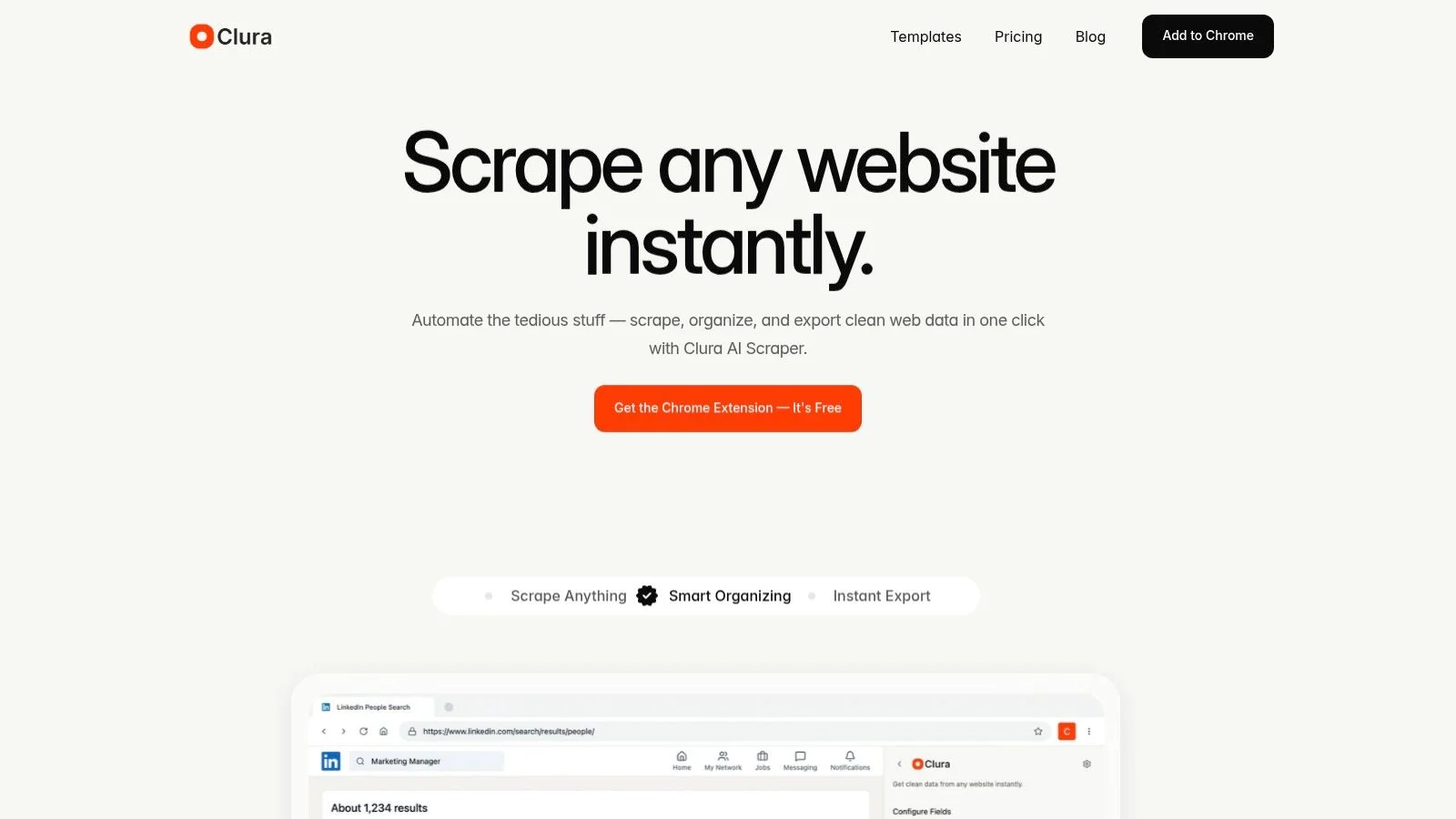
Clura's AI agents and prebuilt templates instantly recognize, scrape, and organize data from almost any public website — LinkedIn, X, Crunchbase, job boards, Amazon, Shopify, and more. The result is an immediate clean CSV export ready for analysis or outreach. It is built for people who want to scrape in the same browser session they already use for research, not maintain selectors, proxies, or scripts.
- One-Click AI Agent: scrapes, organizes, and exports data with a single click.
- Prebuilt Smart Templates: ready-made workflows for lead lists, contact enrichment, competitor pricing, and job postings.
- Broad Site Coverage: works across social platforms, business directories, app stores, review sites, company pages, and dynamic websites.
- Free plan includes 20 scrapes per day, 500 rows per scrape; Lifetime Plan at $29.99 one-time with unlimited scrapes and records.
Clura is strongest when the data is visible in Chrome and the user needs a structured export quickly: LinkedIn profiles, Google Maps businesses, Instagram profiles, Amazon products, job listings, directories, and competitor pages. For focused comparisons, see Clura vs Instant Data Scraper, Clura vs Outscraper, and Clura vs Browse AI.
| Pros | Cons |
|---|---|
| No-code one-click operation in browser | Requires Chrome browser |
| Smart templates speed up common tasks | Free plan limited to 20 scrapes/day, 500 rows/scrape |
| Works well for login sessions and dynamic pages | Not the right tool for a nightly million-page crawl |
| $29.99 lifetime plan keeps costs predictable | Cloud scheduling is not the core workflow |
Apify: Best for Developer Flexibility and Scale
Apify is a full-scale cloud platform where developers build, run, and manage web scrapers called Actors — starting with pre-made templates for popular sites and scaling to fully custom JavaScript or TypeScript code for complex projects.
Apify's model is start simple, scale up. You can begin immediately with its huge library of ready-made Actors for scraping Amazon, LinkedIn, and Google Maps. As your needs evolve, use its SDKs and the open-source Crawlee framework for highly specific tasks. All scrapers run in the cloud with scheduling, data retention, webhooks, and a REST API. See Apify pricing and Apify documentation for current plan and API details.
- Pros: very flexible transition from pre-built templates to fully custom code; platform credits can be cost-effective for large-scale jobs.
- Cons: building custom Actors requires JavaScript or TypeScript coding knowledge; costs increase with heavy proxy or rendering use.
- Free plan includes $5 in monthly platform usage; paid plans start at $29/month plus pay-as-you-go usage.
Bright Data: Best for Enterprise-Grade Unblocking
Bright Data is a powerhouse combining a massive proxy network with a serverless Scraper IDE — designed for enterprises that need reliable high-volume data extraction from heavily protected websites where getting blocked is not an option.
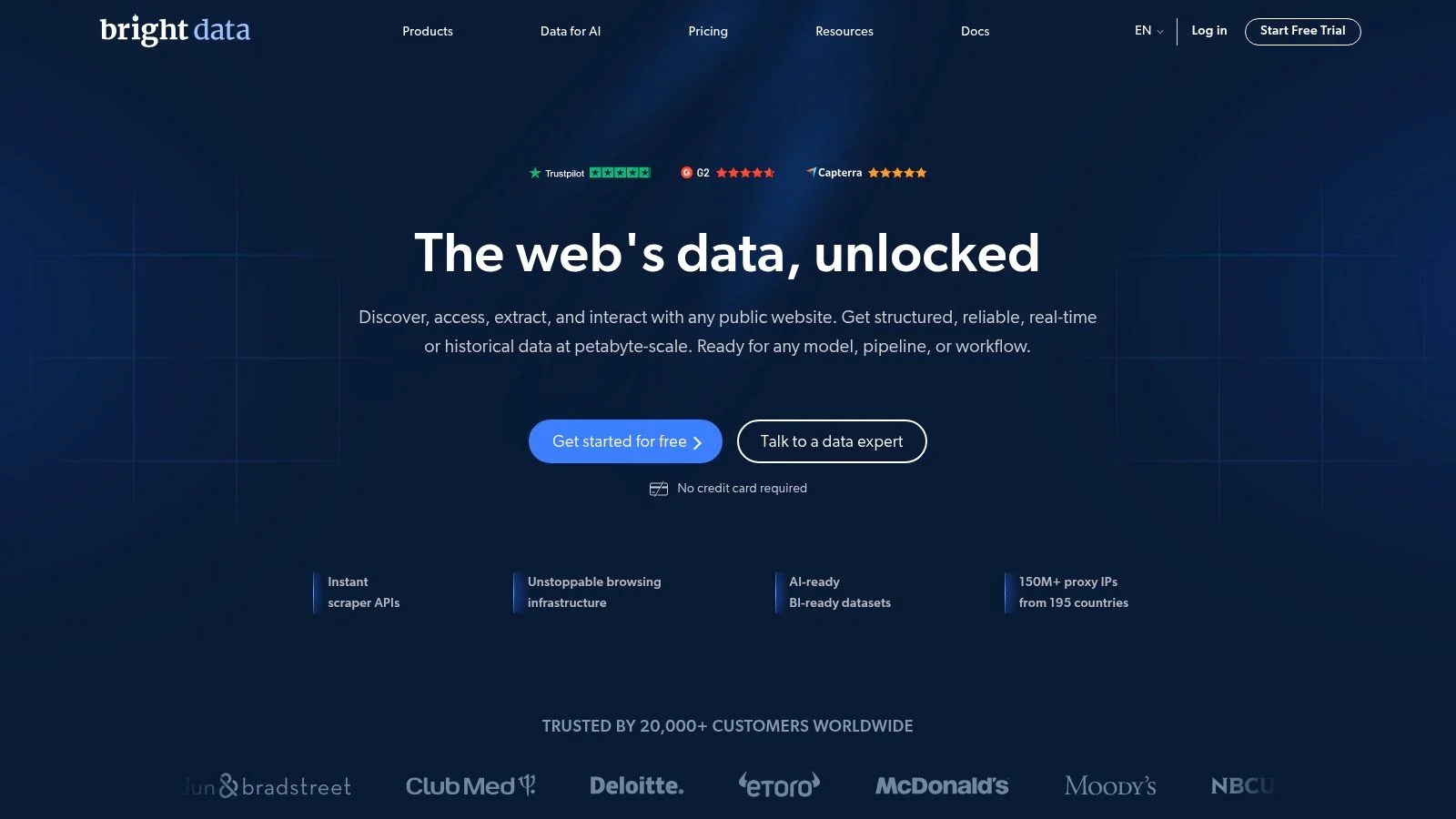
Bright Data automatically manages retries, CAPTCHAs, and IP rotation so teams can focus on data logic rather than anti-bot mechanics. Data can be delivered as JSON, CSV, or Excel, or sent directly to cloud storage like S3, GCP, or Azure via webhooks. It is the better fit when scraping is business-critical infrastructure rather than a quick research workflow. See Bright Data pricing for current proxy, scraping API, and dataset pricing.
- Pros: extremely high success rates on protected sites; pay-per-successful-request pricing is predictable at scale.
- Cons: more expensive than simpler tools, especially for small-scale projects; best pricing requires monthly commitment.
- Pricing varies by product and volume; expect a usage-based enterprise buying process rather than a simple small-team plan.
Zyte: Best for Scrapy Ecosystem and Reliable APIs
Zyte is a unified scraping API built for engineering teams that demand predictable success rates — created by the same team behind Scrapy, it specializes in managed anti-bot handling with automatic IP rotation and JavaScript rendering.
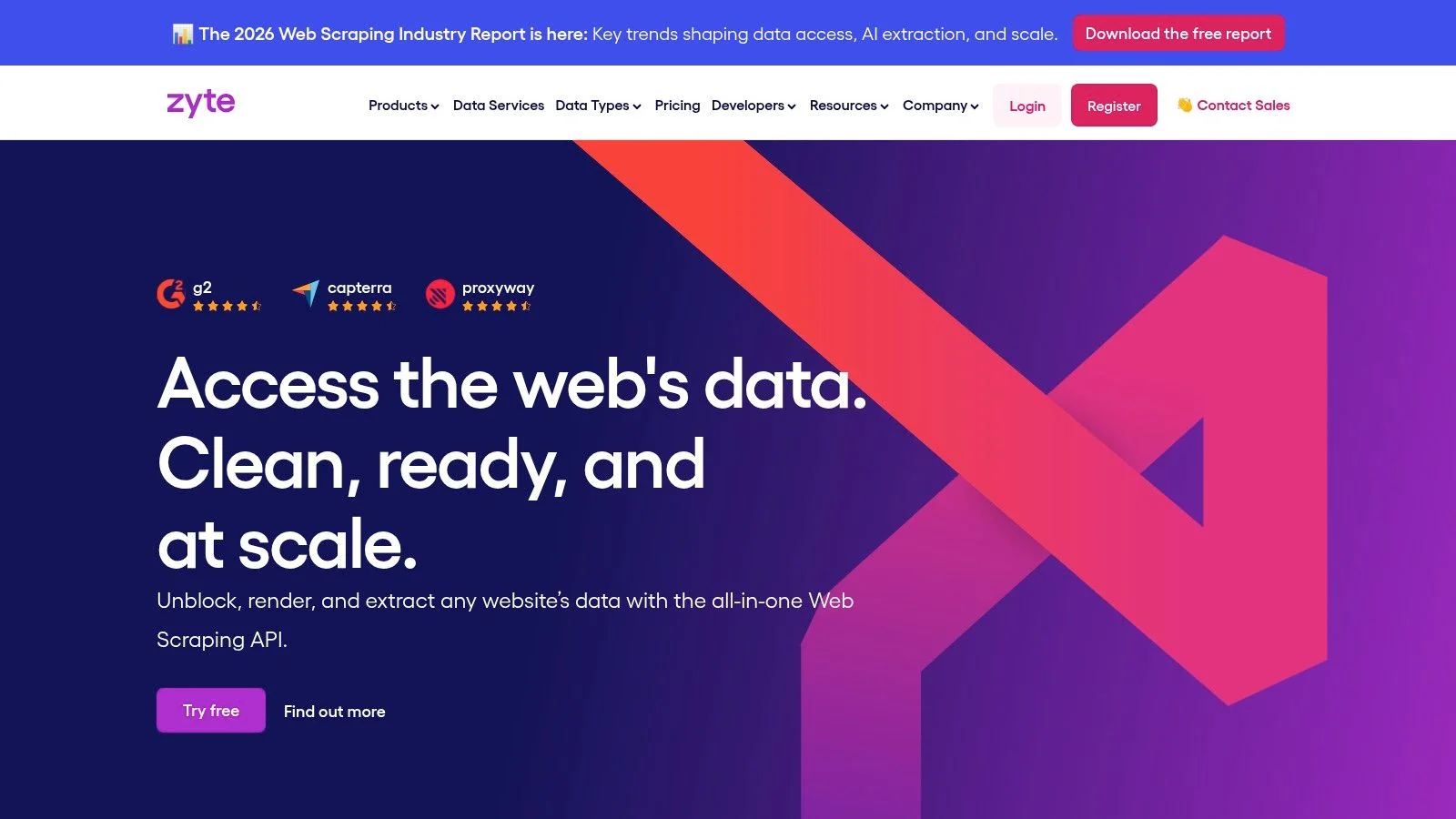
Zyte charges only for successful responses, with different tiers based on target site difficulty — giving teams cost transparency for large-scale operations. Its deep Scrapy integration provides a clear path for teams already using the framework who need to scale to enterprise-grade infrastructure. See Zyte documentation for API and Scrapy integration details.
- Pros: extremely reliable for scraping difficult websites at scale; mature Scrapy ecosystem and managed hosting.
- Cons: per-1K-response pricing requires careful planning; minimum commitments may be required for best discount tiers.
- Free trial available; paid plans are consumption-based.
Octoparse: Best Visual No-Code Tool
Octoparse is a point-and-click desktop and cloud scraping tool for users who want to extract data without any coding — offering prebuilt templates for popular sites alongside a visual workflow builder for custom extraction jobs.
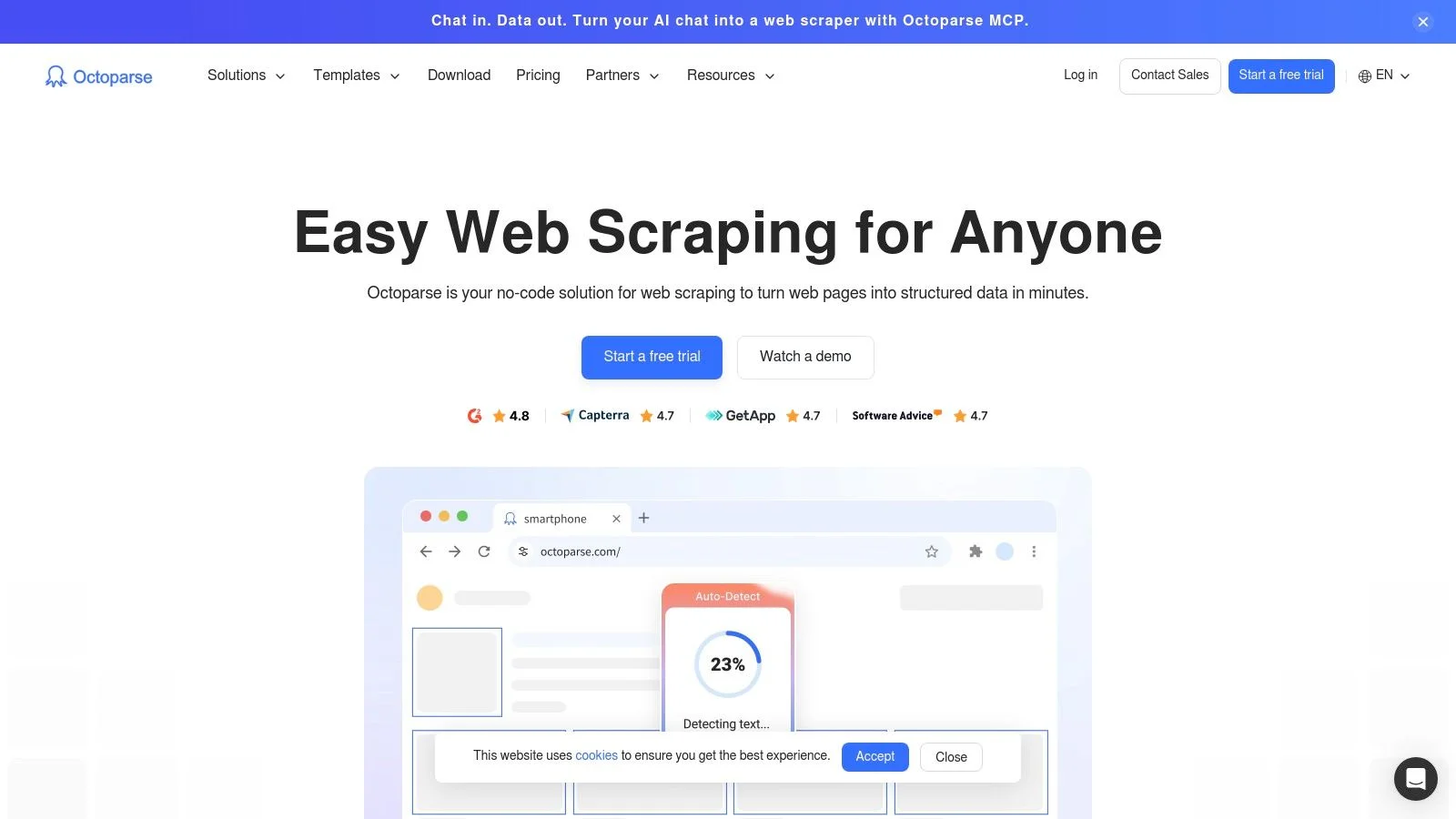
Octoparse is useful when a user wants a desktop-style visual builder, cloud runs, and preset templates without touching code. It has more workflow controls than a lightweight browser extension, but that also means more setup before the first clean export. See Octoparse pricing for current plan limits.
- Pros: very easy for non-technical users; combination of local and cloud extraction offers flexibility; managed services available for enterprise.
- Cons: dynamic JavaScript-heavy sites can require manual tweaks; advanced anti-blocking features add to cost.
- Free plan allows up to 10 tasks; paid plans start at $69/month when billed annually.
Web Scraper (webscraper.io): Best Free Sitemap-Based Extension
The WebScraper.io Chrome extension lets you build visual sitemaps to navigate and extract data from websites — defining which pages to visit and which elements to select before running any extraction. It is the most powerful free web scraper extension for chrome for multi-page crawls, with an optional paid cloud service for scheduled automated runs and Google Sheets integration.
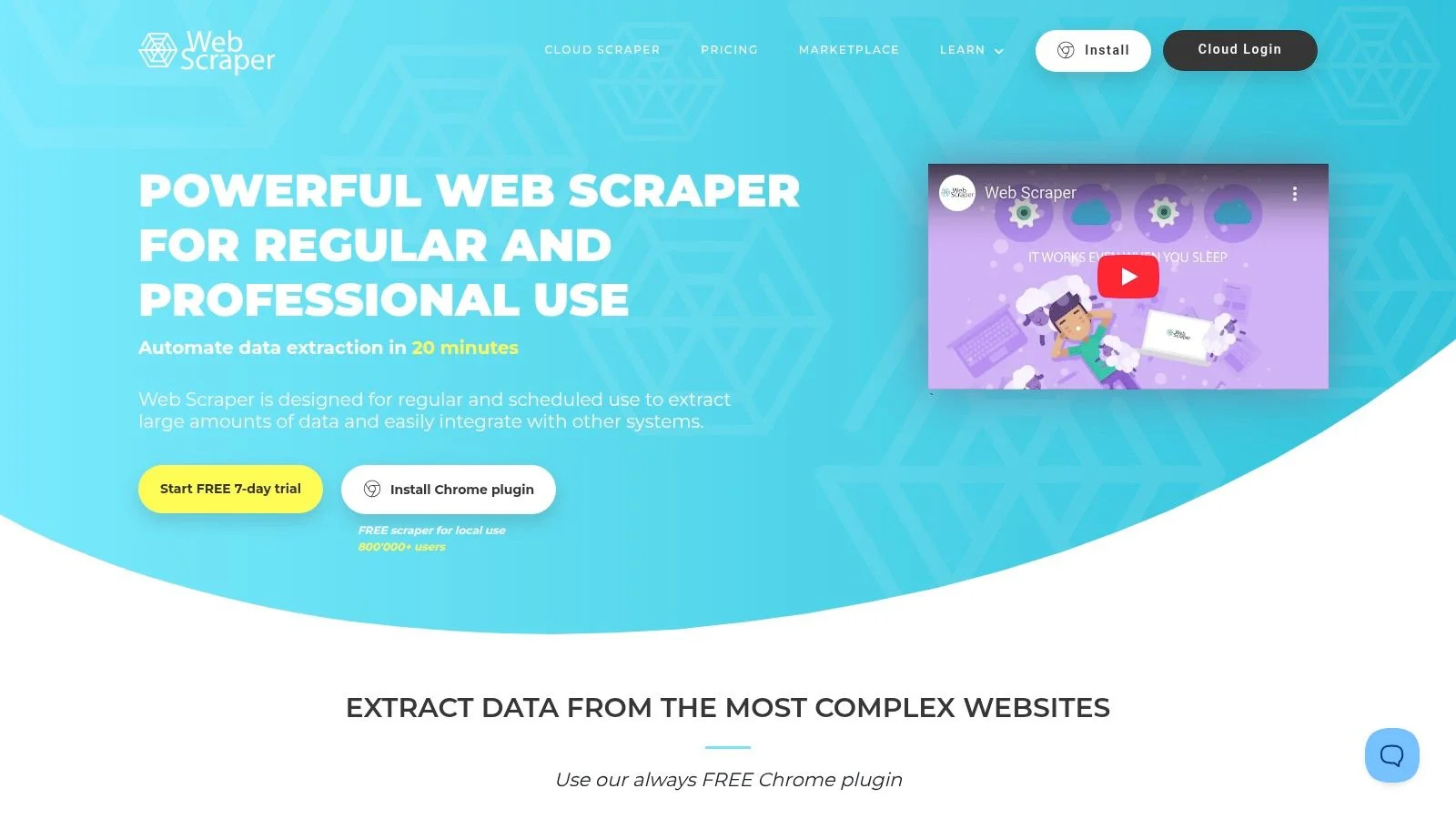
The webscraper.io Chrome extension works differently from auto-detection tools like Clura: you define a sitemap schema first — specifying which links to follow and which CSS selectors to extract — then run the scraper. This gives precise control but requires 15–45 minutes of setup per new site. Once configured, the same schema runs repeatedly without reconfiguration. See the Web Scraper documentation for sitemap and selector setup.
- Pros: completely free browser extension; best-in-class for multi-page crawls and following links across a site; excellent documentation.
- Cons: requires CSS selector knowledge and upfront sitemap configuration; cloud limited by URL credits and parallel job caps.
- Browser extension free; cloud pricing starts at $50/month.
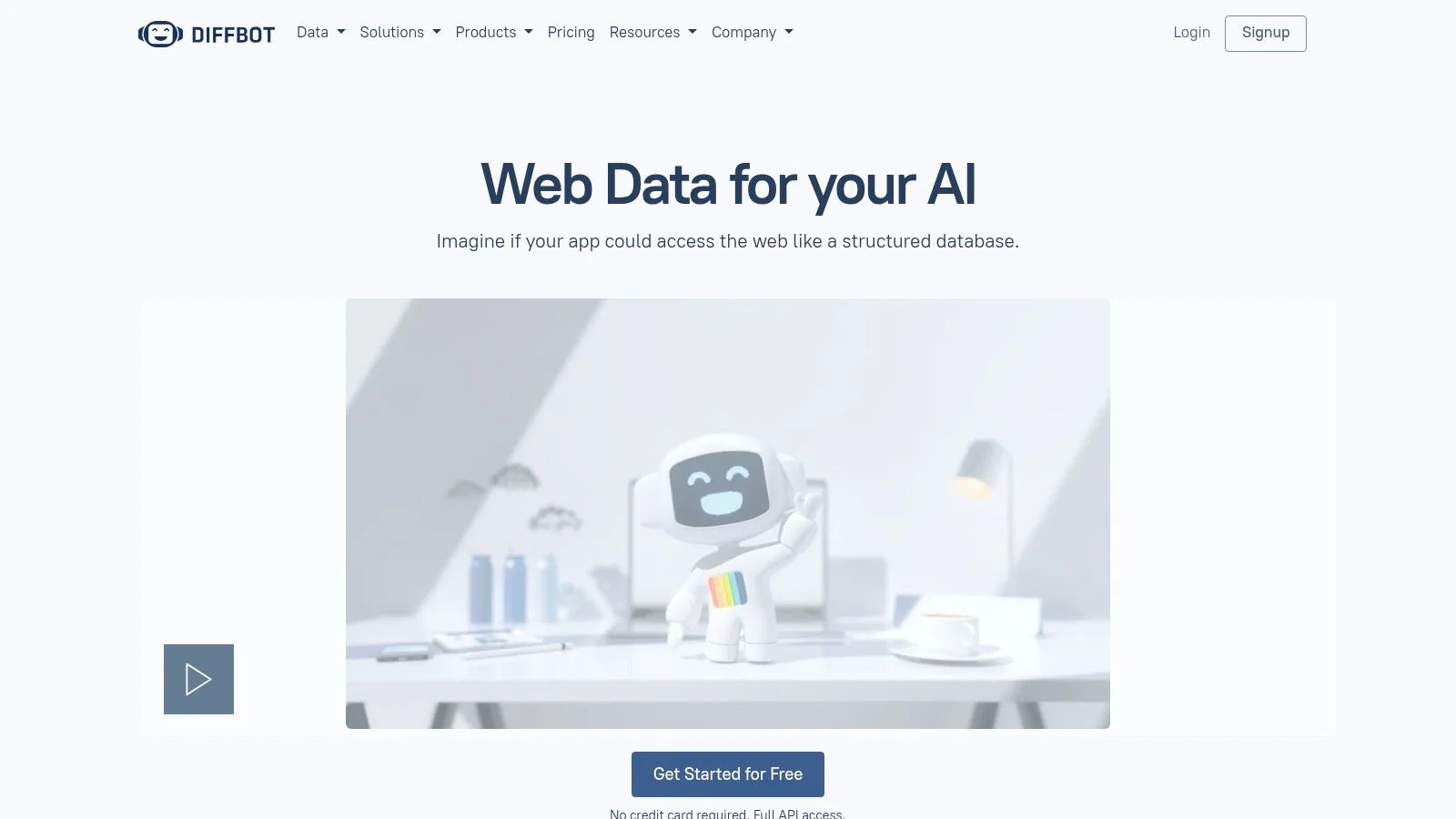
Diffbot: Best AI-Powered Structured Data Extraction
Diffbot uses computer vision and natural language processing to automatically identify and structure data from web pages — eliminating the need to write CSS selectors or XPath rules for consistent high-quality output.
- Pros: high-quality structured output without CSS or XPath rules; scales well for news, e-commerce, and product intelligence.
- Cons: credit-based pricing can feel abstract; overkill for simple static websites.
- Diffbot pricing lists a free plan and paid plans beginning at $299/month.
ScraperAPI: Best Proxy Management for Developers
ScraperAPI handles rotating proxies, CAPTCHA solving, and JavaScript rendering so developers can focus on scraping logic — send your target URL to a single API endpoint and receive the rendered HTML without worrying about blocks.
- Pros: very quick to integrate; completely removes the burden of managing proxies or headless browsers.
- Cons: credit model means costs scale with request volume; you still need to write and maintain your own scraping logic.
- ScraperAPI pricing starts with a trial and paid plans from $49/month.
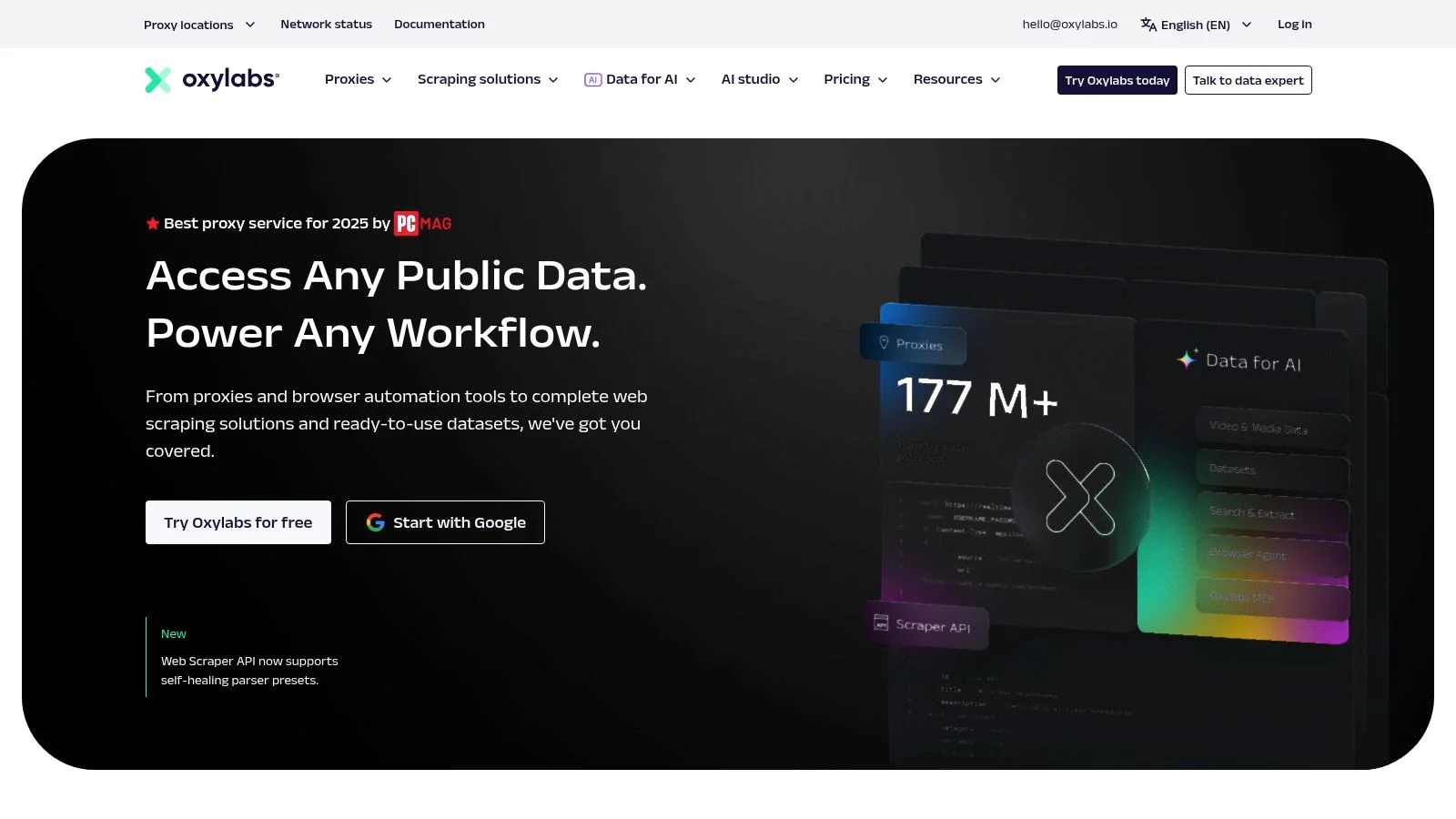
Oxylabs: Best Enterprise Proxy and Scraping Infrastructure
Oxylabs is a premium suite of proxy services and Scraping APIs built for enterprises needing reliable large-scale data extraction — offering ethically sourced residential, mobile, datacenter, and ISP proxy pools with enterprise-grade SLAs.
- Pros: enormous well-maintained IP pools with excellent success rates; enterprise SLAs and ISO 27001 compliance.
- Cons: premium pricing may exceed what small projects need; wide array of products can feel overwhelming.
- Oxylabs pricing varies by proxy and scraper API product, with self-serve and enterprise options.
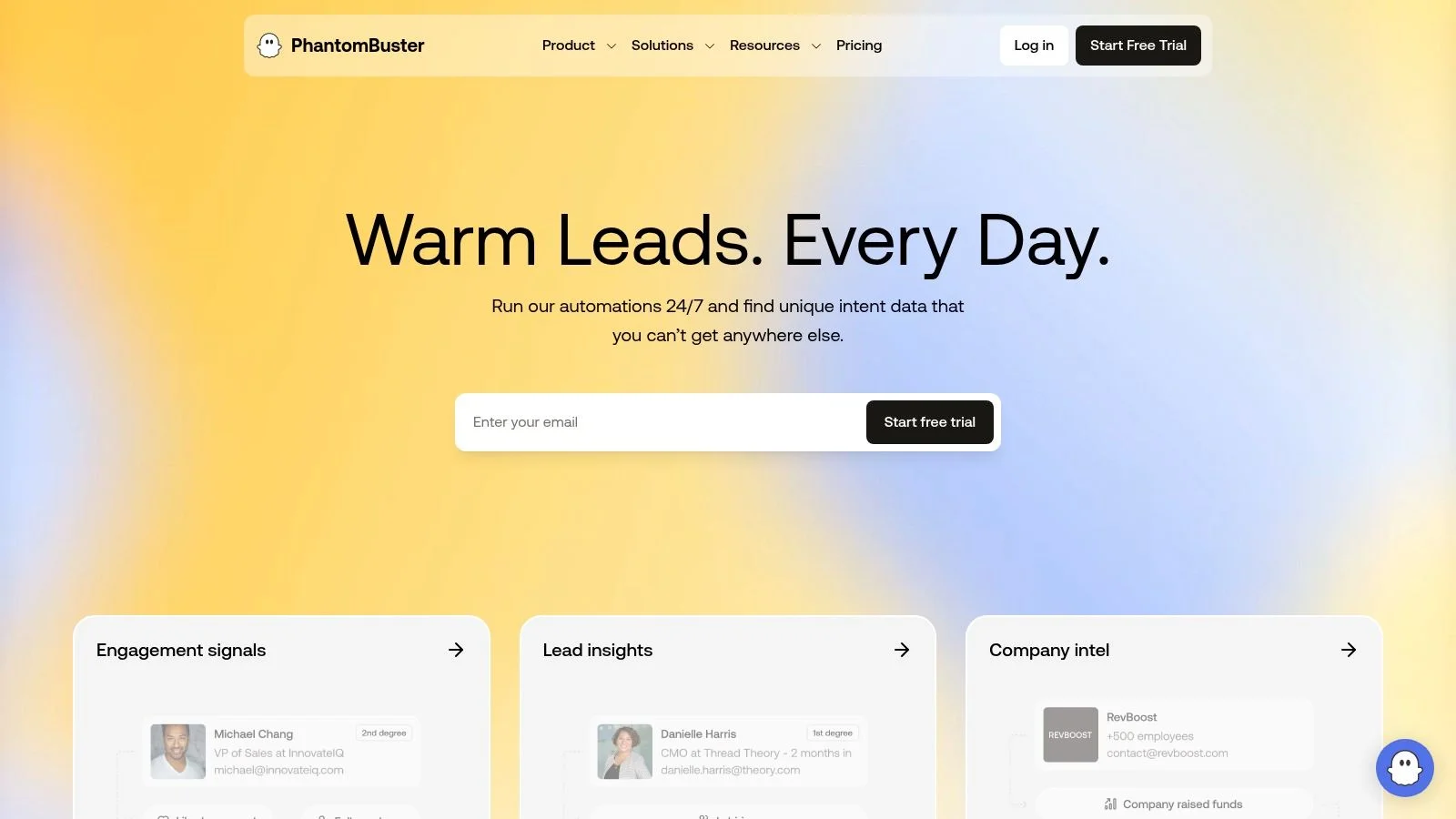
PhantomBuster: Best for Sales and Marketing Automation
PhantomBuster is a cloud-based automation platform providing pre-built automations called Phantoms that combine data extraction with actions on LinkedIn, Sales Navigator, X, and Instagram — ideal for no-code lead generation and outreach workflows.
- Pros: very low setup time for lead generation; strong integration ecosystem with HubSpot, Salesforce, and Zapier.
- Cons: execution-time limits require plan upgrades for heavy users; automations can be affected by social platform policy changes.
- PhantomBuster pricing includes a free trial, with paid plans starting at $69/month.
Need a No-Code Scraper? Try Clura Free
Clura is the fastest way to get started with web scraping — one-click extraction, prebuilt templates, and clean CSV export, all from your Chrome browser.
Add to Chrome — Free →SerpApi: Best for Search Engine Results Scraping
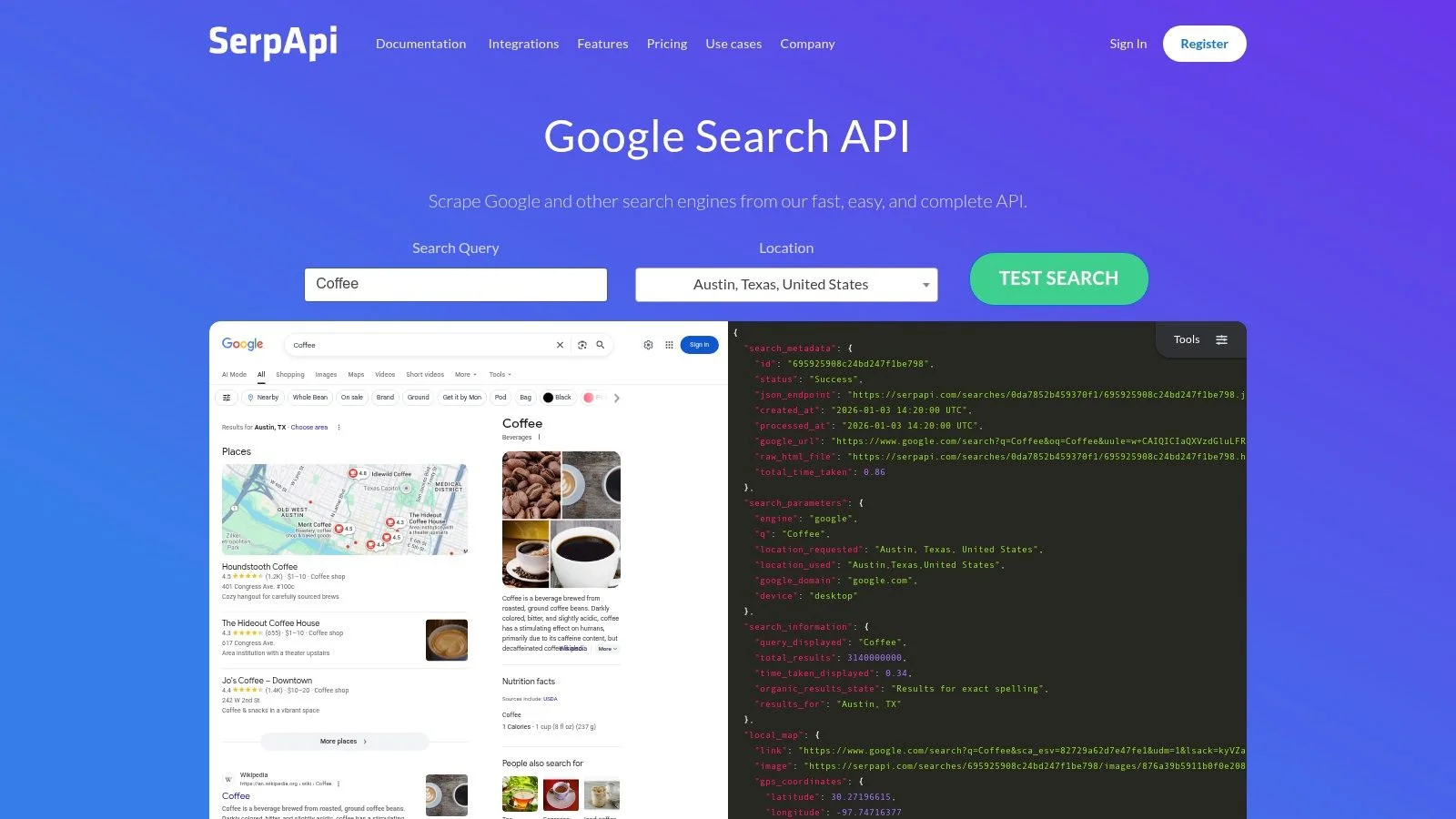
SerpApi is a real-time API focused exclusively on scraping Google, Bing, YouTube, and Amazon search results — returning clean predictable JSON without managing proxies, CAPTCHAs, or raw HTML parsing.
- Pros: simple predictable pricing on successful searches only; client libraries for Python, Node.js, and Ruby.
- Cons: highly specialized for search data only; not a general-purpose crawler.
- SerpApi pricing includes a free allowance, with paid plans starting at $50/month for 5,000 searches.
Import.io: Best Managed Enterprise Data Service
Import.io offers both a self-service web scraping tool and a fully managed data acquisition service — teams can build their own extractors or outsource the entire scraping operation to Import.io engineers with defined SLAs.
- Pros: ability to completely offload scraper engineering and maintenance; managed service provides clear SLAs for business-critical data feeds.
- Cons: pricing is not public and requires a scoping process; self-service tier may struggle with heavily protected sites.
- Enterprise-focused; contact sales for a custom quote.
How to Choose the Best Web Scraper for You
Choosing the best web scraper comes down to three factors: your technical skill level, your project's scale, and your budget — with no-code tools for business users and developer APIs for teams needing custom pipelines at scale.
For non-technical users in sales, marketing, recruiting, or research who need a no-code web scraper and want to start in minutes, the top choices are Clura, PhantomBuster, and Octoparse. Clura is the cleanest fit for everyday browser workflows because the data stays inside the session you are already using, then exports to CSV or connects into the next step.
For chrome extensions for data scraping specifically, the split is: Clura for auto-detection with no setup (best for ecommerce, leads, job boards, social profiles, and directories), WebScraper.io for sitemap-based multi-page crawls, and Instant Data Scraper for one-click table grabs from simple HTML pages. If you want that comparison only, read the free web scraping tools guide and Clura vs Instant Data Scraper.
For developers and data teams requiring deep customization, scalability, and API access, focus on Apify, Zyte, and ScraperAPI — platforms that provide proxy management and infrastructure for reliable large-scale scrapers handling JavaScript-heavy sites. For niche use cases, SerpApi is purpose-built for search engine data and Diffbot delivers AI-structured content from articles and product pages. For browser-first competitor comparisons, see Clura vs Outscraper, Clura vs Browse AI, and Clura vs Thunderbit.
Start With the Browser Before Buying Infrastructure
Clura gives lead gen, market research, recruiting, and ecommerce teams a simple way to validate scraping workflows before committing to monthly platforms or developer infrastructure.
Add to Chrome — Free →Screen Scraping, Web Crawlers, and Data Extractors: What Is the Difference?
Screen scraping reads data from a rendered visual display — pixels and UI elements — rather than underlying HTML. Web scraping extracts structured data from a website's HTML source. A web crawler tool discovers and indexes URLs at scale. A data extractor is the broadest category: any tool that pulls structured data out of an unstructured digital source, whether a webpage, PDF, or enterprise file.
What Is Screen Scraping?
Screen scraping is the original data extraction technique — it captures information by reading what is rendered on a display, element by element or pixel by pixel, rather than parsing the underlying source code. Before the modern web, screen scraping tools were the only way to pull data from legacy mainframe terminals and older enterprise software with no export function. Today, screen scraping software still has a niche: extracting content from desktop applications with no API, or from locked PDFs where the source file is inaccessible.
The web scrapers in this guide are not screen scrapers in the strict technical sense — they work at the HTML layer, reading the structured code a page is built from, not the rendered pixels. That said, the term gets used loosely. When someone asks for a screen scraping tool to pull data off a website, they almost always mean a web scraper. For pure web use cases in 2026, HTML-level web scraping is faster, more stable, and significantly easier to maintain than true pixel-level screen scraping.
Web Crawler Tools vs Web Scrapers
A web crawler tool has one job: discover pages. It follows links from page to page — across a site or across the internet — building an index of what exists and where. Google's Googlebot is the most recognizable website crawling tool. SEO platforms like Screaming Frog are built on the same principle: systematically map a site's structure, surface broken links, and audit internal link graphs. The output of a crawler is a list of URLs, not a clean data set.
A web scraper visits specific pages with a defined extraction target: the price on this product listing, the phone number in this directory entry, the 500 company names across these search results. Most business use cases — lead generation, price tracking, job scraping, market research — need a scraper, not a crawler. If you need full-site URL mapping for an SEO audit, run a dedicated website crawling tool alongside your scraper. The two are complements, not competitors.
What Is a Data Extractor?
Data extractor is the umbrella term. Web scrapers, PDF parsers, email parsers, and database export utilities are all data extraction tools — they each pull structured information out of a source that doesn't hand it to you cleanly. In practice, when someone searches for a data extractor or data extraction tools in 2026, they almost always mean a web scraper: something that turns a live webpage into a clean CSV without manual copy-pasting. All 12 tools in this guide qualify. The right one depends on whether you need a no-code browser extension for on-demand exports (Clura), a visual desktop tool for scheduled runs (Octoparse), or a developer API for large-scale pipelines (Apify, Zyte, Bright Data).
| Term | How It Works | Common Use Case | Best Tool Type |
|---|---|---|---|
| Web scraper | Extracts structured data from website HTML | Lead lists, price monitoring, job scraping | Chrome extension or cloud scraper |
| Screen scraping tool | Reads rendered visual display pixel by pixel | Legacy desktop apps, locked PDFs | RPA software (UiPath, ABBYY) |
| Web crawler tool | Follows links to discover and index URLs | SEO auditing, site mapping, search indexing | Dedicated crawler (Screaming Frog) |
| Data extractor | Pulls structured data from any digital source | Web, PDF, email, database | Scraper for web; parser for docs |
Frequently Asked Questions
What is the best web scraper for beginners?
Clura is the easiest starting point for beginners — it is a Chrome extension requiring no code, no setup, and no technical knowledge. Simply install it, navigate to your target site, and click the data you want. Prebuilt templates for LinkedIn, Amazon, and Crunchbase make common tasks even faster.
What is the best web scraper for developers?
Apify and Zyte are the top choices for developers. Apify offers a flexible cloud platform with JavaScript and TypeScript SDKs and a large library of pre-built Actors. Zyte integrates deeply with the Scrapy ecosystem and provides managed anti-bot handling for highly protected sites.
What is the best Apify alternative?
Clura is the best Apify alternative for non-technical teams that need browser-based CSV exports from visible pages. Apify is still better for scheduled cloud jobs and custom developer pipelines, but it takes 30-60 minutes to configure a typical Actor workflow and paid plans start around $29/month plus usage. Clura starts in Chrome in under 2 minutes and has a free tier plus a $29.99 lifetime plan.
What is the best Octoparse alternative?
Clura is the best Octoparse alternative when you want a faster no-code workflow inside Chrome. Octoparse is stronger for desktop-style visual flow building and scheduled cloud runs, but each new site can require 30-60 minutes of setup. Clura is better for quick lead lists, product exports, job listings, social profiles, and directory scraping where the data is already visible in the browser.
What is the best ScrapingBee alternative?
For developers who need an HTML-rendering API, ScraperAPI, Zyte, and Apify are the closest ScrapingBee alternatives. For business users who need the extracted rows rather than raw rendered HTML, Clura is the better alternative: it runs in Chrome, detects fields visually, and exports CSV without writing parsing code.
Are there any free web scrapers available?
Yes. Clura offers 20 scrapes per day and 500 rows per scrape free, Web Scraper's Chrome extension is completely free for local use, Apify provides $5 in monthly platform usage, ScraperAPI offers free testing credits, and SerpApi gives 100 free searches per month. For a free-only shortlist, use our free web scraping tools guide.
What is the best no-code web scraper?
Clura is the best no-code web scraper for most business use cases — it detects page fields automatically with no CSS selectors required, exports to CSV in under 2 minutes, and is free for up to 20 scrapes per day. Octoparse is the best no-code option for teams that need scheduled cloud runs or desktop-based scraping of complex sites. WebScraper.io's Chrome extension is free and powerful for multi-page crawls, though it requires sitemap configuration before extraction starts.
What is the best web scraping extension?
The best web scraping extension depends on setup preference. Clura is best when you want automatic field detection, rendered-page extraction, and CSV export from Chrome with no selectors. WebScraper.io is best when you want sitemap-style control for repeated multi-page crawls. Instant Data Scraper is best for simple one-click table extraction.
What is the best web scraper Chrome extension?
The best web scraper Chrome extension depends on your use case. Clura is fastest to start — auto-detects fields with no configuration, free tier available. WebScraper.io (webscraper.io) is most powerful for multi-page crawls with its sitemap builder, free browser extension with $50/month cloud option. Instant Data Scraper is best for grabbing simple HTML tables in one click, fully free. For chrome extensions for data scraping at scale or with login-protected pages, Clura handles both automatically through your real browser session.
How do I use a web scraper Chrome extension?
Open the target page in Chrome, apply the filters you want, launch the scraper extension, preview the detected fields, run pagination or infinite scroll if needed, and export the results to CSV or Excel. With Clura, the setup usually takes under 2 minutes because the extension detects visible page fields without CSS selectors.
What is the best data scraper extension for Chrome?
Clura is the best data scraper extension for no-code users who need rendered-page extraction, AI field detection, subpage enrichment, and CSV exports. WebScraper.io is better for users who want selector-level sitemap control, while Instant Data Scraper is best for quick static table exports.
What is the difference between a web scraper and a web crawler tool?
A web crawler tool systematically follows links across pages to discover and index URLs — its output is a map of what exists on a website or the web at large. Google's Googlebot and SEO auditing tools like Screaming Frog are website crawling tools. A web scraper visits specific pages with a defined target and extracts structured data — product prices, contact details, job listings — into a clean spreadsheet. Most business use cases need a scraper, not a crawler. If you need to audit your site's link structure or find broken pages, use a dedicated web crawler tool. If you need data from those pages, use a web scraper.
What is the best web scraping software for non-technical users?
The best web scraping software for non-technical users in 2026 is Clura — a Chrome extension that auto-detects data fields on any page and exports a clean CSV in under two minutes with no code or CSS selectors required. Octoparse is the best web scraping software for users who need a desktop application with a visual point-and-click builder for more complex multi-step workflows. Both offer free plans. If you are on Windows or Mac and want software that runs locally rather than in a browser, Octoparse is the better fit; for anything that runs inside Chrome, Clura is faster to start.
What are data extraction tools and which type do I need?
Data extraction tools are software products that pull structured information out of sources that do not provide it cleanly — websites, PDFs, emails, or databases. For website data, you need a web scraper: Clura for no-code browser extraction, Apify or Zyte for developer-grade API pipelines, Octoparse for visual desktop workflows. For PDF data extraction, dedicated tools like Adobe Acrobat, ABBYY, or Docparser are purpose-built. For extracting data from emails or CRMs, use an integration platform like Zapier. The tools in this guide are all web-focused data extraction tools — they go from a live webpage to a clean spreadsheet without any manual copying.
Is web scraping legal in 2026?
Scraping publicly available data remains generally legal in 2026, supported by multiple court rulings. The key principles are to scrape only publicly visible data, respect each site's robots.txt rules, avoid collecting personal data subject to GDPR or CCPA, and never attempt to bypass authentication walls. Always review a site's Terms of Service before scraping.
Conclusion
The best web scraper is the one that matches the workflow you actually run. For everyday research, lead lists, recruiting, ecommerce checks, and market research, start with a browser-native scraper like Clura. For scheduled engineering pipelines, use Apify, Zyte, or ScraperAPI. For enterprise-scale unblocking, Bright Data and Oxylabs belong in the conversation.
Do not start with the most complex stack. Start with the smallest tool that proves the workflow, then upgrade when volume, scheduling, or anti-blocking requirements make the upgrade obvious. For many teams, that means validating the use case in Chrome first, then deciding whether a developer API or enterprise provider is truly necessary.
Explore related guides:
- Clura Pricing — free daily scraping plus a $29.99 lifetime plan for unlimited scrapes and records
- How Web Scraping Works — a beginner-friendly explanation of how automated data extraction works
- Web Scraping for Lead Generation — how sales teams use scraping to build enriched prospect lists automatically
- Data Scraping Chrome Extension — a comparison of the best Chrome extensions for no-code data extraction
- Free Web Scraping Tools — only tools with a genuine free tier — no paid-only recommendations
- Clura vs Outscraper — compare browser-native scraping with web app and API-based extraction workflows
- Clura vs Instant Data Scraper — compare simple one-off table extraction with a fuller scraping workflow
- TikTok Scraper: 91% vs 4% Block Rate — why TikTok blocks Python scrapers before the first response — and which tool actually works
Validate Your Scraping Workflow in Chrome
Clura is designed for teams that need clean website data without a monthly platform or developer setup. Scrape visible pages, enrich rows, and export structured data from Chrome in minutes.
Add to Chrome — Free →