
How to Export LinkedIn Contacts: The Ultimate Guide
Clura Team
Your LinkedIn network is one of your most valuable professional assets — but keeping it locked inside LinkedIn is like owning a sports car and never taking it out of the garage. Exporting your contacts lets you build CRM databases, personalize outreach at scale, and protect your network from account restrictions.
80% of B2B leads come from LinkedIn, yet most professionals never export their data. Whether you are a recruiter building a talent pipeline, a sales rep prospecting for new business, or a marketer running account-based campaigns, this guide covers every method for LinkedIn contact export and lead generation — from LinkedIn's free built-in tool to AI-powered scraping that captures far richer data.
Export LinkedIn Contacts With Richer Data Than LinkedIn's Native Export
Clura's AI browser agent extracts full profiles — job title, company, email, LinkedIn URL, and more — directly from LinkedIn and Sales Navigator into a clean CSV.
Add to Chrome — Free →Why Exporting LinkedIn Contacts Matters
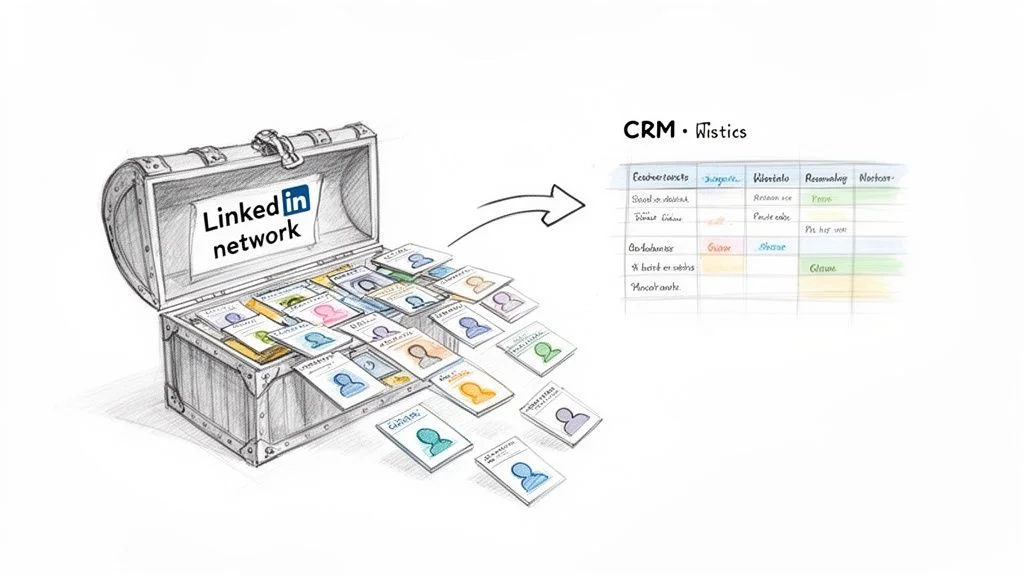
Exporting LinkedIn contacts gives you full control of your professional network — enabling CRM import, personalized outreach at scale, data backup, and network analysis that is impossible within LinkedIn's native interface.
LinkedIn is a walled garden. All the relationship data you have built over years — connections, companies, job titles, mutual connections — is trapped in LinkedIn's interface with no easy way to analyze, segment, or act on it externally.
Exporting your contacts unlocks four key capabilities:
- CRM import — sync your LinkedIn network into HubSpot, Salesforce, or any CRM for proper relationship management
- Personalized outreach — segment contacts by industry, seniority, or company size and craft targeted campaigns
- Network backup — protect your professional network against account restrictions or LinkedIn platform changes
- Network analysis — identify patterns, referral paths, and relationship density that are invisible in LinkedIn's UI
Method 1: LinkedIn's Built-In Data Export
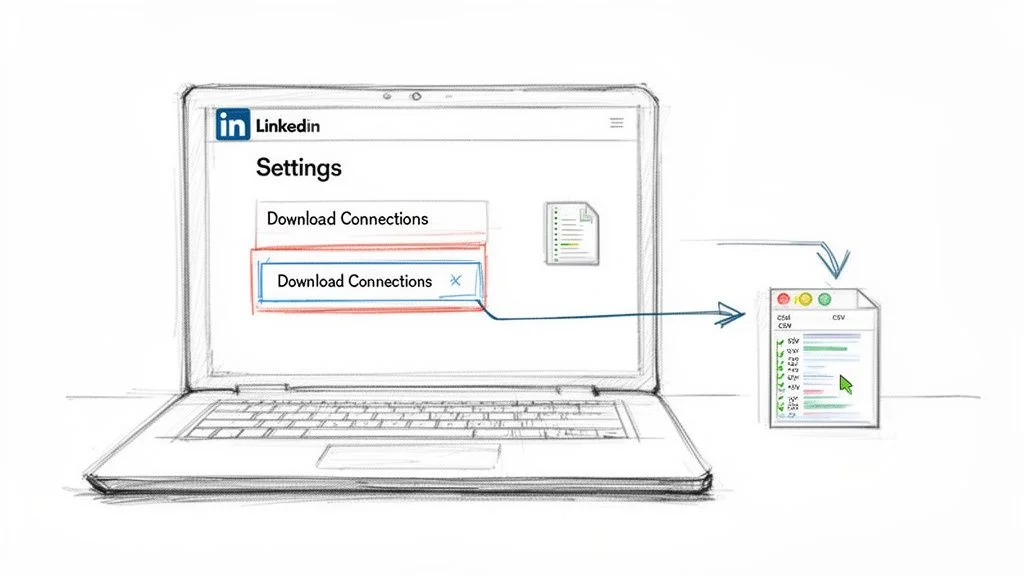
LinkedIn's native data export delivers a CSV of your first-degree connections with basic fields — name, company, position, and connected date — but only includes email addresses for the roughly 20-30% of contacts who have made their email visible to connections.
LinkedIn offers a free, built-in way to download your connections data. Here is the step-by-step process:
- Click your profile photo and select 'Me' from the top navigation
- Go to Settings and Privacy
- Click Data Privacy in the left sidebar
- Select 'Get a copy of your data'
- Check the 'Connections' box and click 'Request archive'
- Wait approximately 10 minutes and check your email for the download link
The downloaded CSV includes: First Name, Last Name, Email Address, Company, Position, and Connected On date. This is enough for basic CRM imports but has significant limitations.
- Email addresses included for only ~20-30% of contacts (those who have made them visible)
- No phone numbers, LinkedIn URLs, or profile photos
- No filtering by industry, company size, or geography
- Limited to first-degree connections only
Method 2: LinkedIn Sales Navigator
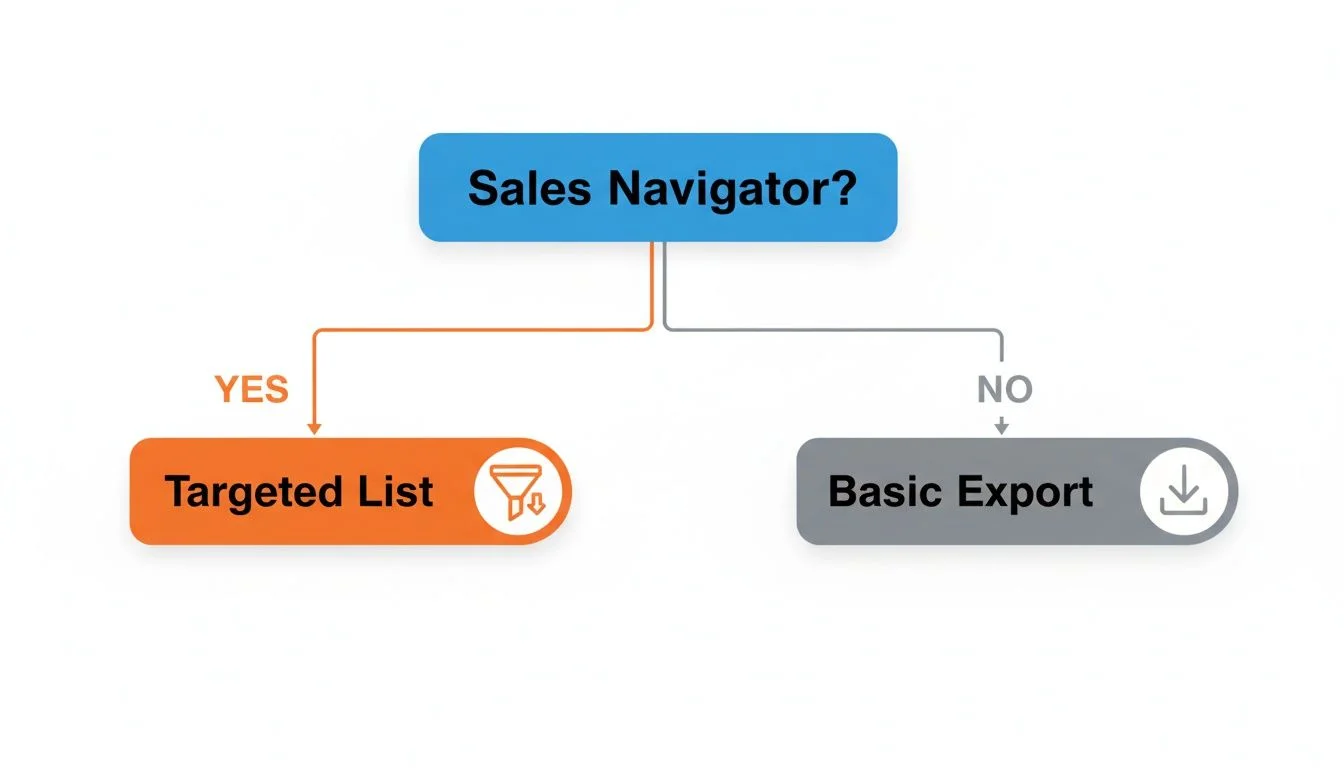
LinkedIn Sales Navigator provides advanced filters — company size, industry, seniority level, geography, and years of experience — to build highly targeted lead lists of thousands of prospects, but does not offer a native CSV export button.
LinkedIn Sales Navigator is LinkedIn's premium prospecting tool, starting at $99/month. It provides far more powerful filtering than the basic LinkedIn search, enabling you to build lists of exactly the right prospects at scale.
Key Sales Navigator filter capabilities:
- Company size ranges (1-10, 11-50, 51-200, 201-500, 501-1000, 1000+)
- Industry and sub-industry classification
- Seniority level (Entry, Senior, Manager, Director, VP, C-Level)
- Geographic precision down to city and postal code
- Years in current position and at current company
- Recent job changes, promotions, and company growth signals
The critical limitation: Sales Navigator does not have a native 'Export to CSV' button. To get your lead list out of LinkedIn and into your CRM or outreach tool, you need an external extraction method.
Method 3: AI-Powered Scraping (Most Powerful)
AI-powered browser scraping combines the targeting power of Sales Navigator with the ability to extract full profile data — job titles, company details, LinkedIn URLs, and more — into a clean CSV, enabling you to build complete lead lists in minutes instead of days.
Clura + Sales Navigator is the most powerful combination for LinkedIn contact export. You use Sales Navigator's advanced filters to find exactly the right prospects, then run Clura to extract their full profile data into a clean spreadsheet. Our detailed guide on how to scrape LinkedIn data covers the complete technical workflow.
Example: 500 marketing managers at mid-sized tech companies, built in minutes. With Sales Navigator, you filter to: Title = 'Marketing Manager', Industry = 'Computer Software', Company Size = '51-500 employees'. With Clura, you extract: Full Name, Job Title, Company, LinkedIn URL, Location — all in one click.
| Method | Data Included | Export Limit | Speed | Best For |
|---|---|---|---|---|
| Native Export | Name, Email (partial), Company | All connections | 10 min wait | Backing up your network |
| Sales Navigator | Rich filters, no native export | N/A | N/A | Finding prospects |
| AI Scraper (Clura) | Full profile data, all fields | Thousands/run | Minutes | Building targeted outreach lists |
Cleaning and Organizing Your Exported Contacts
After exporting LinkedIn contacts, clean your data by removing duplicates, standardizing job titles and company names, and splitting full names into separate first and last name columns before importing into your CRM.
A raw LinkedIn export often needs cleaning before it is CRM-ready. These steps apply whether you used the native export, AI scraping, or both. Once clean, push your data to Google Sheets with our guide on CSV to Google Sheets import.
- Remove duplicates — use Excel's Remove Duplicates or a =COUNTIF formula to find repeat LinkedIn URLs
- Standardize job titles — use Find & Replace to normalize 'Sr.' to 'Senior', 'Mgr' to 'Manager', etc.
- Clean company names — use =PROPER(TRIM(A2)) to fix inconsistent casing and extra spaces
- Split full names — use Text to Columns (delimiter: space) or =LEFT()/=MID() formulas
- Validate emails — use a bulk email verification tool before importing to your email platform
Build a Cleaner LinkedIn Contact List From the Start
Clura extracts LinkedIn data in a pre-structured format — separate columns for name, title, company, and URL — so you spend minutes cleaning instead of hours.
Add to Chrome — Free →Frequently Asked Questions
Is exporting LinkedIn contacts legal?
Using LinkedIn's native data export is fully legal and encouraged by LinkedIn. AI-powered scraping of your own connections' public profile data is generally permissible under GDPR's legitimate interest basis and the US hiQ v. LinkedIn ruling, but you must ensure you use the data in compliance with GDPR and CCPA — specifically, obtaining a valid legal basis before sending cold emails or adding contacts to marketing lists.
Can I export a LinkedIn Group member list?
LinkedIn does not allow exporting Group member lists directly. Group members are not your connections, so they do not appear in the native data export. The long-game approach is to engage genuinely in the group, connect with relevant members individually, and then export from your connections list once they have accepted.
How often should I export my LinkedIn contacts?
For passive network backup, an annual or bi-annual export using LinkedIn's native tool is sufficient. For active sales or recruiting workflows, a weekly export using an AI scraping tool like Clura against a saved Sales Navigator search ensures your outreach lists always reflect the most current profile data.
Conclusion
Exporting LinkedIn contacts transforms a passive professional network into an active business asset. LinkedIn's native export is free and safe but limited. Sales Navigator provides unmatched filtering power but requires an external extraction tool to get data out. AI-powered scraping combines both worlds — rich filtering plus complete profile export in minutes.
For most sales and recruiting teams, the highest-ROI setup is Sales Navigator for targeting plus Clura for extraction: you define exactly who you want, click once, and have a clean, import-ready CSV within minutes.
Whichever method you choose, clean your data before CRM import and handle personal data in compliance with GDPR and CCPA.
Explore related guides:
- How to Scrape LinkedIn Data — Complete technical guide to extracting LinkedIn profile data at scale
- LinkedIn Lead Generation Strategies — Proven B2B lead generation tactics for LinkedIn in 2026
- CSV to Google Sheets — How to import and sync CSV data into Google Sheets
Extract Your Full LinkedIn Network in Minutes
Clura's AI browser agent exports LinkedIn contacts with full profile data — name, title, company, LinkedIn URL, and more — directly to CSV. Free to start.
Add to Chrome — Free →About the Author