
How to Search for a Keyword on a Webpage (Ctrl+F Guide)
To search for a keyword on a webpage, press Ctrl + F on Windows/Linux or Cmd + F on Mac. A search bar appears at the top or bottom of your browser window — type your keyword and the browser highlights every match on the page instantly.
This built-in browser shortcut works in Chrome, Firefox, Safari, Edge, and virtually every other browser. It's the fastest way to jump to a specific word, phrase, or piece of information without scrolling through an entire page manually.
In this guide you'll learn how to use Ctrl+F on desktop and mobile, understand its limitations, and discover what to do when you need to find and collect data across multiple pages.
Need to Find Data Across Multiple Pages?
Ctrl+F searches one page at a time. Clura's AI Chrome extension lets you extract, filter, and export structured data from entire websites — no coding required.
Try Clura Free →How to Search for a Keyword on a Webpage (Desktop)
Press Ctrl + F (Windows/Linux) or Cmd + F (Mac) on any open webpage to open the browser's built-in Find toolbar. Type your keyword and the browser highlights every match — use the arrow buttons or Enter/Shift+Enter to cycle between results.
The browser's Find feature is universally available and requires no setup. It works on any webpage you have open — whether it's a news article, a product listing, a PDF opened in the browser, or a long documentation page.

Step-by-Step: Ctrl+F on Windows & Linux
- Open any webpage in your browser.
- Press Ctrl + F — a search bar appears (usually top-right in Chrome, bottom in Firefox).
- Type your keyword. Matches are highlighted in yellow on the page.
- Press Enter to move to the next match, or Shift + Enter to go back.
- Press Escape to close the search bar.
Step-by-Step: Cmd+F on Mac
- Open any webpage in Chrome, Safari, Firefox, or Edge.
- Press Cmd + F — the Find toolbar opens.
- Type your keyword. All instances are highlighted.
- Use the up/down arrows in the toolbar (or Enter / Shift+Enter) to cycle through matches.
- Press Escape or click ✕ to close.
The Find toolbar also shows a match count (e.g. '3 of 12') so you can gauge how often a term appears before reading further. In Chrome, matching terms in the browser scrollbar are shown as orange ticks so you can visually see where on the page matches cluster.
Browser Shortcuts at a Glance
| Browser | Open Find | Next Match | Previous Match | Close |
|---|---|---|---|---|
| Chrome (Windows/Linux) | Ctrl + F | Enter / Ctrl + G | Shift + Enter / Ctrl + Shift + G | Escape |
| Chrome (Mac) | Cmd + F | Enter / Cmd + G | Shift + Enter / Cmd + Shift + G | Escape |
| Firefox | Ctrl/Cmd + F | Enter / F3 | Shift + Enter / Shift + F3 | Escape |
| Safari (Mac) | Cmd + F | Enter / Return | Shift + Return | Escape |
| Edge | Ctrl/Cmd + F | Enter / F3 | Shift + Enter | Escape |
How to Search for a Keyword on a Webpage on Mobile
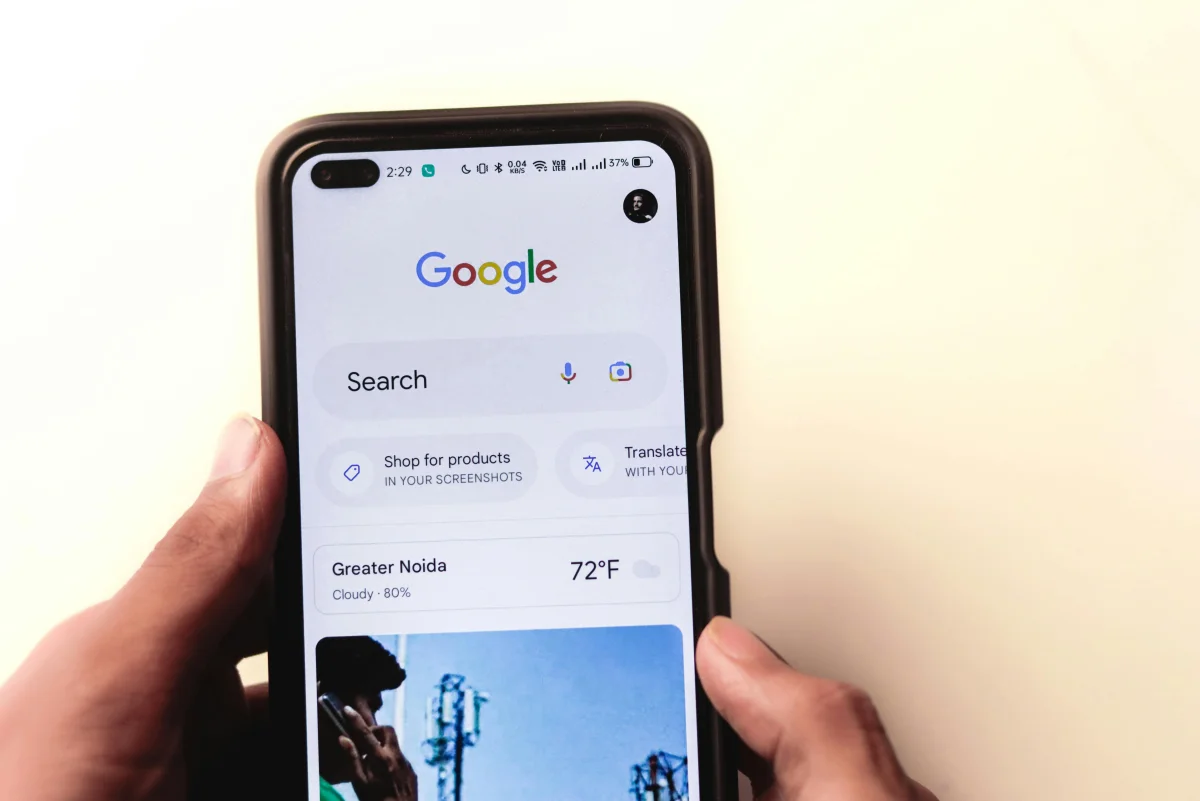
On mobile, open your browser's menu and tap 'Find in Page' (Chrome) or 'Find on Page' (Safari) to search for a keyword on the current webpage.
Mobile browsers don't have a physical keyboard shortcut, but every major browser includes a Find in Page option inside the browser menu. Here's how to access it on the most common platforms.
Chrome on Android
- Open the webpage in Chrome.
- Tap the three-dot menu (⋮) in the top-right corner.
- Tap Find in page.
- Type your keyword — matches are highlighted.
- Use the up/down arrows to move between results.
Chrome on iPhone / iPad
- Open the webpage in Chrome for iOS.
- Tap the three-dot menu (⋯) at the bottom of the screen.
- Tap Find in Page.
- Type your keyword and tap the arrows to navigate.
Safari on iPhone / iPad
- Open the webpage in Safari.
- Tap the Share icon (square with an arrow) at the bottom of the screen.
- Scroll down and tap Find on Page.
- Type your keyword — Safari highlights all matches.
On Samsung Internet, tap the three-line menu and choose Find on page. The interface is similar across all Android browsers — the option is always one or two taps inside the main menu.
Limitations of Ctrl+F You Should Know
Ctrl+F only searches the text currently visible in the browser's DOM on a single page. It cannot search across multiple pages, handle pagination, find text inside images, or extract and save results.
Ctrl+F is powerful for quick lookups, but it has hard boundaries that matter for research and data work:
| Limitation | What It Means |
|---|---|
| Single page only | Every new URL requires a fresh search. There is no way to search a site or a list of URLs in one go. |
| No pagination support | If results are split across pages 1, 2, 3 of a directory, you must search each page manually. |
| Cannot read image text | Text embedded inside images (screenshots, scanned PDFs, charts) is invisible to Ctrl+F. |
| Misses dynamic content | Content loaded by JavaScript after the page renders may not always be found. |
| No export or saving | You can see matches highlighted, but you cannot copy all matches or save a list of where they appear. |
| No cross-site search | Ctrl+F is scoped to the tab — it cannot reach other browser tabs or external sites. |
For a quick sanity check on a single page, Ctrl+F is unbeatable. But if you're trying to find how often a competitor mentions a product across 50 pages, or extract every email address from a directory, you'll quickly hit these walls.
Advanced Ways to Search for a Keyword Across a Website
Use the Google site: operator to search all pages of a website for a keyword. For developers, browser DevTools (F12 → Ctrl+Shift+F) lets you search across all page resources including JavaScript files and network responses.
1. Google Site Search
To find pages across an entire website that contain your keyword, use Google's site: operator directly in the search bar:
site:example.com keyword
This tells Google to return only pages from that domain that mention your keyword. It's useful for finding articles, product pages, or policy documents you know exist somewhere on a large site. You can also add quotes for exact phrases: site:example.com "return policy".
2. Browser DevTools Search (Advanced)
- Press F12 (or Cmd+Option+I on Mac) to open DevTools.
- Press Ctrl+Shift+F (or Cmd+Option+F on Mac) to open the global search panel.
- Type your keyword — DevTools searches across all loaded resources including HTML, CSS, JavaScript, and network responses.
This is primarily useful for developers debugging a page — it can reveal keywords hidden in scripts or API responses that don't appear in the rendered page text.
3. Chrome Extension: Ctrl+F+
Third-party browser extensions like Ctrl+F+ extend Find to support regex patterns and case-sensitive matching for power users who need more precision than the default bar offers.
When Ctrl+F Is Not Enough: Extract Instead of Search
When you need to find, collect, and save data from multiple pages or an entire website, a web scraping tool is the right approach — it automates what Ctrl+F can only do manually, one page at a time.
Ctrl+F answers the question 'is this word on this page?' For most casual browsing, that's enough. But if your task looks like any of these, you've outgrown Ctrl+F:
- Finding all product prices on a 200-page e-commerce catalogue
- Collecting every email address from a business directory
- Tracking how often competitors mention a keyword across their blog
- Pulling leads from a paginated LinkedIn search or job board
- Saving results to a spreadsheet instead of reading them on screen
In these cases, the right move is a web scraper Chrome extension that can automate the search, navigate pagination, and export structured results to CSV — no coding needed.
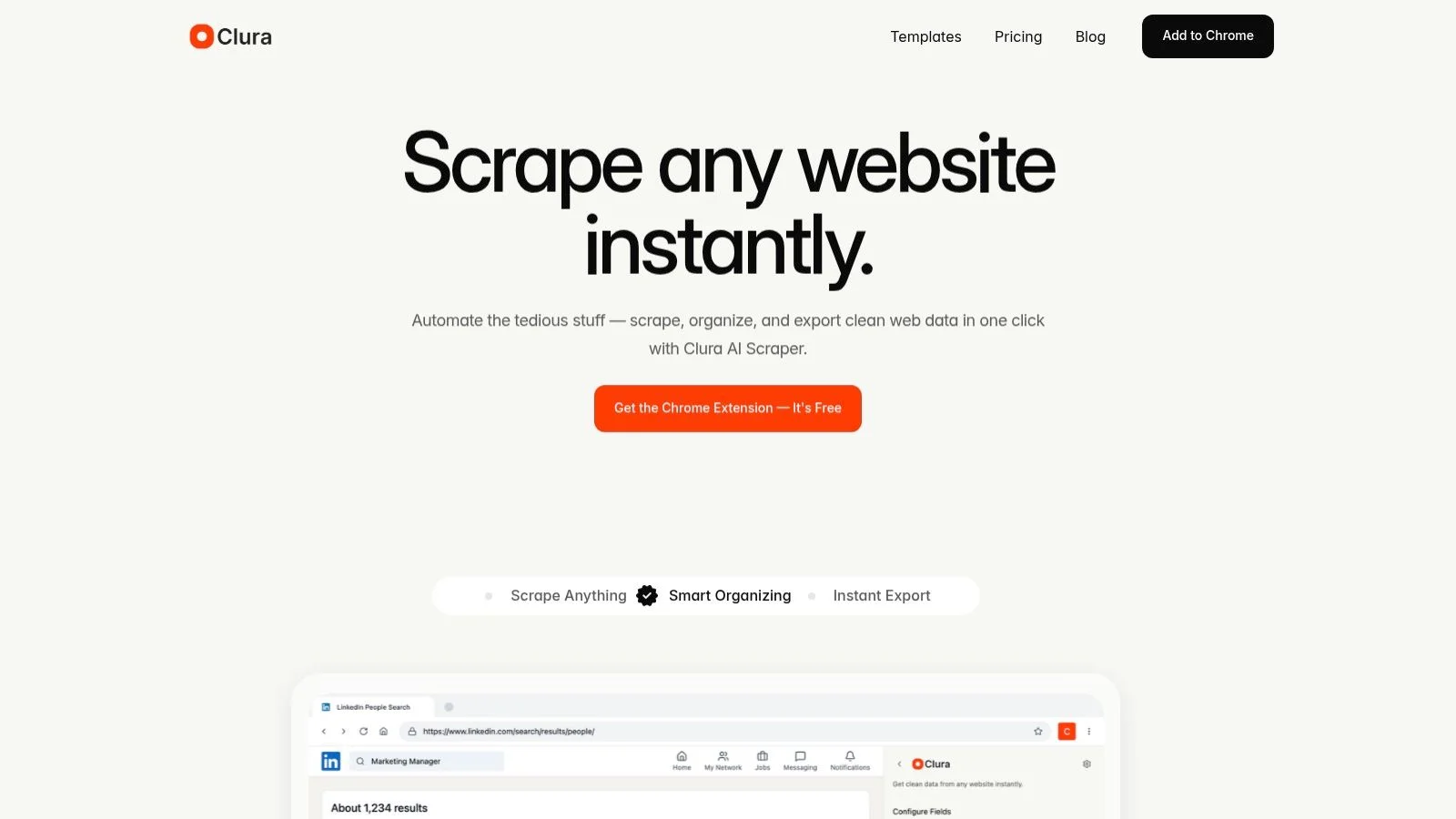
Stop Searching Manually — Extract Data Automatically
Clura's AI Chrome extension scrapes any website into a clean spreadsheet. Handles pagination, infinite scroll, and dynamic content. Free plan includes unlimited local scraping and one full export every 24 hours.
Add to Chrome — Free →Ctrl+F vs. Web Scraping: Which Should You Use?
| Method | Scope | Effort | Saves Results | Best For |
|---|---|---|---|---|
| Ctrl + F / Cmd + F | Single page | Seconds | No | Quick lookups while browsing |
| Google site: search | Entire website | Low | No | Finding which pages mention a keyword |
| Browser DevTools | Page resources | Medium | No | Developer debugging |
| Web scraper (Clura) | Entire website + pagination | Low | Yes — CSV / Excel | Research, lead gen, competitor monitoring |
For anyone doing structured data collection — sales research, market analysis, or competitor tracking — a tool like Clura closes the gap between 'I found the data' and 'I have it in a spreadsheet ready to use.' Learn more about the basics of web scraping if you're new to the concept.
Frequently Asked Questions
What is the keyboard shortcut to search for a keyword on a webpage?
Press Ctrl + F on Windows and Linux, or Cmd + F on Mac. This opens the browser's built-in Find toolbar where you can type any keyword and see all matches highlighted on the current page.
Does Ctrl+F work on all browsers?
Yes. Ctrl+F (or Cmd+F on Mac) works in Chrome, Firefox, Safari, Microsoft Edge, Opera, and virtually every other desktop browser. The keyboard shortcut is standardized across all major platforms.
How do I search for a keyword on a webpage on iPhone or Android?
On Chrome (Android/iOS), tap the three-dot menu and choose 'Find in page'. On Safari (iPhone/iPad), tap the Share icon and then tap 'Find on Page'. Both let you type a keyword and navigate between highlighted matches.
Why can't Ctrl+F find some text on a page?
Three common reasons: the text is inside an image (Ctrl+F cannot read image text), the content is loaded dynamically by JavaScript after the initial page load, or the text is inside an iframe or embedded widget. Developer tools or a scraping tool may be needed to find that content.
How do I search for a keyword across an entire website?
Use Google's site: operator — type site:example.com keyword in the Google search bar. This shows all indexed pages on that domain containing your keyword. For extracting data from multiple pages, a web scraping tool like Clura is more effective.
Can I save or export the results of a Ctrl+F search?
No. The browser's built-in Find feature only highlights results on screen — it does not let you copy all matches or export them. To collect and save search results, you need a web scraping or data extraction tool.
Conclusion
Ctrl+F and Cmd+F are the fastest tools for finding a keyword on a single webpage — and knowing the keyboard shortcuts, match cycling, and mobile equivalents makes them even more effective for day-to-day browsing.
When your needs go beyond one page — collecting data across a site, exporting results, or monitoring changes over time — a web scraping tool like Clura fills the gap. It does in one click what would take hours of manual Ctrl+F searches across hundreds of pages.
Explore related guides:
- What Is Web Scraping — a beginner's guide to automated data extraction from websites
- Web Scraper for Chrome — the best Chrome extensions for extracting data from any webpage
- How to Scrape Data — a step-by-step guide to collecting structured data without coding
- Best Web Scrapers — a comparison of the top web scraping tools for non-technical users
Find and Extract Data From Any Website — No Code Needed
Clura's AI Chrome extension goes beyond Ctrl+F — it scrapes, organizes, and exports data from entire websites into a clean spreadsheet. Free plan includes unlimited local scraping and one full export every 24 hours.
Add to Chrome — Free →