
Email Extractor Chrome Extension: CSV Leads
An email extractor Chrome extension helps you collect public business emails, names, company fields, page URLs, and context from webpages without copying contacts one by one.
This guide covers the Chrome addon workflow for directories, company pages, event pages, and lead research pages: install the extension, preview the rows, enrich when needed, and export a CSV your sales or recruiting team can review. See also our data scraping Chrome extension guide for broader website data extraction use cases.
Extract Public Email Leads to CSV
Clura's AI Chrome extension helps collect public emails, names, roles, company fields, and source URLs from business pages and directories — no code, no manual copy-paste.
Add Clura to Chrome — Free →Why Use an Email Extractor Chrome Addon?
An email extractor Chrome addon replaces manual copy-paste with a browser workflow that finds public business emails, keeps source URLs attached, and exports review-ready CSV files.
A Chrome extension keeps the extraction workflow inside the page you are already reviewing. That matters for lead generation because you can see the source page, preview the captured fields, and decide whether the contact belongs in your list before exporting.
- Build source-backed lead lists: Pull visible emails, names, company names, roles, categories, and URLs from public business pages.
- Keep data reviewable: Export each row with context so your team can verify the source before outreach.
- Reduce repetitive work: Let the extension handle extraction, pagination, and CSV formatting while your team focuses on targeting and messaging.
| Task | Manual Method | With an Extractor |
|---|---|---|
| Finding 50 Public Emails | 1-2 hours of searching, copying, and pasting. Easy to lose source context. | A few minutes to scan the page, preview rows, and export visible contact data. |
| Building a Targeted List | Days of checking directories, company pages, and lead sources one at a time. | Collect rows from repeatable source pages and export a consistent CSV. |
| Reviewing Source Context | Separate tabs and notes are needed to remember where each lead came from. | Source URLs stay attached so sales, recruiting, or research teams can verify the row. |
How to Install an Email Extractor Chrome Extension
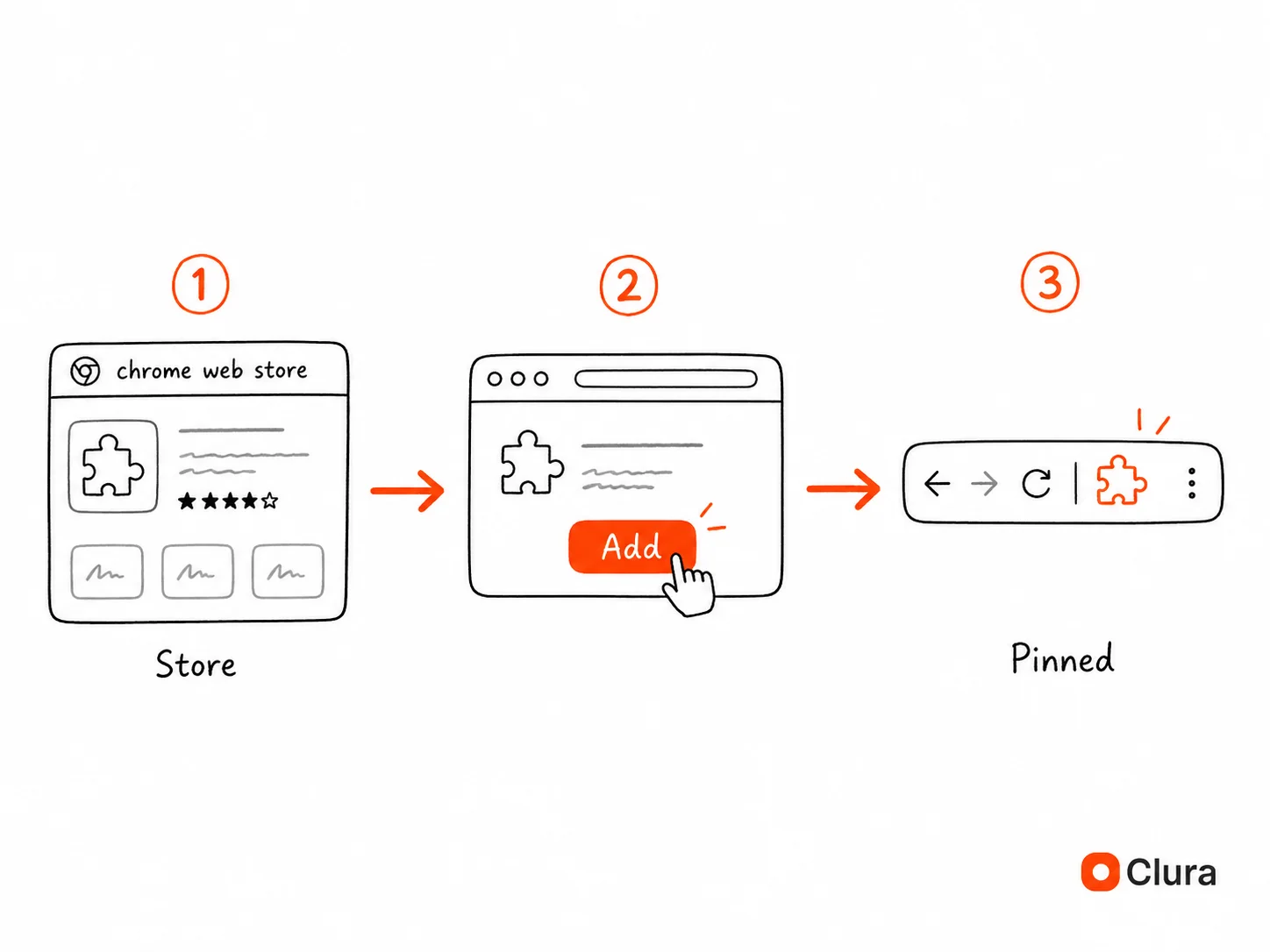
Installing an email extractor Chrome extension takes under five minutes: open the Chrome Web Store, click Add to Chrome, and pin the extension to your toolbar.
- Visit the Chrome Web Store: Open a new tab, navigate to the Chrome Web Store, and search for the extension you want.
- Add and Pin the Extension: Click 'Add to Chrome,' then click the puzzle-piece icon and pin the extension to your toolbar for one-click access.
- Open a Source Page: Go to a directory, company page, event page, or public business listing, then run the extension and review the detected columns before export.
Use Case: Turn Business Pages Into CSV Leads
Use an email extractor extension on public business pages to collect visible emails, names, company fields, categories, and source URLs, then export the rows to CSV.
Say you are building a list of mobile app development agencies, local contractors, SaaS vendors, or event sponsors. A good email extractor Chrome addon can collect the visible contact fields from each source page while preserving the page URL for review.
- Open a relevant source: Start with a public directory, company team page, event exhibitor list, or business listing page.
- Preview detected rows: Check that the extension captured the email, name, company, category, location, and source URL fields you need.
- Export your CSV: Download the clean dataset and review it before adding contacts to a CRM or outreach platform.
For full lead-list workflows, pair this guide with the lead scraper guide, the web scraping for lead generation guide, and the free website contact scraper.
Advanced Tactics for Smarter Email Lead Extraction
Advanced email lead extraction means starting from high-intent source pages, enriching missing fields only after export, and deduplicating rows before outreach.
Go Beyond One-Off Email Copying
- Company team pages: Capture visible department, role, and contact details from pages where companies publish business contacts.
- Online directories: Collect category, location, website, phone, and visible email fields from niche directories.
- Event and partner pages: Export sponsors, exhibitors, speakers, or partner companies with source URLs for follow-up research.
Tips for Sales Teams
- Target by Seniority: Zero in on a company's leadership page to find VPs and Directors — the people who make decisions.
- Focus on Specific Departments: Selling marketing software? Only pull contacts from the marketing or growth team.
- Leverage Industry Events: Scrape speaker or attendee lists from conference websites to reach the most engaged leaders in your niche.
Stop Copy-Pasting Emails — Automate It
Clura turns public directories, company pages, and research pages into reviewable lead lists. Export clean CSV data in seconds, not hours.
Add to Chrome — Free →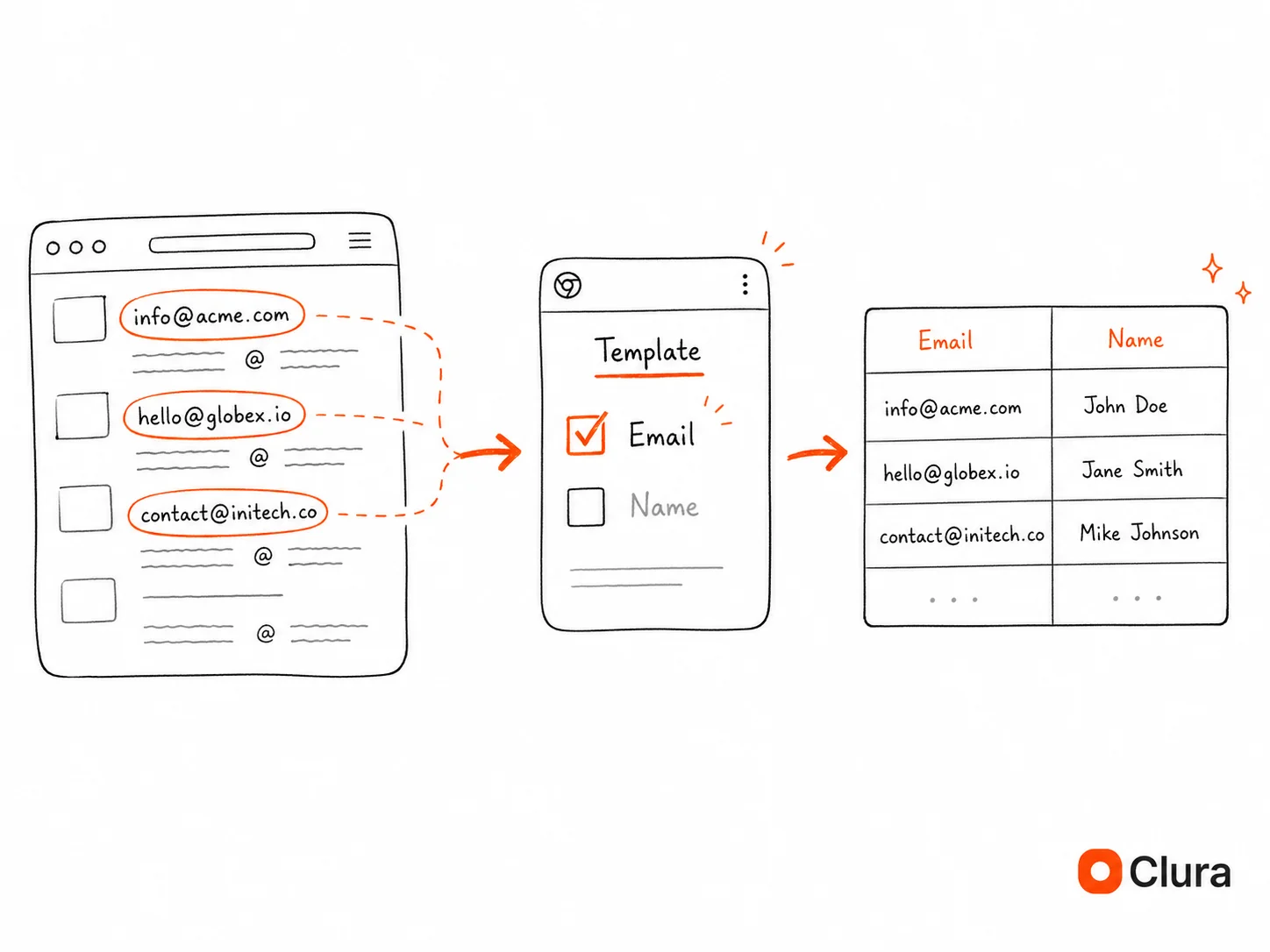
Using Email Extractors Ethically and Responsibly
Ethical email extraction means collecting only publicly available business contact information, following GDPR and CAN-SPAM compliance rules, and scraping at a human-like speed to respect website servers.
Automation is powerful, but with power comes responsibility. Using these tools the right way is about more than dodging spam filters — it's about building a solid outreach strategy that earns respect and gets results.
- Stick to Public Business Data: Only collect publicly available business contact information — work emails, job titles, and company names that professionals willingly share.
- Follow GDPR and CAN-SPAM: Be transparent about who you are, provide genuine value, and always include a one-click opt-out in every email.
- Respect Website Servers: Use tools built for responsible scraping at human-like speeds. Scraping too aggressively can slow a site or get your IP blocked.
For a full breakdown of what's allowed, read our guide on web scraping legality.
Frequently Asked Questions
Is using an email extractor Chrome extension legal?
Yes, when used correctly. Think of it as an automated way to gather information that's already public — the digital equivalent of manually noting a 'contact@company.com' email from a website. The key rules: stick to business contact information, ensure outreach has a legitimate professional purpose, and always include a clear opt-out.
What is the best email extractor Chrome addon for CSV lead lists?
The best email extractor Chrome addon depends on the source page. For teams that need public emails plus names, company fields, categories, and source URLs, Clura is useful because it previews structured rows before export and can capture broader webpage data beyond just email addresses.
How accurate is the data from an email extractor?
Accuracy depends on the source page and whether the email is visible, inferred, or enriched. Treat every export as a reviewable list: keep source URLs attached, deduplicate rows, validate emails before sending, and avoid buying stale contact lists with no source context.
Will an email extractor Chrome extension work on any website?
Most browser-based email extractors work best on pages that already contain visible business contact information, such as company pages, directories, event pages, and public listings. Always respect a website's terms of service and avoid private or restricted data.
How long does it take to build a lead list with an email extractor?
A targeted list of 100 qualified leads from a LinkedIn search typically takes under 10 minutes from start to export: run your search, click the extension to scan results, review the data, and export the CSV.
What's the difference between an email extractor and a web scraper?
An email extractor is a specialized type of web scraper focused specifically on finding and verifying email addresses. A general web scraper like Clura can extract any structured data from a webpage — names, emails, job titles, prices, reviews, and more — making it more versatile for broader data collection workflows.
Can an email extractor extension also capture names and company fields?
Yes. A modern email extractor extension should capture the email plus surrounding business context: name, role, company, website, location, category, phone, and source URL when those fields are present on the page.
Conclusion
Using an email extractor Chrome extension is not just about finding addresses. It is about turning public source pages into reviewable contact datasets with the context your team needs before outreach.
Start with one source page, preview the detected fields, export a small CSV, and check the quality. Once the row shape is right, repeat the workflow across similar pages.
Explore related guides:
- Lead Scraper Guide — build source-backed lead lists from directories, company pages, and public websites
- Free Website Contact Scraper — find public emails, phone numbers, contact pages, and social links from one domain
- Data Scraping Chrome Extension — how to use a Chrome extension to extract data from any website
- Web Scraping Legality — what you can and cannot collect from public websites
Build Clean Email Lead Lists in Minutes
Clura helps extract public emails, names, company fields, and source URLs from websites with a single click. No code, no manual copy-paste.
Add to Chrome — Free →