
12 Best Chrome Extensions for Productivity in 2026
Losing hours to manual tasks, disorganized tabs, and constant context-switching? Chrome extensions transform your browser into a streamlined workstation. This guide cuts through the noise to bring you the definitive list of the best Chrome extensions for productivity — tested by professionals who need to work smarter, not harder.
Whether you're building lead lists with a data scraping Chrome extension, tracking competitors, or sourcing talent, the right extension saves hours every week. Here's a practical breakdown of each tool including key features, pros and cons, and pricing.
Automate Your Data Collection in One Click
Clura is the AI-powered Chrome extension that extracts structured data from any website — LinkedIn profiles, Amazon listings, directories, and more — and exports a clean CSV in seconds.
Add Clura to Chrome — Free →1. Clura — AI Web Scraper
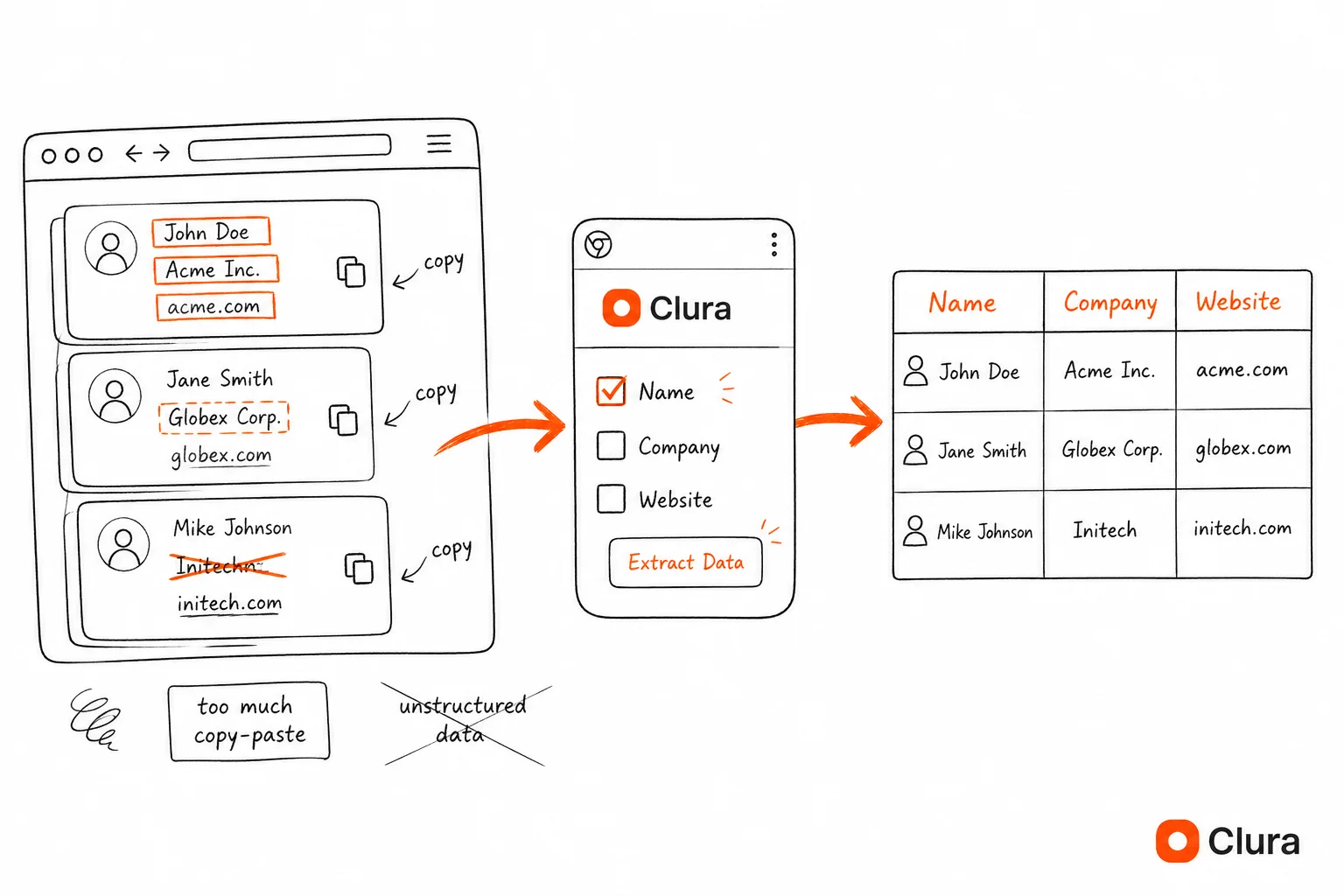
Clura is an AI-powered Chrome extension that automates web data collection: visit any page, click the extension, and download a clean CSV of structured data — no code required.
Clura isn't just another extension; it's an AI agent that lives in your browser, automating how you collect and organize web data. With a single click, it handles repetitive scraping tasks, freeing your team to focus on analysis and outreach.
- One-Click AI Automation: The AI identifies and extracts structured data from complex websites. Navigate to a page, click the extension, and get clean organized information as a downloadable CSV.
- Works Everywhere: LinkedIn, X (Twitter), company websites, job boards, app stores, and e-commerce platforms like Shopify and Amazon.
- No-Code Templates: Pre-built templates for lead generation, price monitoring, and market research eliminate the learning curve.
- Save 6 Hours per Week: Users report saving an average of six hours weekly by automating tedious manual data entry.
| Pros | Cons |
|---|---|
| Saves hours with one-click automated data extraction | Chrome-only; no support for other browsers |
| No-code workflow accessible for non-technical teams | Plan quotas vary; confirm current limits before purchase |
| Works on almost any site, supporting diverse use cases | |
| Generous free plan and affordable entry-level paid tier |
Pricing: Free plan — unlimited local scraping, 1 export every 24 hours. Lifetime Plan — starts at $29.99 lifetime. Explore the best data extraction software guide to compare options.
2. Chrome Web Store — The Official Marketplace
The Chrome Web Store is Google's official, secure marketplace for Chrome extensions — the safest place to discover, install, and sync extensions across devices.
Before diving into specific tools, start at the source: the official Chrome Web Store. Google's platform provides powerful curation, transparent user ratings, and security vetting — making it the essential first stop for finding productivity tools.
| Feature | Pro | Con |
|---|---|---|
| Discovery | Editor's Picks and themed collections simplify finding quality tools | The sheer volume of extensions can be overwhelming |
| Security | Official, Google-vetted installation path reduces security risks | Quality varies; some listings have minimal developer info |
| Usability | One-click install and automatic syncing across devices | Pricing details are often not listed directly on the store page |
Task Managers & Focus Tools
The best Chrome task manager extensions — Todoist and Momentum Dash — let you capture web pages as tasks using natural language and set a daily focus goal on every new tab.
8. Todoist
Todoist's Chrome extension lets you turn any webpage into a task without leaving your current tab. Type "Follow up on this article next Tuesday at 9am" and it automatically schedules it. Its cross-platform sync across desktop, phone, and tablet is rock-solid.
11. Momentum Dash
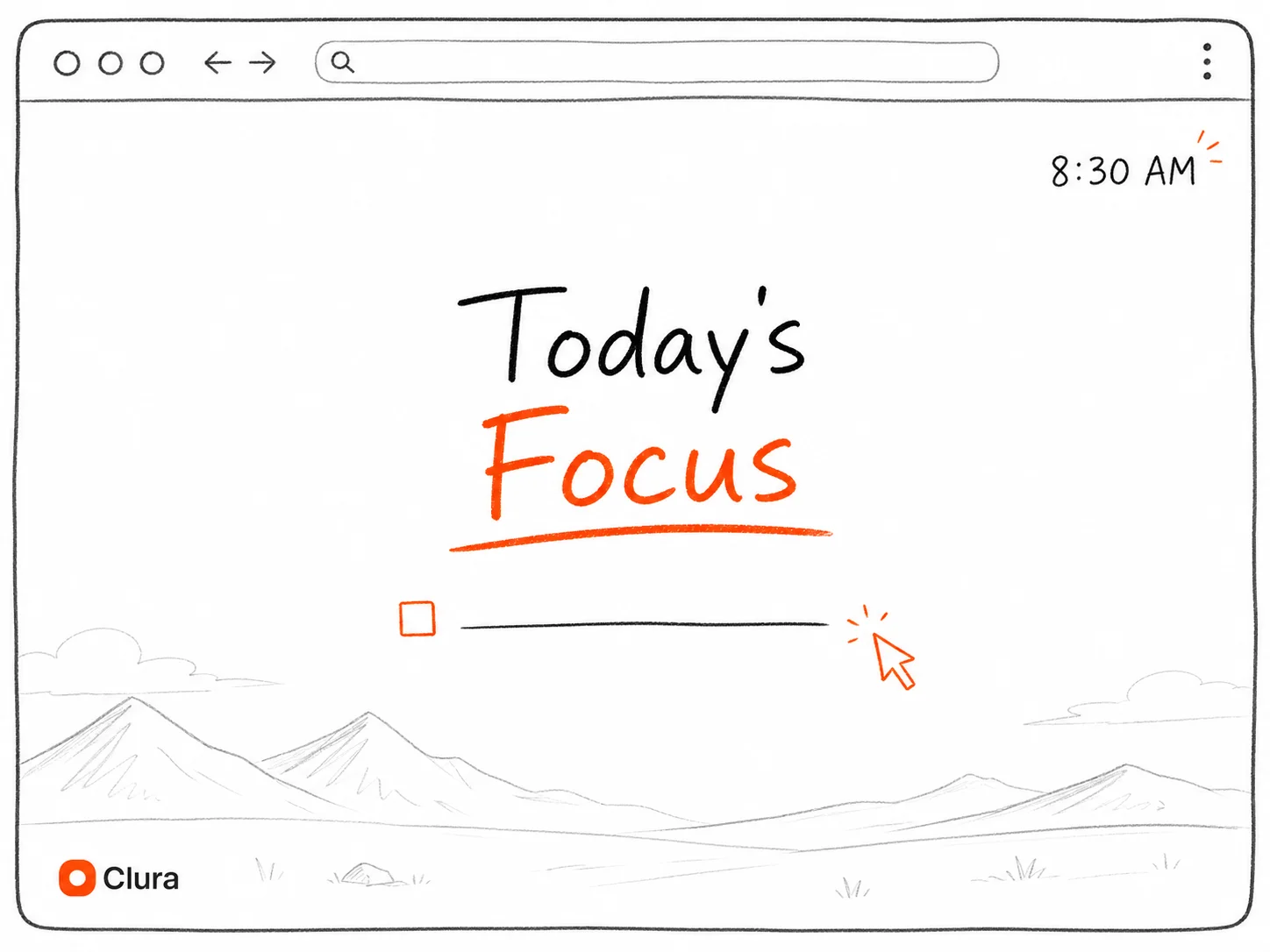
Momentum transforms your new-tab page into a beautiful personal dashboard. It asks one powerful question each day: "What is your main focus for today?" This simple prompt helps build focus habits every time you open a new tab — ideal for professionals easily distracted.
Security & Communication Extensions
LastPass secures every login with a single master password and strong password generation, while Loom lets you record your screen and share a link instantly — eliminating unnecessary meetings.
9. LastPass
LastPass centralizes your digital identity — from simple logins to complex passkeys — all accessible with a single master password. For teams managing dozens of SaaS tools and CRMs, this is an essential security and productivity tool. Its ability to securely share credentials with teammates without exposing the actual password is a game-changer.
10. Loom
Loom's Chrome screen recorder lets you record your screen, camera, and voice directly from your browser, then instantly share a link. Learn more at the Loom Chrome screen recorder page. Recipients don't need a Loom account to view the video, removing barriers and encouraging engagement.
Build Your Productivity Stack Starting with Data
Clura automates the most time-consuming part of any workflow — collecting data. Add it to Chrome for free and see how much time you save on your first extraction.
Add to Chrome — Free →Knowledge Management — Notion Web Clipper
The Notion Web Clipper saves articles and webpages directly into specific Notion database pages with tags and metadata — turning web research into an organized, searchable knowledge base.
For teams living inside Notion, the official Notion Web Clipper is a non-negotiable productivity booster. It transforms your browser into a powerful research tool, allowing you to instantly save articles and web pages directly into your Notion workspace — and immediately tag them, assign a status, or link them to a project.
| Feature | Pro | Con |
|---|---|---|
| Structured Clipping | Save directly to databases and map properties like tags or status | Requires you to fully commit to Notion for organization |
| Integration | Seamlessly integrates with existing Notion pages and workspaces | Useless without a Notion account |
| Collaboration | Clipped content is immediately available to team members | Formatting of clipped pages can sometimes be inconsistent |
How to Build Your Ultimate Productivity Stack
Build an effective Chrome extension productivity stack by identifying your biggest bottleneck first, installing one or two tools that directly address it, then evaluating results before expanding.
- Identify Your Biggest Bottleneck: Pinpoint your most significant time-waster before installing anything. Is it managing tabs? Forgetting tasks? Manually copying data for lead lists?
- Start Small: Choose one or two tools from this list that directly address your main bottleneck and test them for a week.
- Build Smart Workflows: Think about how your extensions connect. Use a web clipper to save an article, a task manager to create a follow-up action, and Clura to extract key data from the source.
- Evaluate and Refine: Re-evaluate your stack every few months. A lean, effective toolkit beats a cluttered one.
Frequently Asked Questions
What are the best Chrome extensions for productivity in 2026?
The best Chrome extensions for productivity include Clura (AI data extraction), Todoist (task management), LastPass (password management), Loom (async video), Momentum Dash (focus), and the Notion Web Clipper (knowledge management). The right combination depends on your biggest workflow bottleneck.
Are Chrome productivity extensions safe to install?
Extensions installed from the official Chrome Web Store are vetted by Google. Always check the permissions an extension requests and read reviews before installing. Stick to extensions with a large user base and active developer support.
Can I use Chrome extensions for data collection without coding?
Yes. Tools like Clura use AI and no-code smart templates to extract structured data from any public website with a single click. You select what you want to collect, and the AI handles the rest — no programming skills required.
How many Chrome extensions should I have installed?
Keep your stack lean — ideally 5 to 8 actively used extensions. Too many extensions can slow your browser, create security risks, and cause confusion. Start with one or two that address your biggest pain point, then add others once those are part of your routine.
Is there a free Chrome extension for web scraping?
Yes. Clura offers a free plan with unlimited local scraping and one full export every 24 hours — enough to test the workflow and handle smaller data collection projects. Install it from the Chrome Web Store in one click.
Conclusion
Choosing the best Chrome extensions for productivity is a strategic decision to reclaim your time, automate tedious work, and free up mental energy for high-impact tasks. The tools above cover every major category — data collection, task management, security, communication, and knowledge management.
Start with the extension that solves your biggest daily bottleneck. Once you've built that habit, layer in complementary tools to create a powerful, connected workflow.
Explore related guides:
- Data Scraping Chrome Extension — how to use a Chrome extension to extract data from any website
- Best Data Extraction Software — a comparison of the top tools for automated data collection
- How to Scrape Data from LinkedIn — step-by-step guide to building targeted LinkedIn lead lists
Eliminate Your Biggest Time-Sink: Manual Data Collection
Clura automates data extraction from any website with a single click — turning hours of tedious research into seconds of automated workflow. Get started free today.
Add to Chrome — Free →